> ## Documentation Index
> Fetch the complete documentation index at: https://docs.jitra.app/llms.txt
> Use this file to discover all available pages before exploring further.
# Creating an API Client
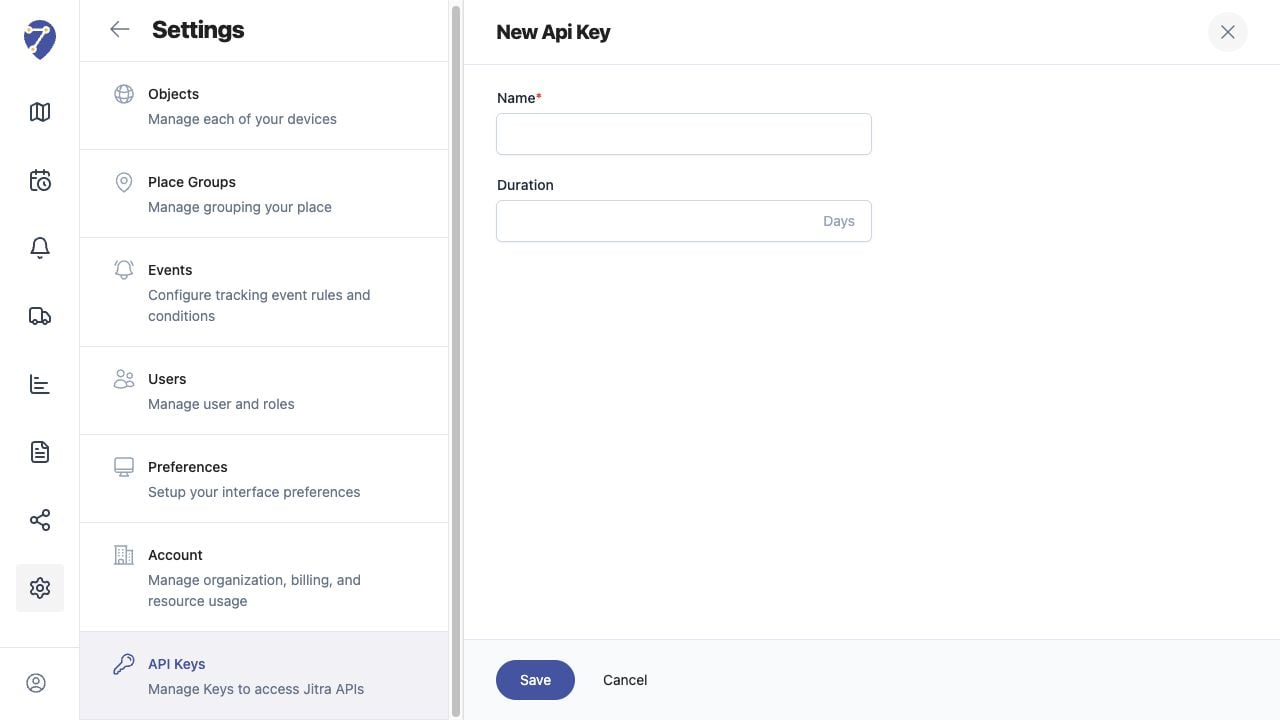
> In the current UI, an API client is represented by an API Key record with a Name and optional Duration in days.
In the current UI, an API client is represented by an API Key record with a Name and optional Duration in days.
## What to Check
1. Open Settings > API Keys.
2. Click New.
3. Enter a Name that identifies the system and owner.
4. Set Duration according to the approved rotation period.
5. Click Save and protect the issued credential.
## Current Jitra Workflow
Do not use a person's name alone or create a non-expiring key without an approved reason. The key is a secret and must not be placed in screenshots, source control, or chat.
 ## Reviewing the Result
Confirm the saved or displayed information matches the intended Object, users, period, and Organization workflow.
## If the Issue Continues
Review required fields, access permissions, available data, and Organization limits. Contact an Organization administrator or Jitra support when the required control is unavailable.
## Reviewing the Result
Confirm the saved or displayed information matches the intended Object, users, period, and Organization workflow.
## If the Issue Continues
Review required fields, access permissions, available data, and Organization limits. Contact an Organization administrator or Jitra support when the required control is unavailable.