> ## Documentation Index
> Fetch the complete documentation index at: https://docs.jitra.app/llms.txt
> Use this file to discover all available pages before exploring further.
# Configuring Object Display
> Object Display controls the detail shown under Object names and the colors used for connection and movement states.
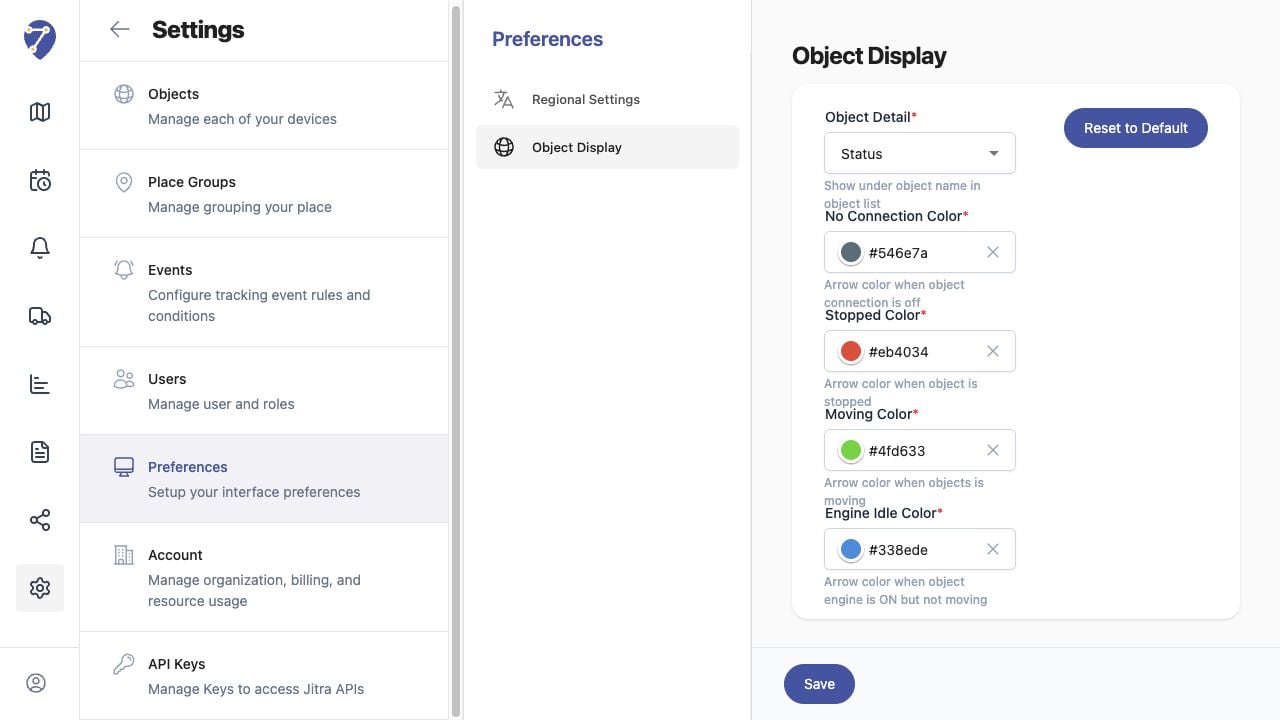
Object Display controls the detail shown under Object names and the colors used for connection and movement states.
## What to Check
* Object Detail shown in the Object list
* No Connection Color
* Stopped Color
* Moving Color
* Engine Idle Color
## Current Jitra Workflow
Open Settings > Preferences > Object Display, choose the detail and colors, then click Save. Reset to Default restores the standard values.
 ## Reviewing the Result
Confirm the saved or displayed information matches the intended Object, users, period, and Organization workflow.
## If the Issue Continues
Review required fields, access permissions, available data, and Organization limits. Contact an Organization administrator or Jitra support when the required control is unavailable.
## Reviewing the Result
Confirm the saved or displayed information matches the intended Object, users, period, and Organization workflow.
## If the Issue Continues
Review required fields, access permissions, available data, and Organization limits. Contact an Organization administrator or Jitra support when the required control is unavailable.