> ## Documentation Index
> Fetch the complete documentation index at: https://docs.jitra.app/llms.txt
> Use this file to discover all available pages before exploring further.
# Understanding Your Organization
> An Organization is the account boundary that owns Jitra resources, users, subscription settings, and shared access.
An Organization is the account boundary that owns Jitra resources, users, subscription settings, and shared access.
## What to Check
* Organization profile and Organization ID
* Objects, Places, Events, Reports, and Fleet resources
* Users, Roles, and assignments
* Billing, Resource Usage, and integrations
## Current Jitra Workflow
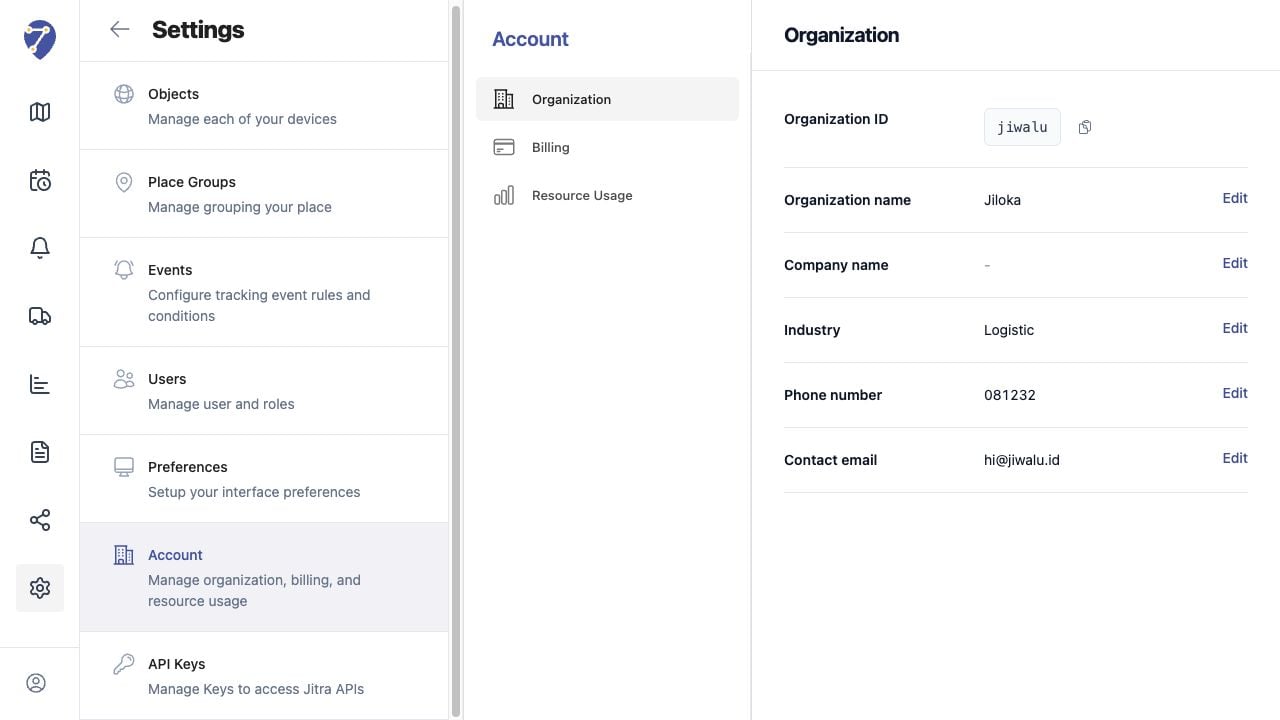
Open Settings > Account > Organization to view the identity and editable contact fields.
 ## Reviewing the Result
Confirm the saved or displayed information matches the intended Object, users, period, and Organization workflow.
## If the Issue Continues
Review required fields, access permissions, available data, and Organization limits. Contact an Organization administrator or Jitra support when the required control is unavailable.
## Reviewing the Result
Confirm the saved or displayed information matches the intended Object, users, period, and Organization workflow.
## If the Issue Continues
Review required fields, access permissions, available data, and Organization limits. Contact an Organization administrator or Jitra support when the required control is unavailable.