> ## Documentation Index
> Fetch the complete documentation index at: https://docs.jitra.app/llms.txt
> Use this file to discover all available pages before exploring further.
# Making a Payment
> Payment begins from a valid billable subscription change or an available invoice, depending on the Organization state.
Payment begins from a valid billable subscription change or an available invoice, depending on the Organization state.
## What to Check
* Verify Organization and billing details.
* Review plan, quota, add-ons, billing period, tax, and Total Due.
* Obtain internal approval.
* Click Process only when enabled.
* Confirm the resulting invoice or subscription status.
## Current Jitra Workflow
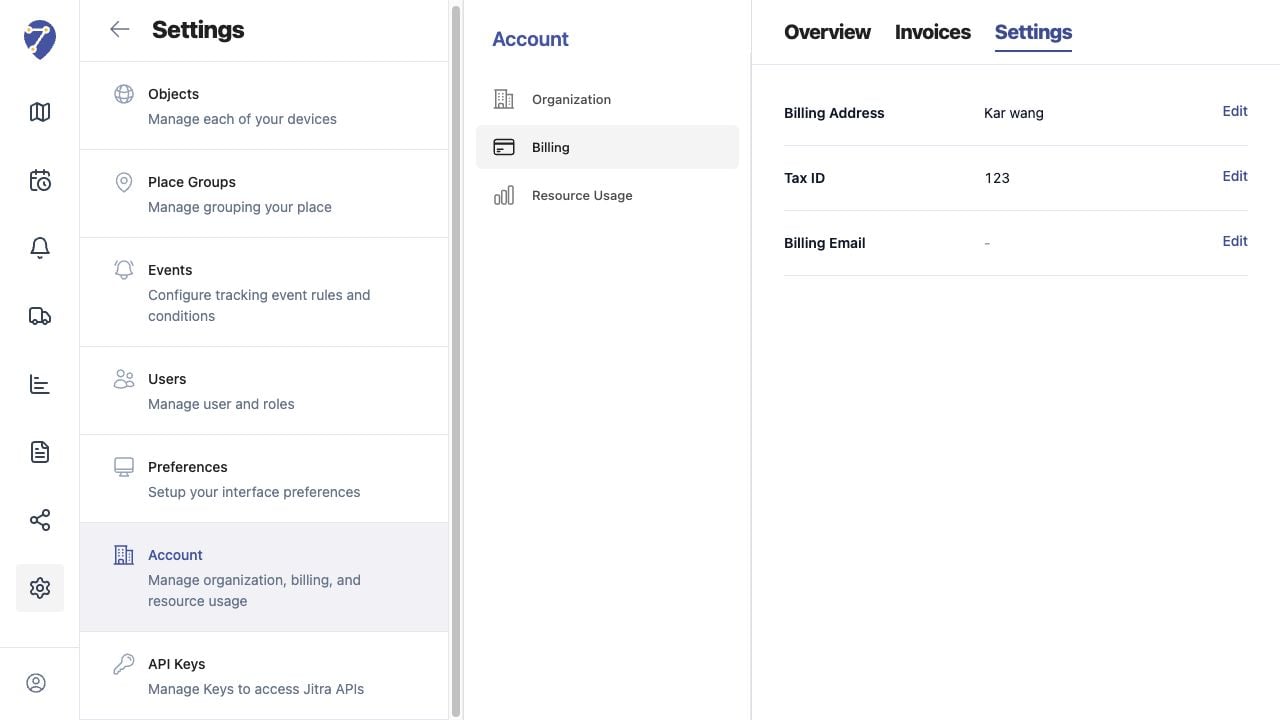
Billing Settings stores Billing Address, Tax ID, and Billing Email. Keep them current before initiating payment.
 ## Reviewing the Result
Confirm the saved or displayed information matches the intended Object, users, period, and Organization workflow.
## If the Issue Continues
Review required fields, access permissions, available data, and Organization limits. Contact an Organization administrator or Jitra support when the required control is unavailable.
## Reviewing the Result
Confirm the saved or displayed information matches the intended Object, users, period, and Organization workflow.
## If the Issue Continues
Review required fields, access permissions, available data, and Organization limits. Contact an Organization administrator or Jitra support when the required control is unavailable.