> ## Documentation Index
> Fetch the complete documentation index at: https://docs.jitra.app/llms.txt
> Use this file to discover all available pages before exploring further.
# Deactivating or Removing Users
> Deactivate access when a user should temporarily or permanently stop using the Organization, and delete only when removal is appropriate.
Deactivate access when a user should temporarily or permanently stop using the Organization, and delete only when removal is appropriate.
## What to Check
* Confirm the correct user and business approval.
* Review Roles and resource assignments.
* Use Deactivate when access may need to be restored.
* Use Delete only when available and retention requirements permit it.
* Superadmin protections can disable these actions.
## Current Jitra Workflow
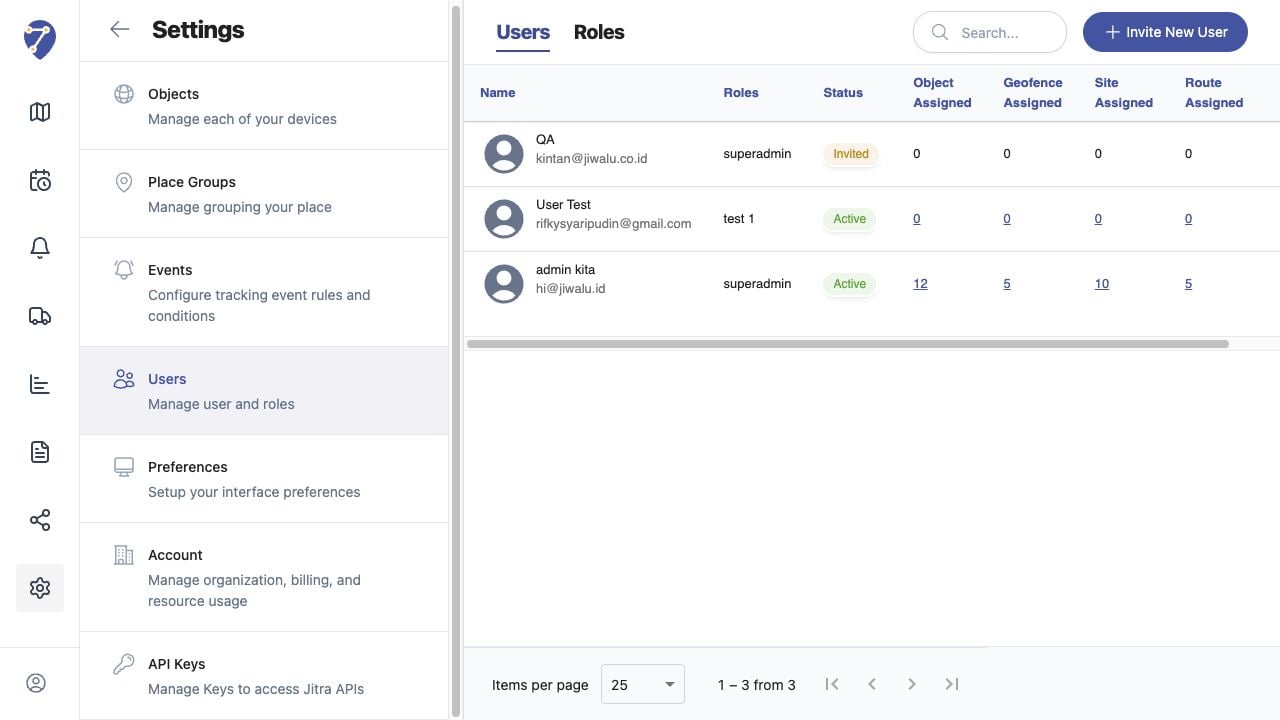
Open the user action menu. Jitra can disable Deactivate or Delete for protected accounts such as the active superadmin.
 ## Reviewing the Result
Confirm the saved or displayed information matches the intended Object, users, period, and Organization workflow.
## If the Issue Continues
Review required fields, access permissions, available data, and Organization limits. Contact an Organization administrator or Jitra support when the required control is unavailable.
## Reviewing the Result
Confirm the saved or displayed information matches the intended Object, users, period, and Organization workflow.
## If the Issue Continues
Review required fields, access permissions, available data, and Organization limits. Contact an Organization administrator or Jitra support when the required control is unavailable.