> ## Documentation Index
> Fetch the complete documentation index at: https://docs.jitra.app/llms.txt
> Use this file to discover all available pages before exploring further.
# Inviting Users to Your Organization
> Invite a user to a Jitra Organization with their name, email, and Roles, then monitor invitation status.
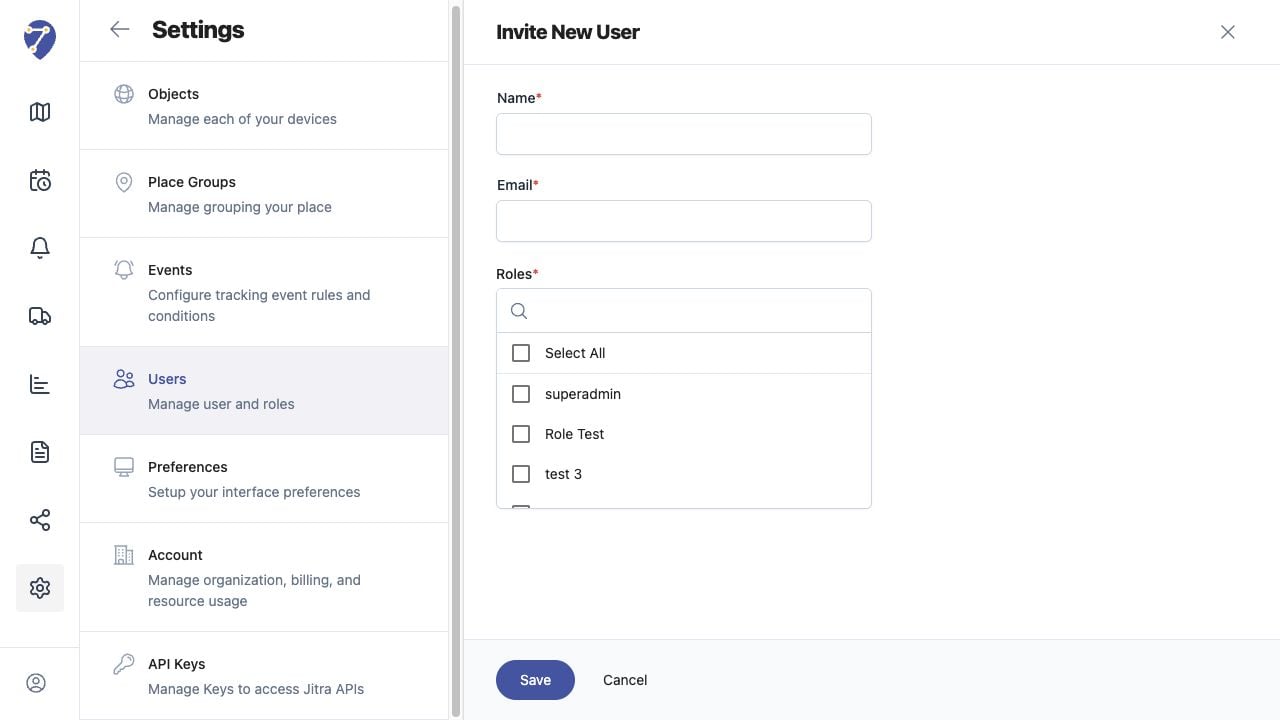
Invite New User creates an invitation using the person's name, email, and one or more Roles.
## What to Check
1. Open Settings > Users and click Invite New User.
2. Enter Name and Email.
3. Select at least one Role.
4. Review the selected Roles.
5. Click Save and confirm the user appears with Invited status.
## Current Jitra Workflow
After saving, the user appears with Invited status until the invitation flow is completed.
 ## Reviewing the Result
Confirm the saved or displayed information matches the intended Object, users, period, and Organization workflow.
## If the Issue Continues
Review required fields, access permissions, available data, and Organization limits. Contact an Organization administrator or Jitra support when the required control is unavailable.
## Reviewing the Result
Confirm the saved or displayed information matches the intended Object, users, period, and Organization workflow.
## If the Issue Continues
Review required fields, access permissions, available data, and Organization limits. Contact an Organization administrator or Jitra support when the required control is unavailable.