> ## Documentation Index
> Fetch the complete documentation index at: https://docs.jitra.app/llms.txt
> Use this file to discover all available pages before exploring further.
# Assigning Objects to a Fuel & Emission Profile
> Learn how to review and change Object assignments for a Fuel & Emission Profile.
Object assignment determines which Fuel & Emission calculation settings are applied to each tracked unit.
## Opening Assigned Objects
1. Open Analytics > Fuel & Emission > Profile.
2. Click the Total Object count for the Profile.
 ## Reviewing the Assignment
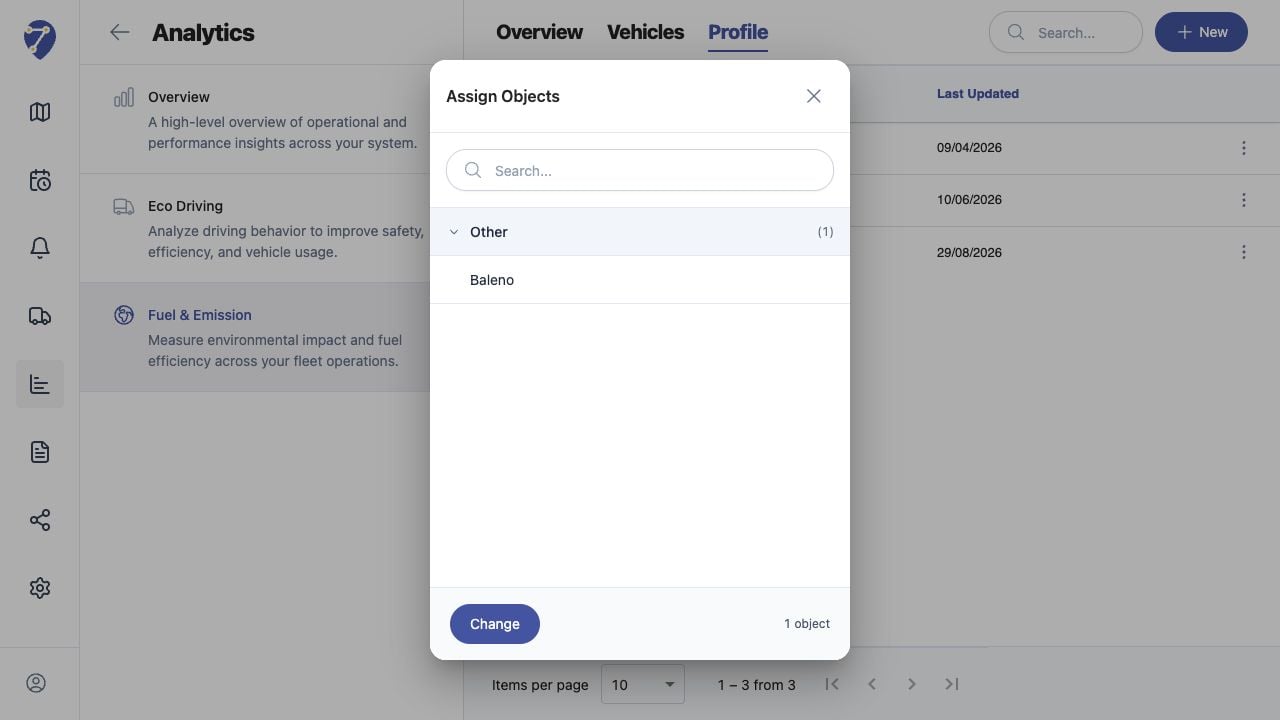
The Assign Objects dialog shows the currently assigned Object group and Objects. Use Search to locate a specific Object.
## Changing Assigned Objects
Click Change, update the Object selection, review it, and save using the available assignment action.
## Choosing the Correct Profile
Assign Objects only when their Fuel Type, Fuel Ratio, CO2 Factor, and Idle Fuel assumptions match the Profile. Use separate Profiles for materially different vehicle classes.
## Checking the Result
Confirm the Total Object count, then select the Profile in Overview or Vehicles and load a period with tracking data.
## Reviewing the Assignment
The Assign Objects dialog shows the currently assigned Object group and Objects. Use Search to locate a specific Object.
## Changing Assigned Objects
Click Change, update the Object selection, review it, and save using the available assignment action.
## Choosing the Correct Profile
Assign Objects only when their Fuel Type, Fuel Ratio, CO2 Factor, and Idle Fuel assumptions match the Profile. Use separate Profiles for materially different vehicle classes.
## Checking the Result
Confirm the Total Object count, then select the Profile in Overview or Vehicles and load a period with tracking data.