> ## Documentation Index
> Fetch the complete documentation index at: https://docs.jitra.app/llms.txt
> Use this file to discover all available pages before exploring further.
# Creating a Fuel & Emission Profile
> Learn how to create, edit, and delete a Fuel & Emission Profile in Jitra Analytics.
A Fuel & Emission Profile stores the assumptions used to calculate fuel and emissions for assigned Objects.
## Opening the Profile Form
1. Open Analytics > Fuel & Emission.
2. Select Profile.
3. Click New.
 ## Completing General Settings
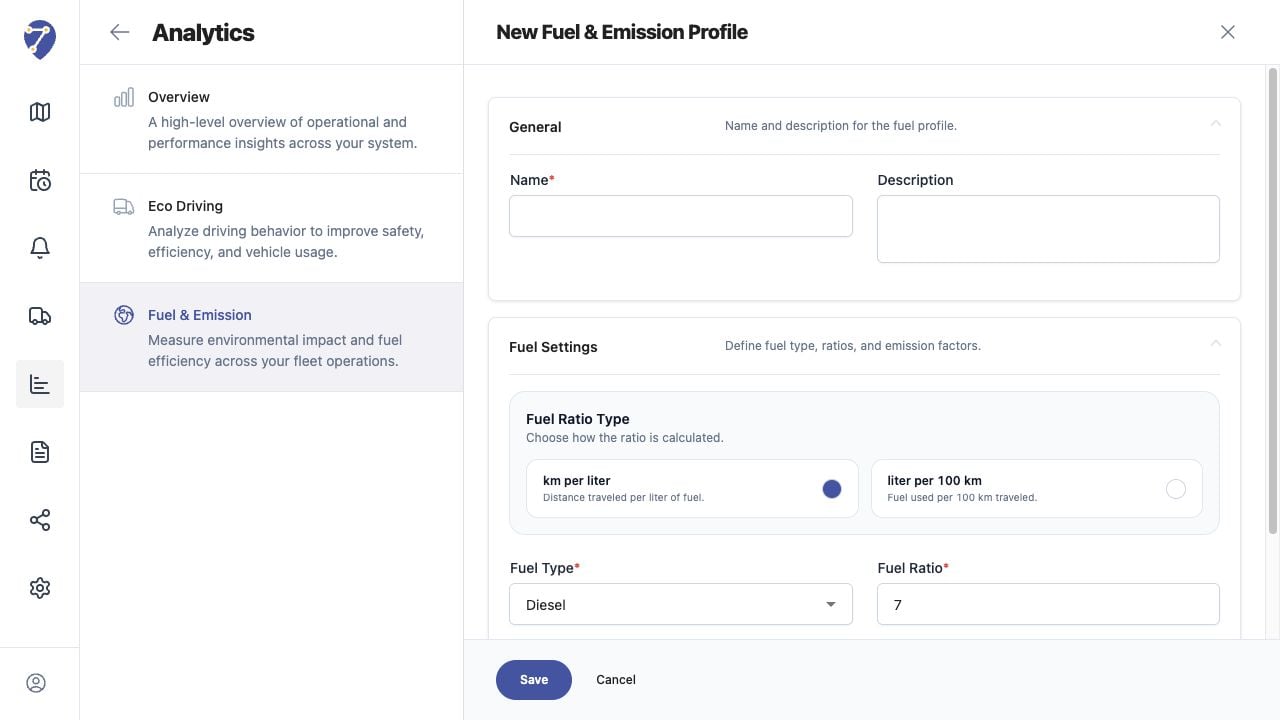
Enter a clear Name and optional Description that identify the vehicle class or calculation method.
## Completing Fuel Settings
Choose Fuel Ratio Type and Fuel Type, then enter CO2 Factor, Fuel Ratio, and Idle Fuel (L/h). Click Save after reviewing all units.
## Editing a Profile
Open the Profile row action menu and select Edit. Profile changes alter subsequent calculations shown with that Profile.
## Deleting a Profile
Open the action menu and select Delete. Review its assigned Object count and confirm that the calculation method is no longer required.
## Completing General Settings
Enter a clear Name and optional Description that identify the vehicle class or calculation method.
## Completing Fuel Settings
Choose Fuel Ratio Type and Fuel Type, then enter CO2 Factor, Fuel Ratio, and Idle Fuel (L/h). Click Save after reviewing all units.
## Editing a Profile
Open the Profile row action menu and select Edit. Profile changes alter subsequent calculations shown with that Profile.
## Deleting a Profile
Open the action menu and select Delete. Review its assigned Object count and confirm that the calculation method is no longer required.