> ## Documentation Index
> Fetch the complete documentation index at: https://docs.jitra.app/llms.txt
> Use this file to discover all available pages before exploring further.
# Viewing Fuel & Emission Overview
> Learn how to filter and read fleet fuel, emission, trend, and vehicle ranking metrics in Jitra.
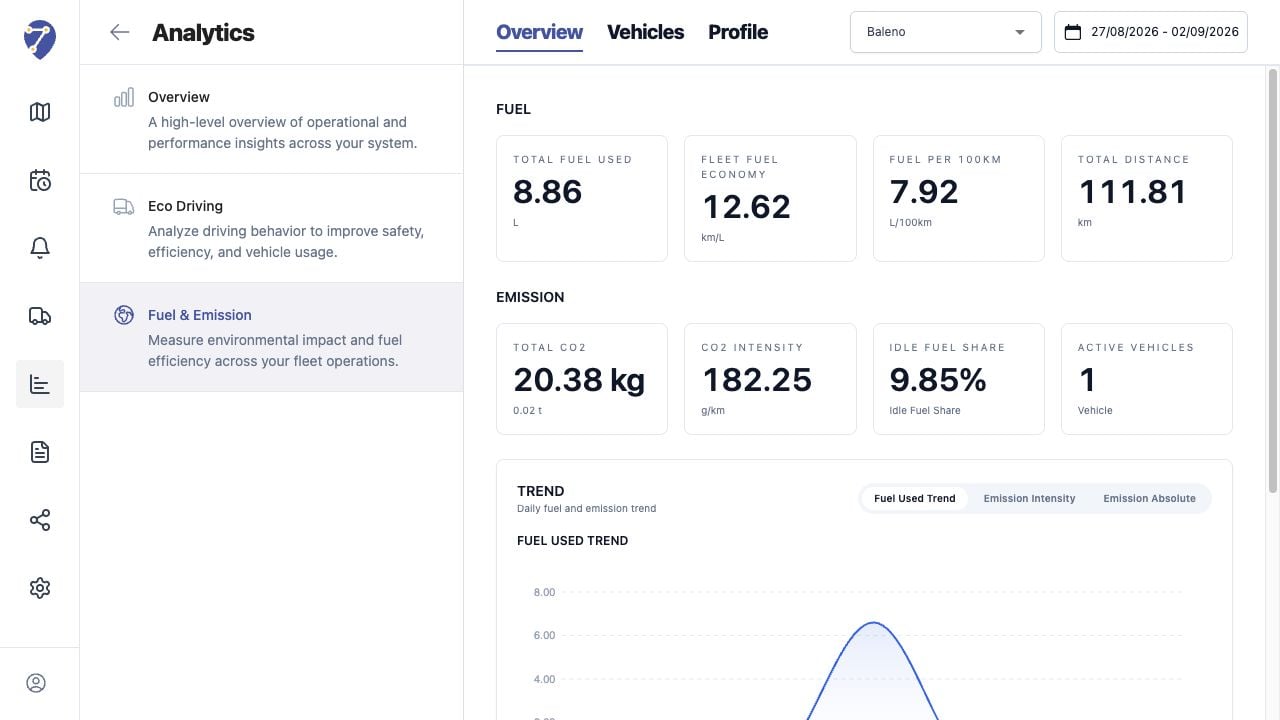
Fuel & Emission Overview summarizes calculated fuel and CO2 results for the selected Profile and period.
## Loading the Overview
1. Open Analytics > Fuel & Emission > Overview.
2. Select a Profile.
3. Select the required date range.
 ## Reading Fuel Metrics
* Total Fuel Used
* Fleet Fuel Economy
* Fuel per 100km
* Total Distance
## Reading Emission Metrics
* Total CO2 in kg and tonnes
* CO2 Intensity in g/km
* Idle Fuel Share
* Active Vehicles
## Reading Trend
Switch between Fuel Used Trend, Emission Intensity, and Emission Absolute to change the daily chart.
## Reviewing Vehicle Rankings
Top Fuel Used Vehicles highlights absolute fuel use. Worst CO2 Intensity Vehicles identifies the highest emissions per distance.
## Interpreting the Result
Compare only results that use a consistent Profile and suitable date range. Investigate unexpected distance or idle time in History before changing calculation factors.
## Reading Fuel Metrics
* Total Fuel Used
* Fleet Fuel Economy
* Fuel per 100km
* Total Distance
## Reading Emission Metrics
* Total CO2 in kg and tonnes
* CO2 Intensity in g/km
* Idle Fuel Share
* Active Vehicles
## Reading Trend
Switch between Fuel Used Trend, Emission Intensity, and Emission Absolute to change the daily chart.
## Reviewing Vehicle Rankings
Top Fuel Used Vehicles highlights absolute fuel use. Worst CO2 Intensity Vehicles identifies the highest emissions per distance.
## Interpreting the Result
Compare only results that use a consistent Profile and suitable date range. Investigate unexpected distance or idle time in History before changing calculation factors.