> ## Documentation Index
> Fetch the complete documentation index at: https://docs.jitra.app/llms.txt
> Use this file to discover all available pages before exploring further.
# How Events and Notifications Work
> Understand how Jitra Event rules connect an Event Type, assigned Objects, trigger conditions, and notification delivery.
Events help you monitor specific conditions without continuously watching the Tracking page. An Event rule tells Jitra what to detect, which Objects to monitor, and how to deliver the resulting Notification.
## Parts of an Event Rule
* Event Setting: the Event Type, rule Name, and selected Objects
* Triggers Setting: the values or conditions that cause the Event
* Notifications Setting: System message, email, webhook, and the Notification message
## Viewing Configured Events
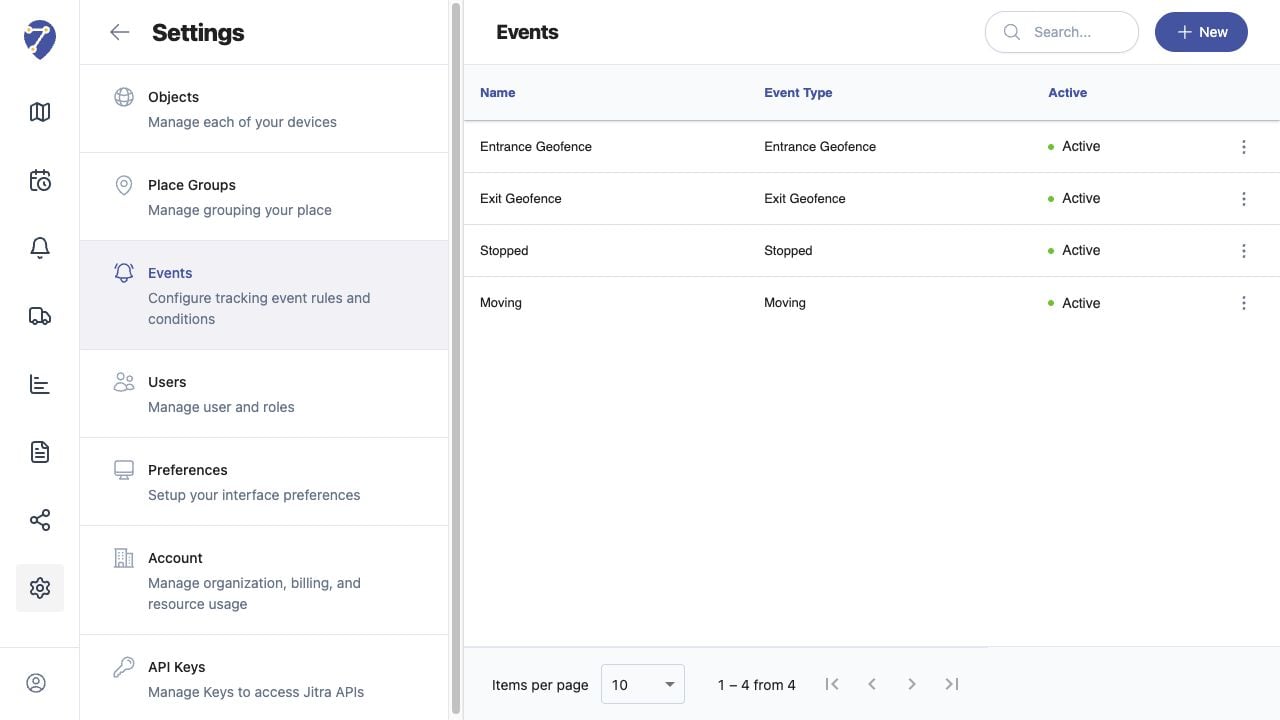
Open Settings and select Events. The table shows each rule's Name, Event Type, Active status, and action menu.
 ## What Happens When a Trigger Matches
Jitra evaluates incoming Object data against the rule. When the configured condition is met, it creates the Event and uses the enabled notification options. A cooldown can prevent repeated Events from being created too close together.
## Where Events Appear
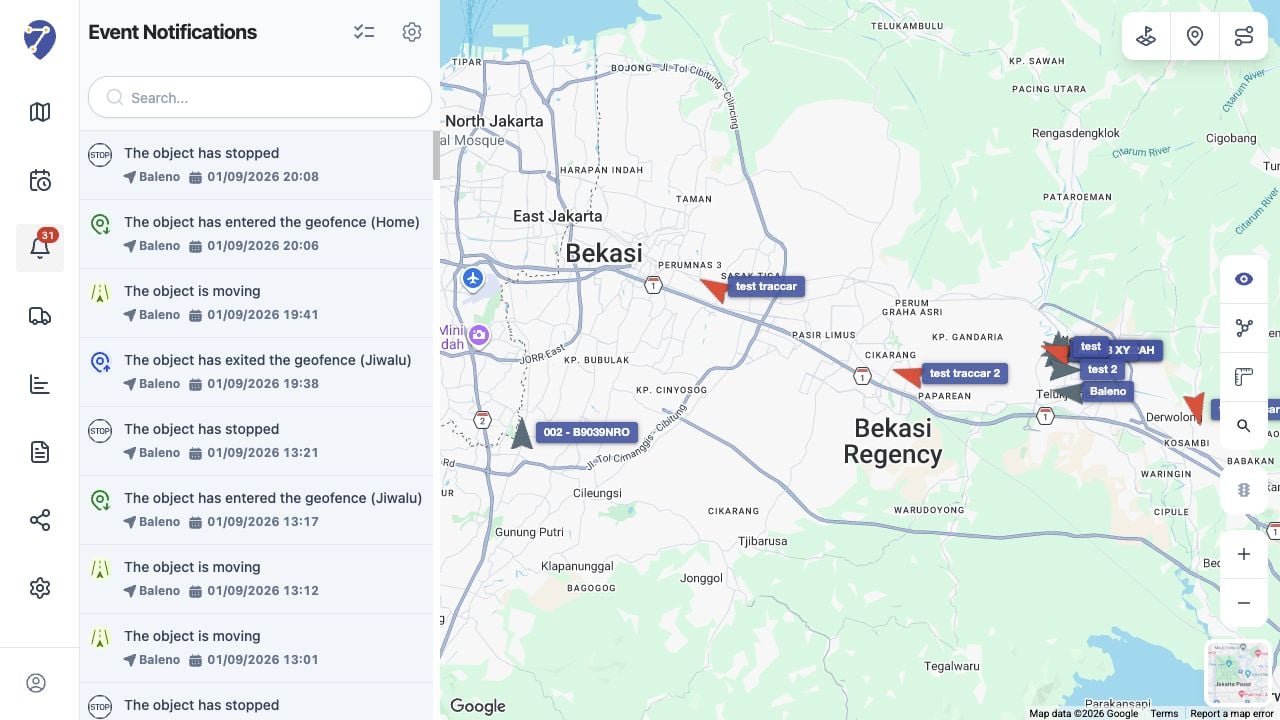
System messages appear on Event Notifications. Events associated with historical tracking data can also be reviewed from the Events tab in History.
## What Happens When a Trigger Matches
Jitra evaluates incoming Object data against the rule. When the configured condition is met, it creates the Event and uses the enabled notification options. A cooldown can prevent repeated Events from being created too close together.
## Where Events Appear
System messages appear on Event Notifications. Events associated with historical tracking data can also be reviewed from the Events tab in History.