> ## Documentation Index
> Fetch the complete documentation index at: https://docs.jitra.app/llms.txt
> Use this file to discover all available pages before exploring further.
# Adding Your First Object
> Learn how to create your first Object in Jitra, select a GPS Device model, configure device connectivity, and prepare your Object for real-time tracking.
After creating your account and Organization, the next step is to add your first Object.
An Object represents the entity you want to monitor in Jitra. In most cases, an Object represents a vehicle such as a car, motorcycle, truck, bus, or heavy equipment.
To receive location and telemetry data, an Object must be connected to a compatible GPS Device.
## Before You Begin
Make sure you have:
* A GPS Device installed and ready to use
* The Device ID or IMEI of the GPS Device
* Information about the device manufacturer and model
If the device has not yet been configured to send data to Jitra, you can still create the Object first and configure the device afterward.
## Understanding Objects and GPS Devices
In Jitra, an Object and a GPS Device are two different concepts.
### Object
An Object is the entity being monitored.
Examples include:
* Cars
* Motorcycles
* Trucks
* Buses
* Heavy equipment
* Other mobile assets
### GPS Device
A GPS Device is the source of data.
It sends information such as:
* Location
* Speed
* Ignition status
* Battery voltage
* Telemetry sensor values
* Other operational data
When Jitra receives data from the GPS Device, it automatically updates the connected Object.
## Step 1: Open the New Object Form
There are two ways to create a new Object.
### Option 1: From the Tracking Page
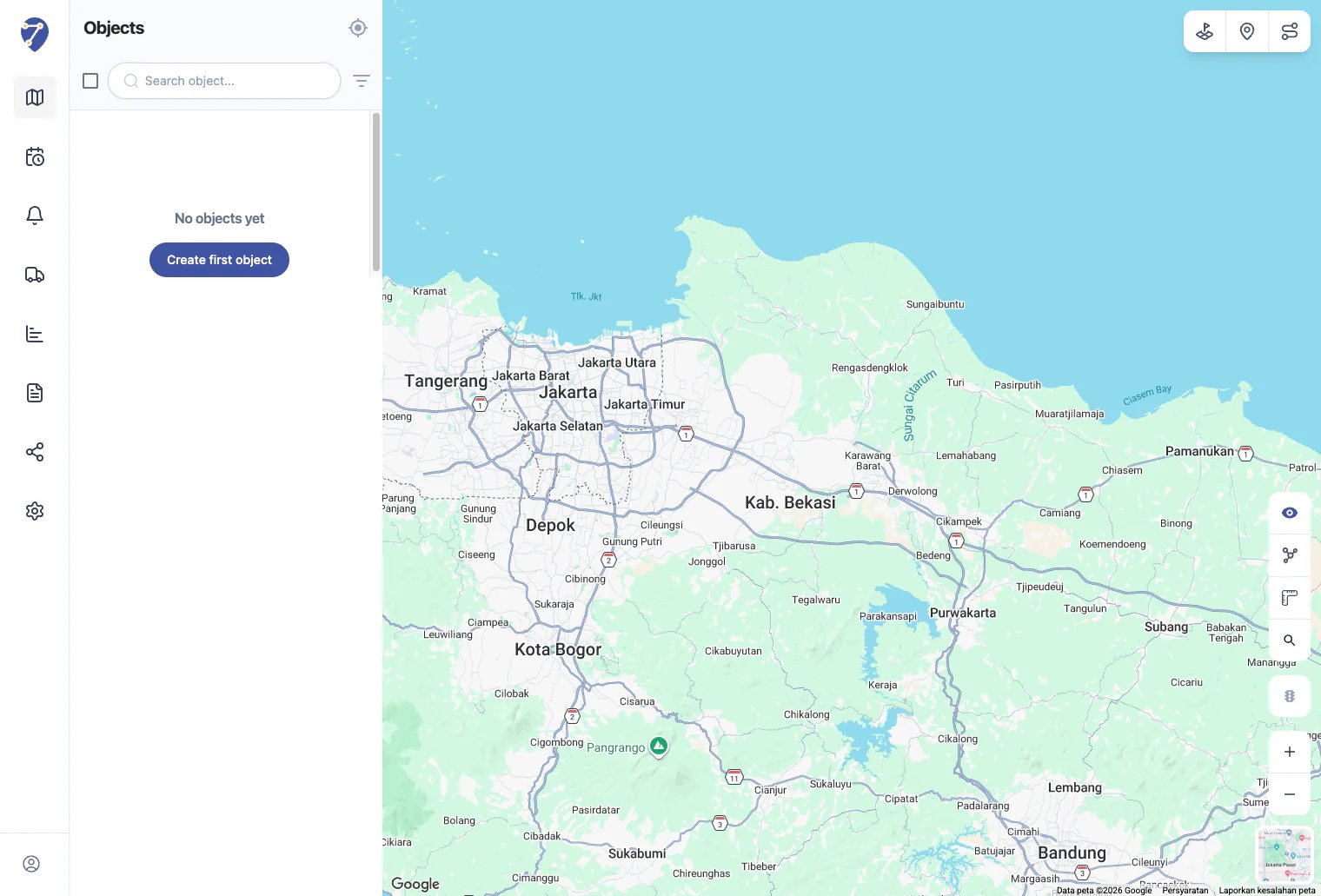
If your Organization does not have any Objects yet, Jitra displays a **Create First Object** button on the Tracking page.
Click the button to open the New Object form.
 ### Option 2: From Object Settings
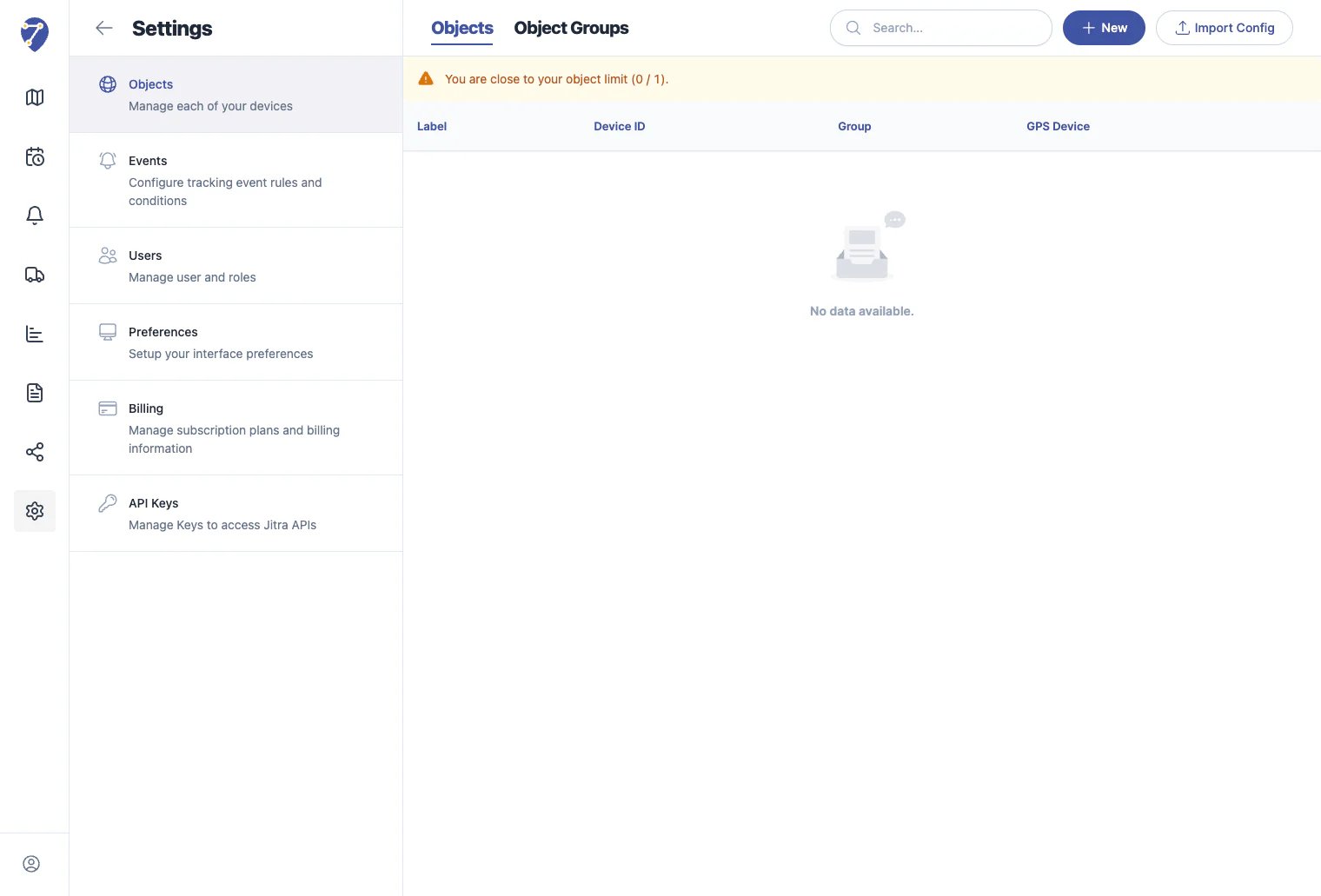
You can also create a new Object from:
Settings\
→ Objects\
→ New
This method is commonly used when your Organization already has existing Objects and you want to add another one.
### Option 2: From Object Settings
You can also create a new Object from:
Settings\
→ Objects\
→ New
This method is commonly used when your Organization already has existing Objects and you want to add another one.
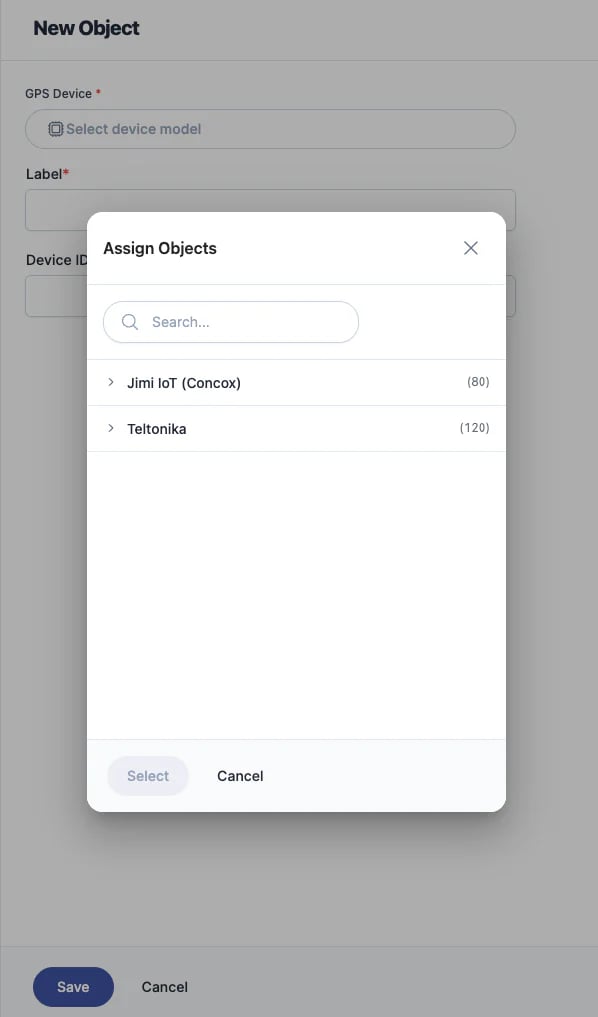
 ## Step 2: Select a GPS Device Model
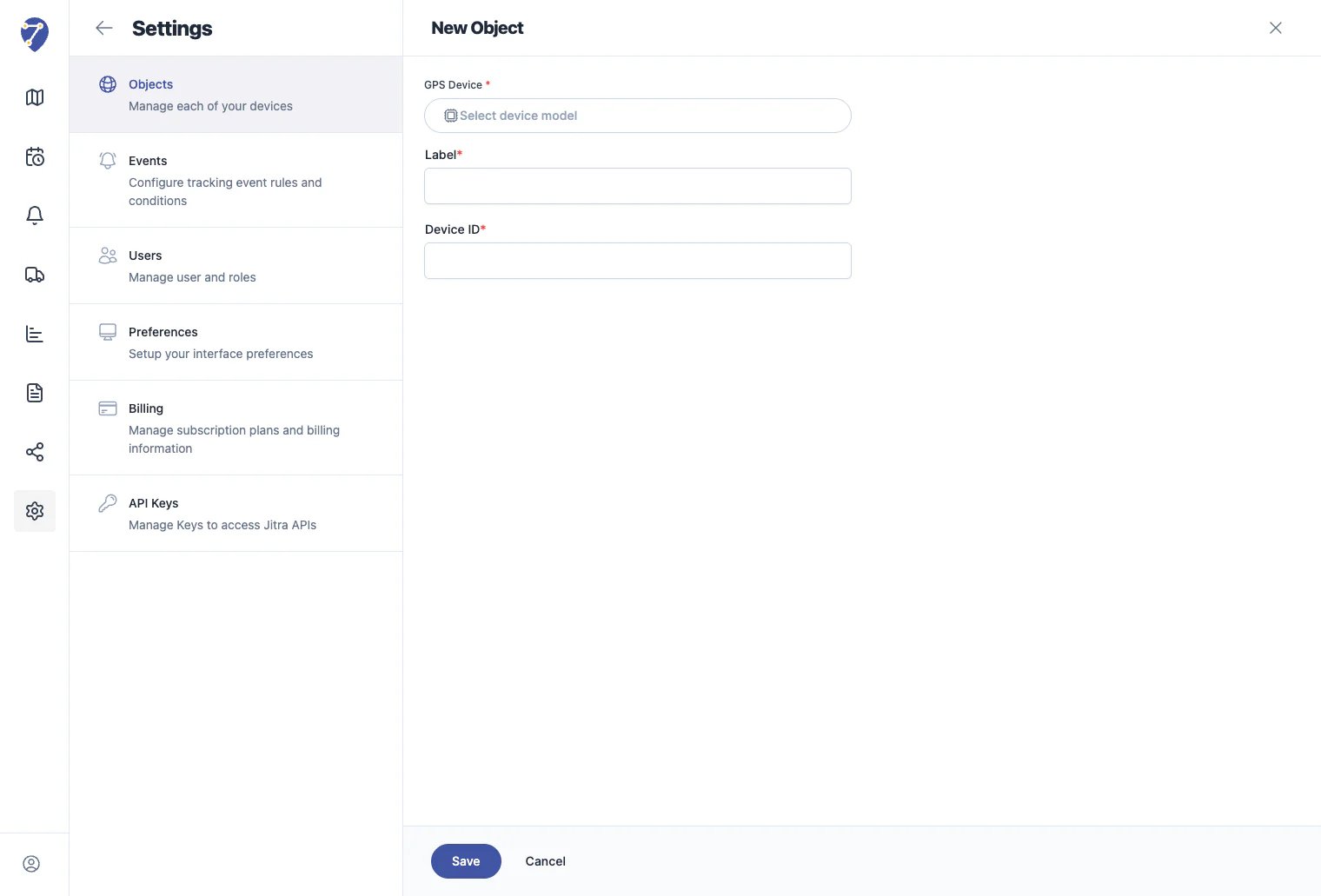
In the New Object form, select the GPS Device model that will be used.
Jitra supports multiple GPS Device manufacturers and models.
Examples include:
* Teltonika
* Concox
* Other supported device models
Choose the manufacturer and model that match your physical GPS Device.
## Step 2: Select a GPS Device Model
In the New Object form, select the GPS Device model that will be used.
Jitra supports multiple GPS Device manufacturers and models.
Examples include:
* Teltonika
* Concox
* Other supported device models
Choose the manufacturer and model that match your physical GPS Device.
 ## Step 3: Enter Object Information
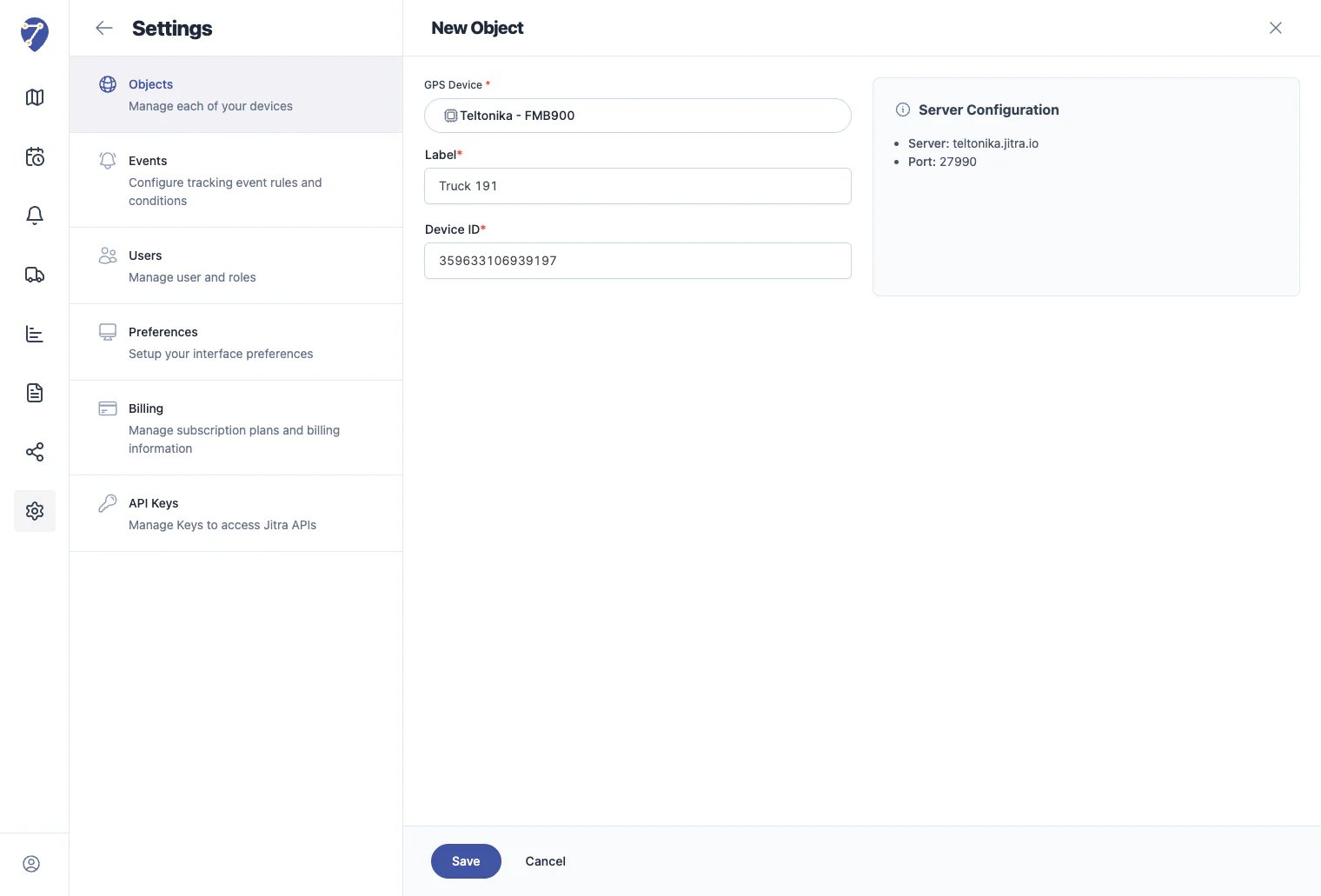
After selecting a GPS Device model, provide the required Object information.
### Label
The Label is the name used to identify the Object throughout Jitra.
Examples:
> Truck 191\
> Truck Jakarta\
> Excavator 01\
> Operational Motorcycle
### Device ID
Enter the Device ID or IMEI of the GPS Device.
This identifier is used to associate incoming device data with the Object you are creating.
## Step 3: Enter Object Information
After selecting a GPS Device model, provide the required Object information.
### Label
The Label is the name used to identify the Object throughout Jitra.
Examples:
> Truck 191\
> Truck Jakarta\
> Excavator 01\
> Operational Motorcycle
### Device ID
Enter the Device ID or IMEI of the GPS Device.
This identifier is used to associate incoming device data with the Object you are creating.
 ## Step 4: Review Server Configuration
After selecting a GPS Device model, Jitra displays the server configuration required for device connectivity.
Example:
> Server: teltonika.jitra.io\
> Port: 27990
This information must be entered into the GPS Device configuration so the device can send data to Jitra.
The server address and port may vary depending on the selected GPS Device model.
## Step 5: Save the Object
Click **Save** to create the Object.
After the Object is successfully created:
* The Object appears in the Object list
* Jitra is ready to receive data from the device
* The Object will automatically update when the first data is received
## After the Object Is Created
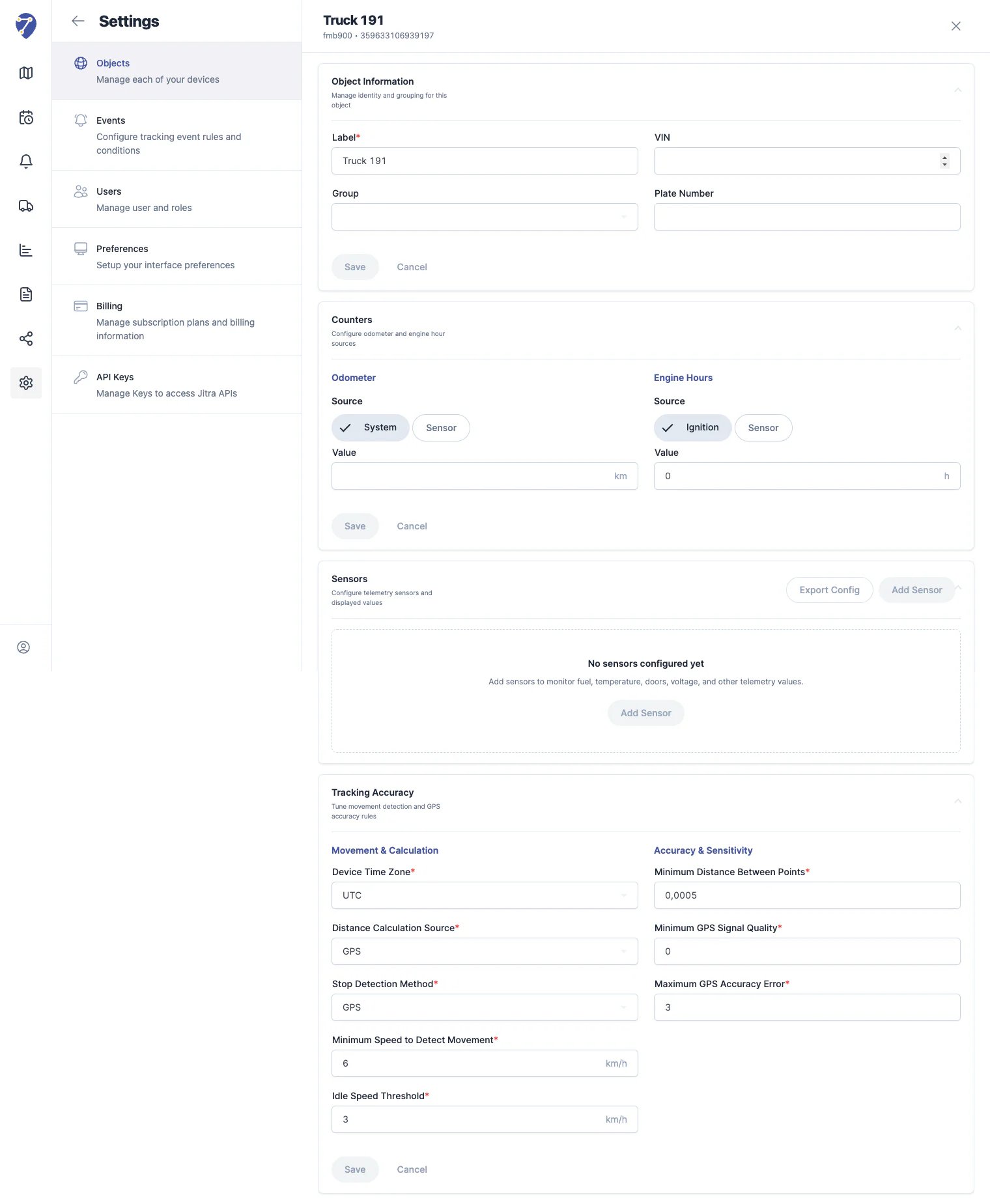
After the Object has been created successfully, you can open the Object settings page to complete additional configuration.
Available configurations include:
### Object Information
* Label
* Group
* VIN
* Plate Number
### Counters
* Odometer
* Engine Hours
### Sensors
* Fuel
* Temperature
* Door
* Voltage
* Other telemetry sensors
### Tracking Accuracy
* Device Time Zone
* Distance Calculation Source
* Stop Detection Method
* Minimum Movement Speed
* Idle Threshold
* GPS Accuracy Rules
## Step 4: Review Server Configuration
After selecting a GPS Device model, Jitra displays the server configuration required for device connectivity.
Example:
> Server: teltonika.jitra.io\
> Port: 27990
This information must be entered into the GPS Device configuration so the device can send data to Jitra.
The server address and port may vary depending on the selected GPS Device model.
## Step 5: Save the Object
Click **Save** to create the Object.
After the Object is successfully created:
* The Object appears in the Object list
* Jitra is ready to receive data from the device
* The Object will automatically update when the first data is received
## After the Object Is Created
After the Object has been created successfully, you can open the Object settings page to complete additional configuration.
Available configurations include:
### Object Information
* Label
* Group
* VIN
* Plate Number
### Counters
* Odometer
* Engine Hours
### Sensors
* Fuel
* Temperature
* Door
* Voltage
* Other telemetry sensors
### Tracking Accuracy
* Device Time Zone
* Distance Calculation Source
* Stop Detection Method
* Minimum Movement Speed
* Idle Threshold
* GPS Accuracy Rules
 ## When Will Data Appear?
Data will start appearing after:
1. The GPS Device has been configured successfully.
2. The device sends data to the Jitra server.
3. The Device ID matches the created Object.
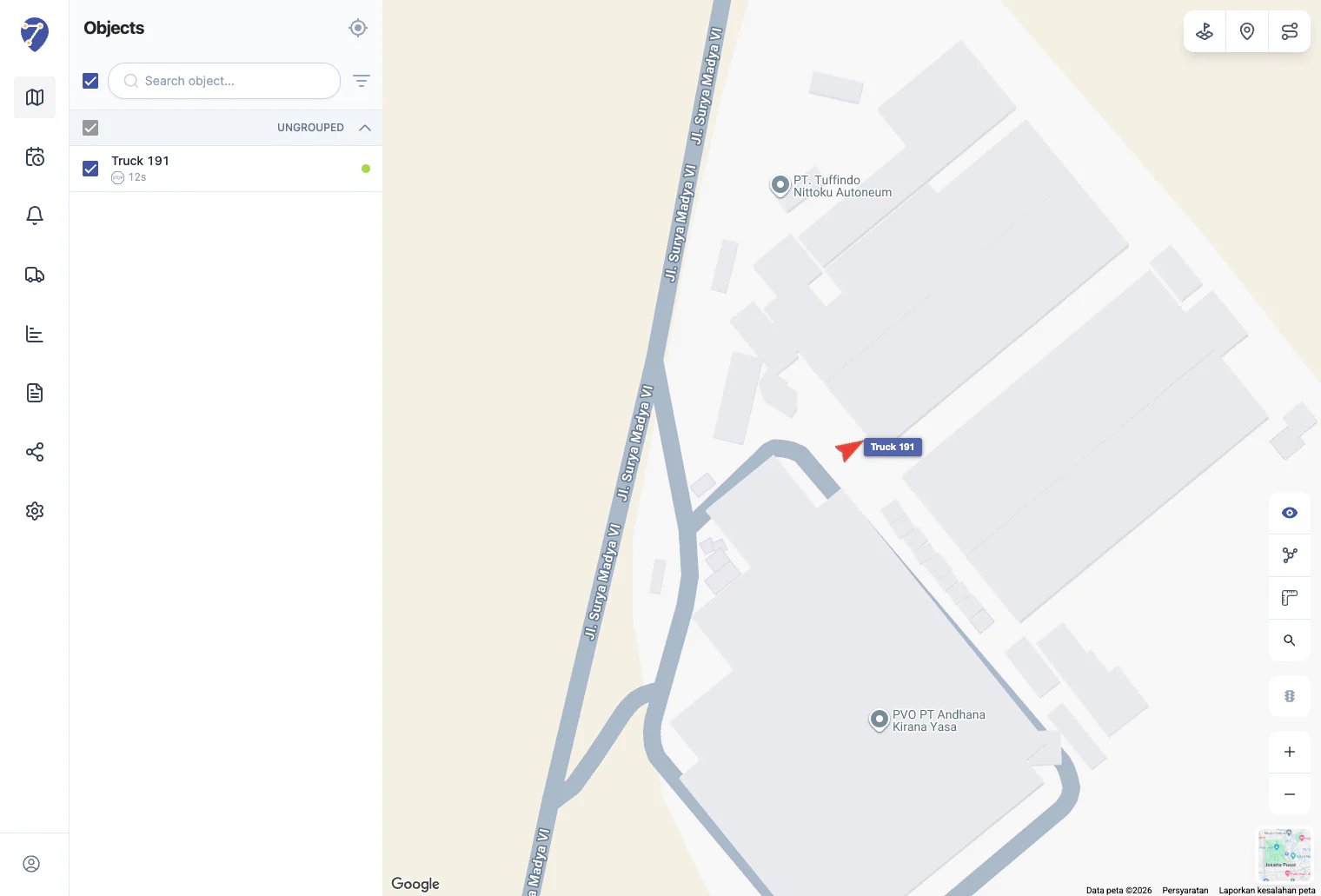
Once the first data is received, the Object appears on the Tracking page and starts updating automatically.
## Verify the Connection
You can confirm that the Object is connected successfully by checking:
* The Object location on the map
* Object status
* Last update time
* Telemetry information
If this information is visible, the GPS Device has successfully connected to Jitra.
## When Will Data Appear?
Data will start appearing after:
1. The GPS Device has been configured successfully.
2. The device sends data to the Jitra server.
3. The Device ID matches the created Object.
Once the first data is received, the Object appears on the Tracking page and starts updating automatically.
## Verify the Connection
You can confirm that the Object is connected successfully by checking:
* The Object location on the map
* Object status
* Last update time
* Telemetry information
If this information is visible, the GPS Device has successfully connected to Jitra.