> ## Documentation Index
> Fetch the complete documentation index at: https://docs.jitra.app/llms.txt
> Use this file to discover all available pages before exploring further.
# Creating a Jitra Account
> Learn how to create a Jitra account, verify your email address, and complete your Organization setup to start using GPS tracking.
Before you can start using Jitra, you need to create an account and complete the onboarding process.
During this process, you will:
* Create a Jitra account
* Verify your email address
* Create an Organization
* Complete your Organization profile
Once the setup is complete, you can access the dashboard and begin using Jitra.
## Before You Begin
Make sure you have:
* A valid email address
* A reachable phone number
* Basic information about your Organization
The email address used during registration will become the primary account that manages the Organization.
## Step 1: Create Your Account
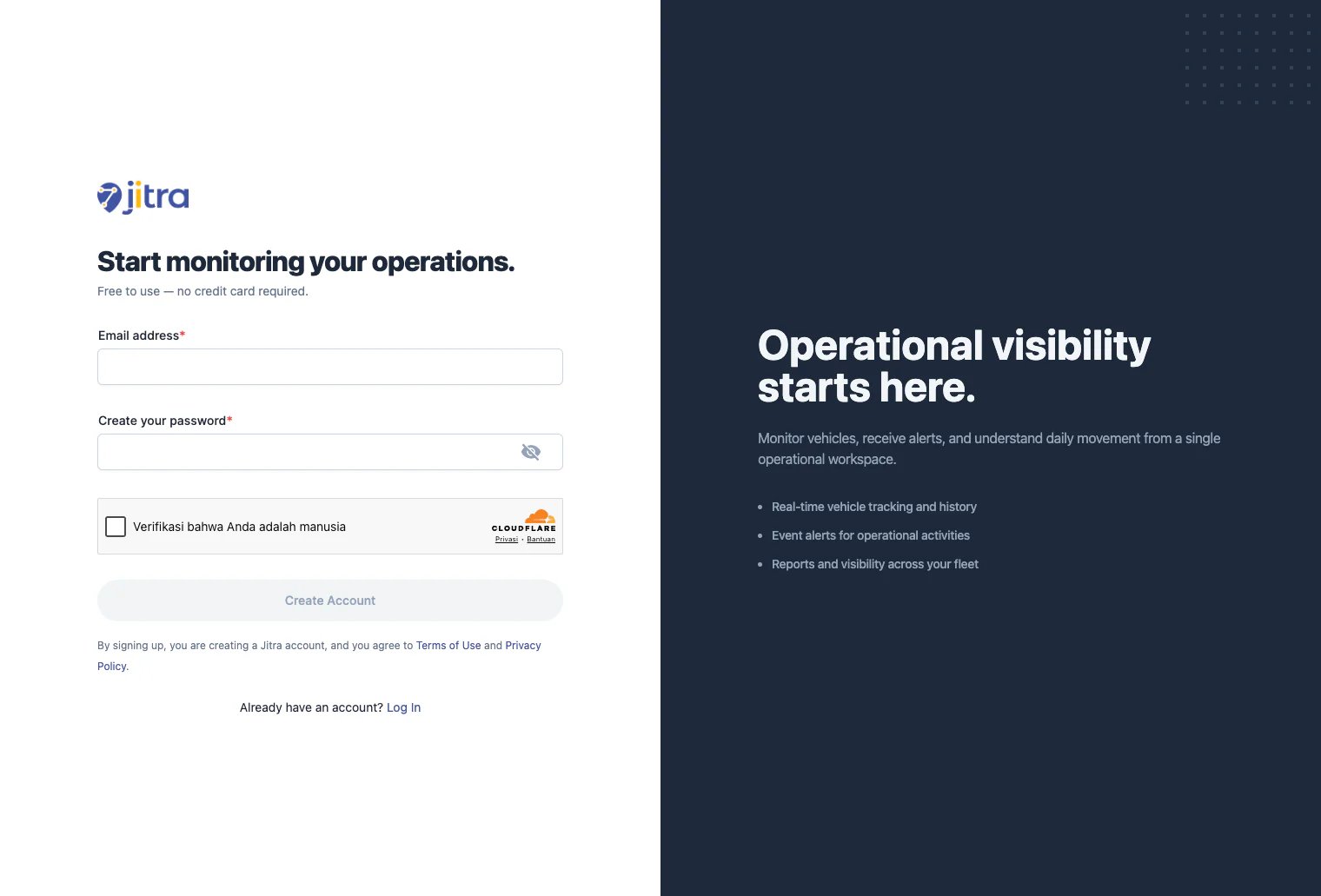
Open the Jitra registration page.
Enter the following information:
* Email Address
* Password
Complete the security verification and click **Create Account**.
 ## Step 2: Verify Your Email Address
After creating your account, Jitra will send a verification email to the address you registered.
Open the email and click the activation link.
If you cannot find the email:
* Check your Spam or Junk folder
* Use the **Resend Email** option
* Verify that the email address was entered correctly
## Step 3: Complete Basic Information
After your email address has been verified, you will be asked to provide some basic information.
Required information includes:
* Full Name
* Phone Number
* Company Name
* Industry
This information is used to create your first Organization in Jitra.
## Step 2: Verify Your Email Address
After creating your account, Jitra will send a verification email to the address you registered.
Open the email and click the activation link.
If you cannot find the email:
* Check your Spam or Junk folder
* Use the **Resend Email** option
* Verify that the email address was entered correctly
## Step 3: Complete Basic Information
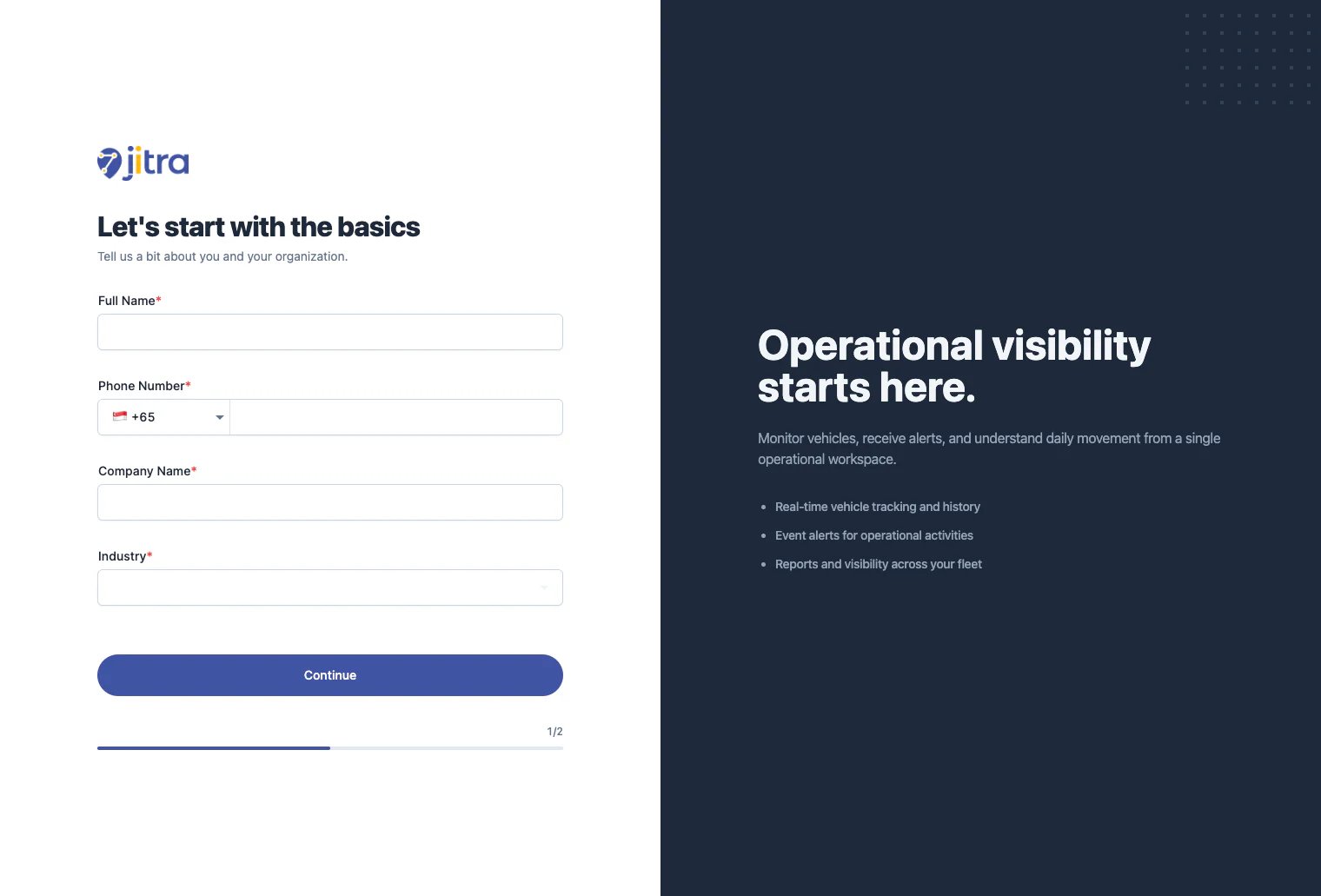
After your email address has been verified, you will be asked to provide some basic information.
Required information includes:
* Full Name
* Phone Number
* Company Name
* Industry
This information is used to create your first Organization in Jitra.
 ## Step 4: Complete Organization Information
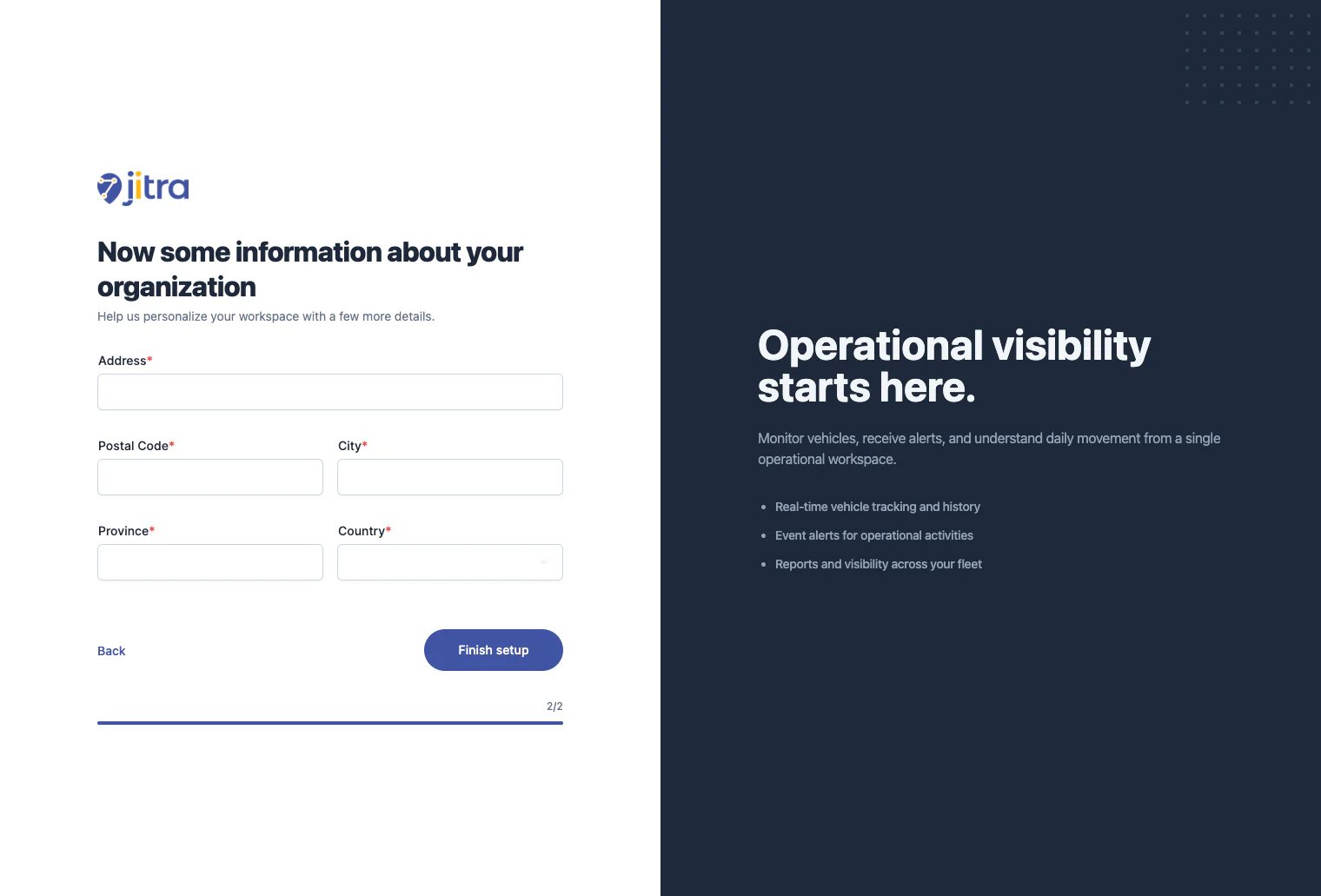
Next, provide your Organization's address information.
Required information includes:
* Address
* Postal Code
* City
* Province or State
* Country
After completing the form, click **Finish Setup**.
## Step 4: Complete Organization Information
Next, provide your Organization's address information.
Required information includes:
* Address
* Postal Code
* City
* Province or State
* Country
After completing the form, click **Finish Setup**.
 ## What Happens After Setup?
Once the onboarding process is completed:
* An Organization is automatically created
* Your account becomes the Organization's Super Admin
* You receive full access to Organization settings
* Your Organization starts with the Free plan
As a Super Admin, you can:
* Manage the Organization
* Add Objects
* Invite users
* Create Roles
* Configure Permissions
## Understanding Organizations in Jitra
An Organization is the primary workspace in Jitra.
All Objects, Events, Users, Reports, and configurations belong to an Organization.
Currently:
* One account can only belong to one Organization
* Each Organization has its own isolated data and configuration
## Free Plan
Every new Organization automatically starts with the Free plan.
The Free plan allows you to:
* Use Jitra at no cost
* Add one Object
* Explore the core features of the platform
You can upgrade your subscription at any time as your operational needs grow.
## What Happens After Setup?
Once the onboarding process is completed:
* An Organization is automatically created
* Your account becomes the Organization's Super Admin
* You receive full access to Organization settings
* Your Organization starts with the Free plan
As a Super Admin, you can:
* Manage the Organization
* Add Objects
* Invite users
* Create Roles
* Configure Permissions
## Understanding Organizations in Jitra
An Organization is the primary workspace in Jitra.
All Objects, Events, Users, Reports, and configurations belong to an Organization.
Currently:
* One account can only belong to one Organization
* Each Organization has its own isolated data and configuration
## Free Plan
Every new Organization automatically starts with the Free plan.
The Free plan allows you to:
* Use Jitra at no cost
* Add one Object
* Explore the core features of the platform
You can upgrade your subscription at any time as your operational needs grow.