> ## Documentation Index
> Fetch the complete documentation index at: https://docs.jitra.app/llms.txt
> Use this file to discover all available pages before exploring further.
# Understanding Trip History
> Learn how to select a period and Object, then view stored Trips, Stops, routes, and Events in Jitra History.
History is used to review Object movement and activity that has already occurred. Unlike Tracking, History displays trip data for a period that you select.
## Opening History
Select History from the main Jitra menu.
Before loading data, select a period and one Object to review.
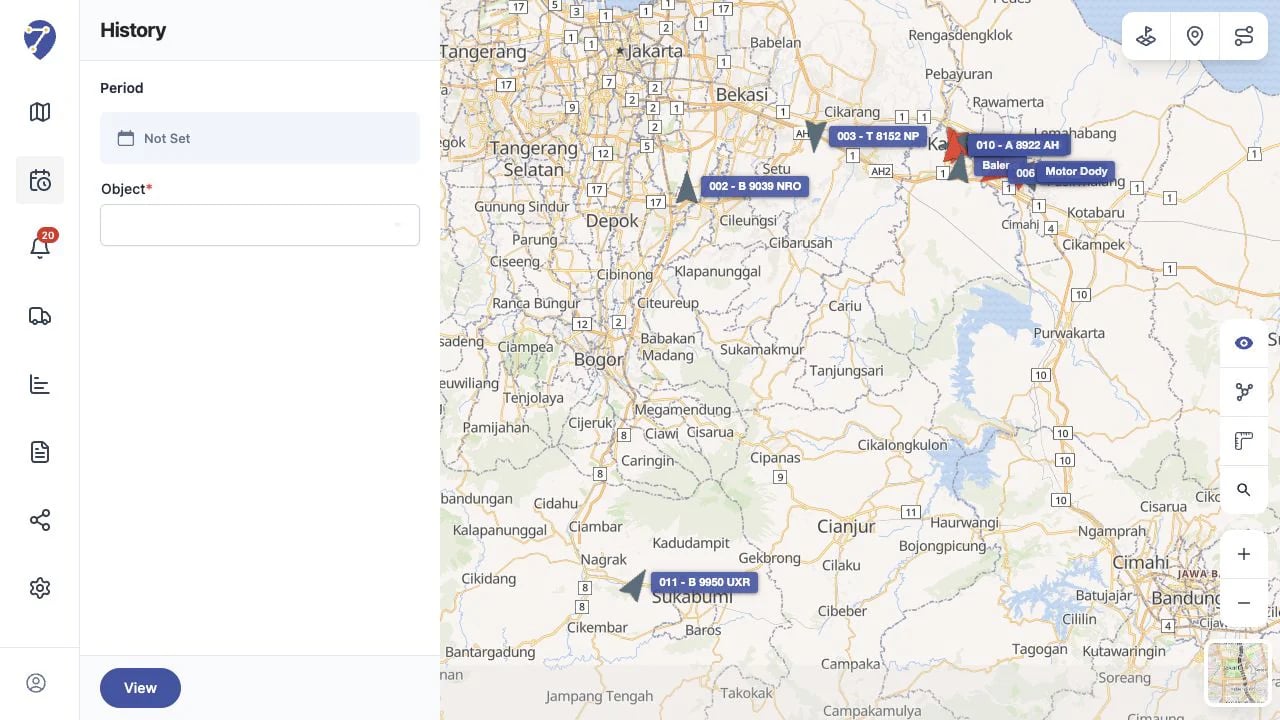 ## Selecting a Period and Object
1. Click Period and select a date or date range.
2. Select the Object that you want to review.
3. Click View to load its History.
Times in the selected period follow the timezone used by your Organization or account.
## Understanding the Trips Tab
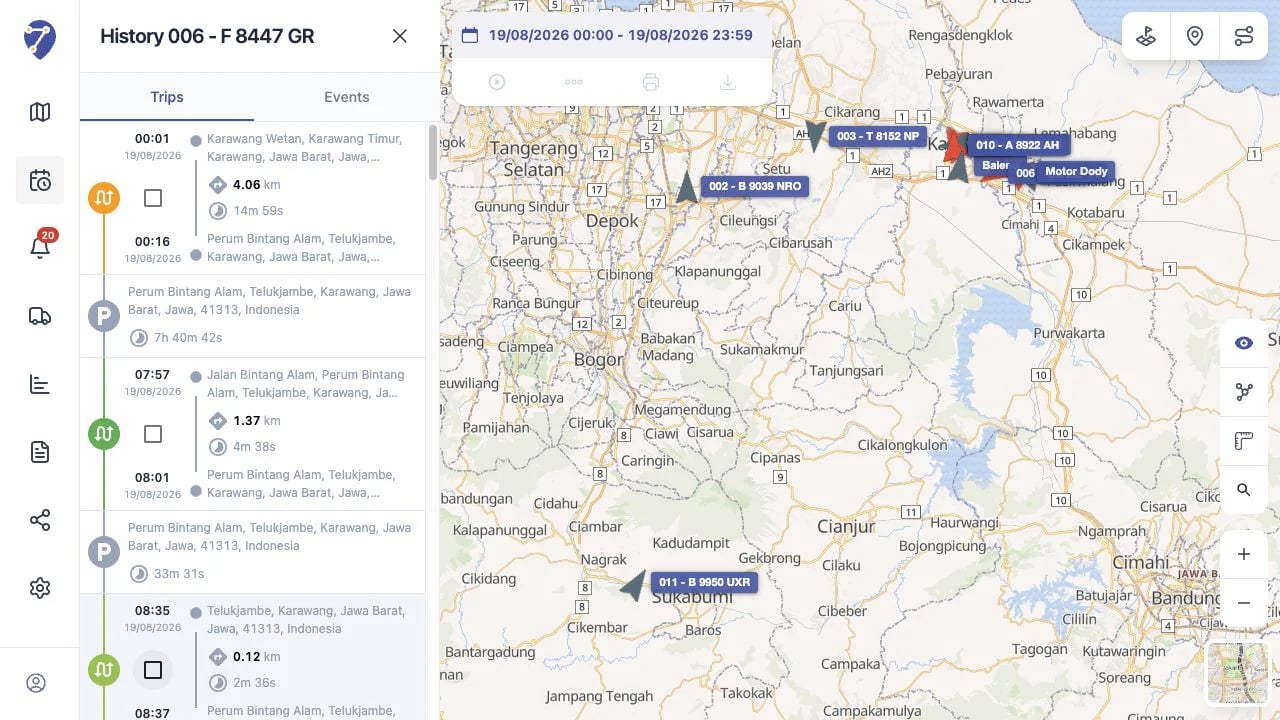
The Trips tab arranges trips and stopped periods chronologically. Each trip can show its start and end time, locations, distance, and duration.
Select a trip from the list to view its route on the map. Available data depends on the positions sent by the GPS Device during that period.
## Selecting a Period and Object
1. Click Period and select a date or date range.
2. Select the Object that you want to review.
3. Click View to load its History.
Times in the selected period follow the timezone used by your Organization or account.
## Understanding the Trips Tab
The Trips tab arranges trips and stopped periods chronologically. Each trip can show its start and end time, locations, distance, and duration.
Select a trip from the list to view its route on the map. Available data depends on the positions sent by the GPS Device during that period.
 ## Understanding Stops Between Trips
History can show periods when the Object did not continue travelling between two Trips. The duration helps you understand how long it remained at that location.
## Viewing Events in History
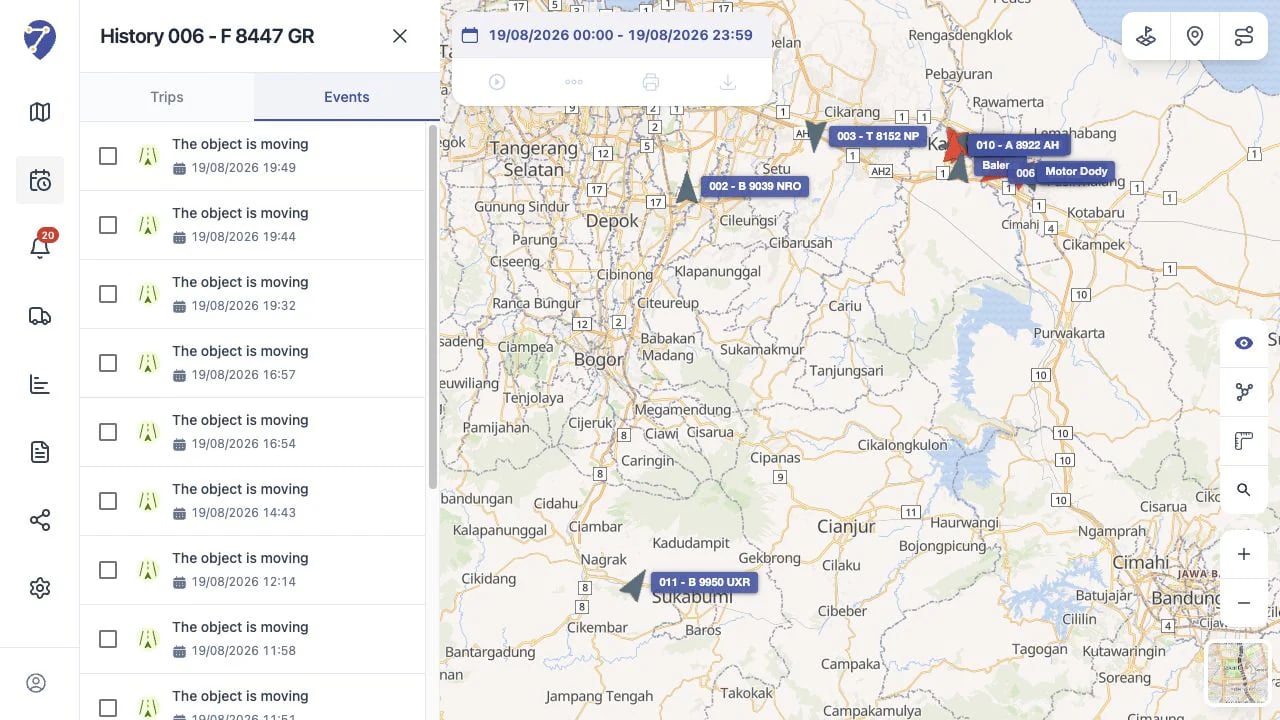
Open the Events tab to view Events triggered for the Object during the same period. The list shows the Event type and occurrence time.
## Understanding Stops Between Trips
History can show periods when the Object did not continue travelling between two Trips. The duration helps you understand how long it remained at that location.
## Viewing Events in History
Open the Events tab to view Events triggered for the Object during the same period. The list shows the Event type and occurrence time.
 ## Understanding Missing Data
History can only be created from data successfully received and stored. If the GPS Device does not send positions or loses its connection, parts of a trip may be incomplete.
## Understanding Missing Data
History can only be created from data successfully received and stored. If the GPS Device does not send positions or loses its connection, parts of a trip may be incomplete.