> ## Documentation Index
> Fetch the complete documentation index at: https://docs.jitra.app/llms.txt
> Use this file to discover all available pages before exploring further.
# Configuring Engine Hours
> Learn how to choose the Ignition or Sensor source and set the current Engine Hours value for a Jitra Object.
Engine Hours records accumulated operating time and can support maintenance or utilization analysis.
## Opening Engine Hours Settings
1. Open Settings and select Objects.
2. Edit the Object.
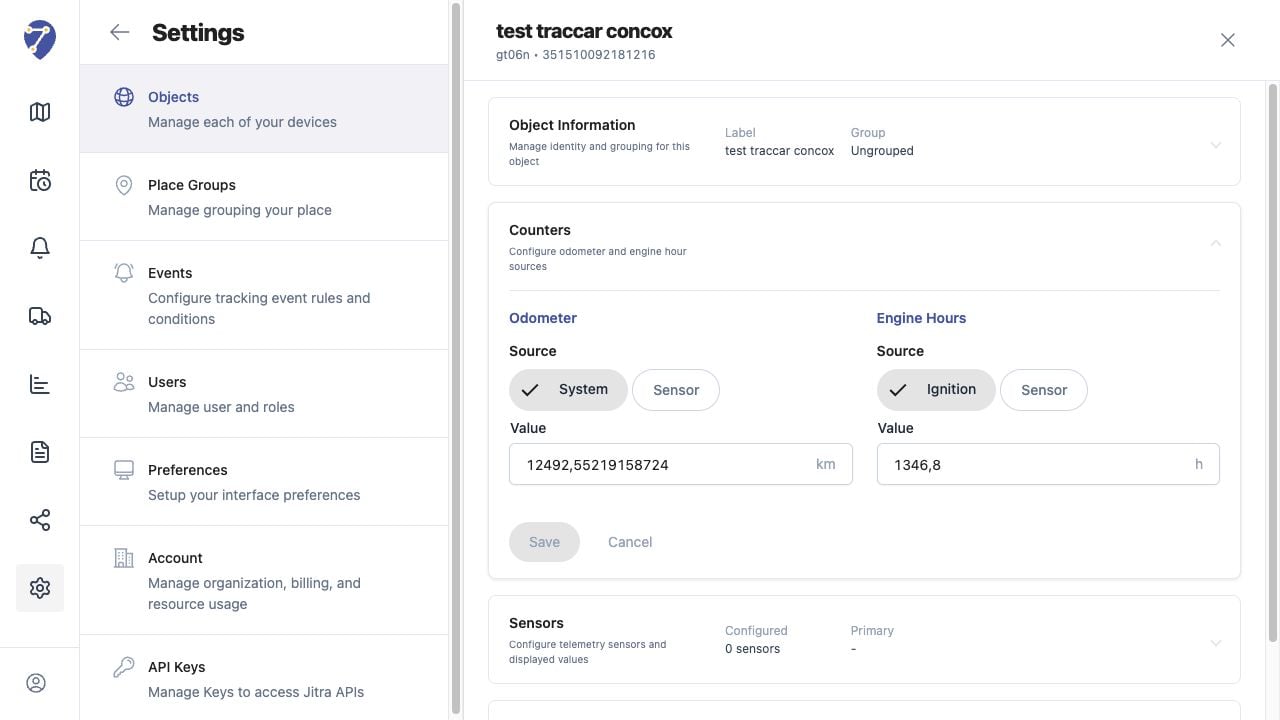
3. Expand Counters and locate Engine Hours.
 ## Choosing the Source
* Ignition: Jitra accumulates time using the detected ignition state.
* Sensor: Jitra uses a compatible Engine Hours Sensor configured for the Object.
## Setting the Value
Enter the current Value in hours. Use a verified starting value when migrating from another system or matching an existing equipment counter.
## Saving and Reviewing
Click Save in Counters. After new data is received, confirm that Engine Hours increases according to the selected source and the Object's operation.
## When Engine Hours Does Not Increase
Check the ignition or Sensor data received from the GPS Device. Engine Hours cannot accumulate correctly when the selected source is missing, mapped incorrectly, or not changing with equipment operation.
## Choosing the Source
* Ignition: Jitra accumulates time using the detected ignition state.
* Sensor: Jitra uses a compatible Engine Hours Sensor configured for the Object.
## Setting the Value
Enter the current Value in hours. Use a verified starting value when migrating from another system or matching an existing equipment counter.
## Saving and Reviewing
Click Save in Counters. After new data is received, confirm that Engine Hours increases according to the selected source and the Object's operation.
## When Engine Hours Does Not Increase
Check the ignition or Sensor data received from the GPS Device. Engine Hours cannot accumulate correctly when the selected source is missing, mapped incorrectly, or not changing with equipment operation.