> ## Documentation Index
> Fetch the complete documentation index at: https://docs.jitra.app/llms.txt
> Use this file to discover all available pages before exploring further.
# Configuring Odometer
> Learn how to choose the System or Sensor odometer source and set the current distance value for a Jitra Object.
Odometer stores the accumulated distance used for Object information and workflows that depend on travelled distance.
## Opening Odometer Settings
1. Open Settings and select Objects.
2. Edit the Object.
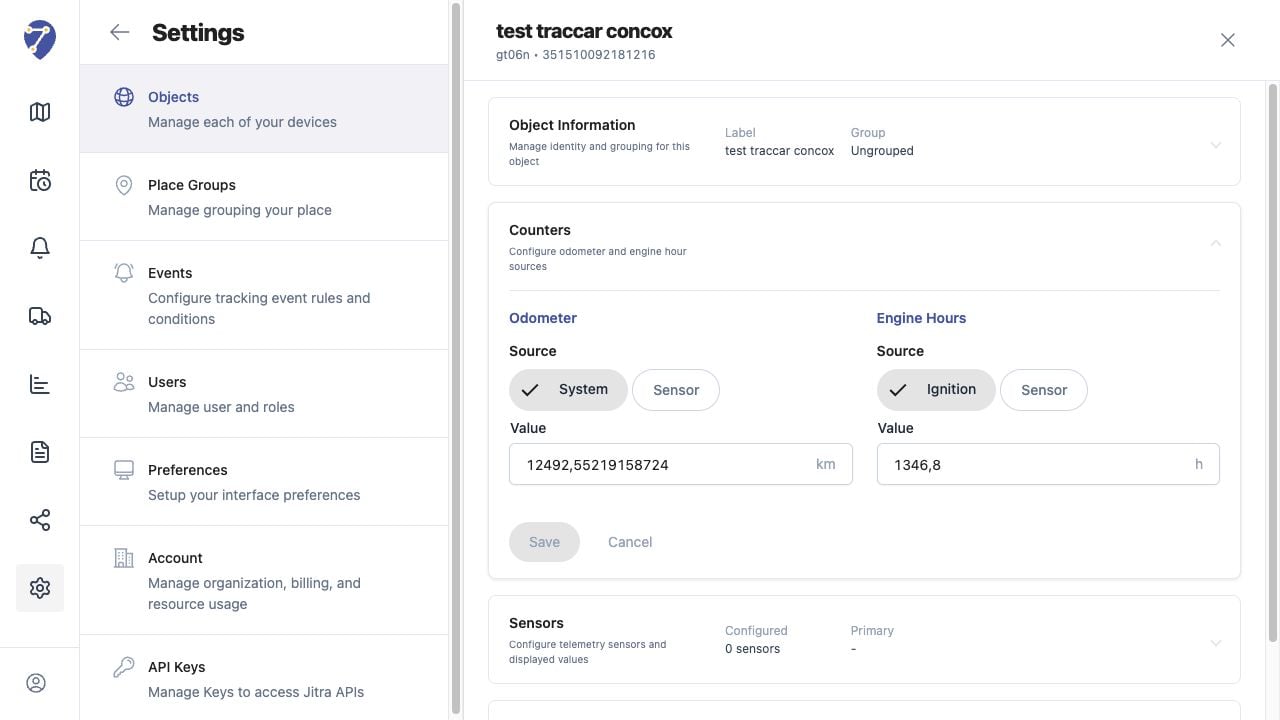
3. Expand Counters and locate Odometer.
 ## Choosing the Source
* System: Jitra calculates accumulated distance from stored movement data.
* Sensor: Jitra uses a compatible Odometer Sensor configured for the Object.
## Setting the Value
Enter the current Value in kilometres. Use a verified reference value when aligning Jitra with an existing vehicle odometer or previous system.
## Saving the Counter
Click Save in Counters after selecting a valid source and value. Review the displayed odometer after new tracking data is received.
## Understanding Differences
System distance, GPS distance, and a vehicle's physical odometer can differ because they use different data and calculation methods. Avoid frequent manual corrections without first checking the selected source.
## Choosing the Source
* System: Jitra calculates accumulated distance from stored movement data.
* Sensor: Jitra uses a compatible Odometer Sensor configured for the Object.
## Setting the Value
Enter the current Value in kilometres. Use a verified reference value when aligning Jitra with an existing vehicle odometer or previous system.
## Saving the Counter
Click Save in Counters after selecting a valid source and value. Review the displayed odometer after new tracking data is received.
## Understanding Differences
System distance, GPS distance, and a vehicle's physical odometer can differ because they use different data and calculation methods. Avoid frequent manual corrections without first checking the selected source.