> ## Documentation Index
> Fetch the complete documentation index at: https://docs.jitra.app/llms.txt
> Use this file to discover all available pages before exploring further.
# Deleting an Object
> Learn what to review before permanently deleting a Jitra Object and how to use the deletion confirmation safely.
Deleting an Object is permanent. The confirmation in Jitra explicitly states that the action cannot be undone.
## Before Deleting an Object
* Confirm that the correct Object has been selected.
* Record the Label, Device ID, and GPS Device model.
* Review History, Events, Reports, sharing, groups, Sensors, and other workflows that depend on the Object.
* Export or retain information required by your Organization.
* Confirm that the GPS Device will not continue sending data for the deleted Object.
## Opening the Delete Confirmation
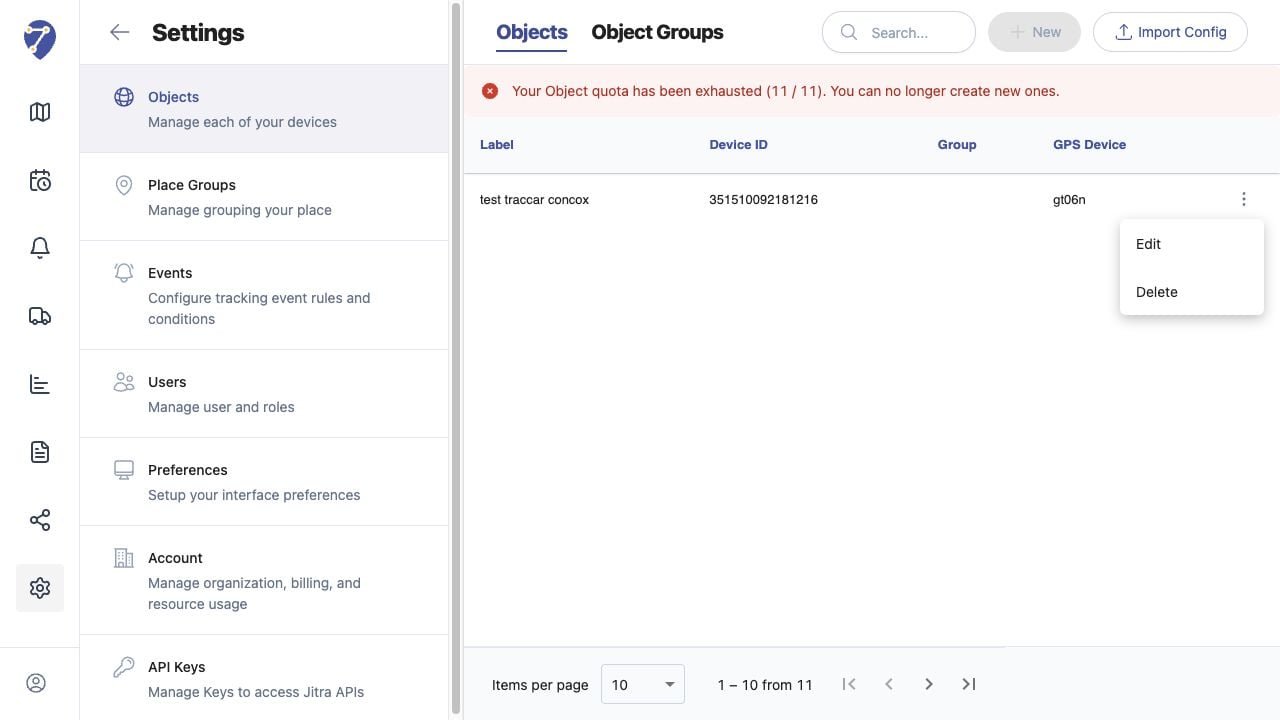
1. Open Settings and select Objects.
2. Open the action menu for the Object.
3. Select Delete.
4. Read the Object name in the confirmation dialog.
 ## Confirming the Deletion
Click Delete only when the Object name and impact have been verified. Click Cancel to close the dialog without changing the Object.
## After Deletion
The Object is removed from the active Objects list. Workflows that referenced it may need to be reviewed or updated by an Organization administrator.
## Replacing a GPS Device
Do not delete an Object merely to test a replacement device. Prepare and verify the replacement Object first so the transition does not unexpectedly interrupt monitoring.
## Confirming the Deletion
Click Delete only when the Object name and impact have been verified. Click Cancel to close the dialog without changing the Object.
## After Deletion
The Object is removed from the active Objects list. Workflows that referenced it may need to be reviewed or updated by an Organization administrator.
## Replacing a GPS Device
Do not delete an Object merely to test a replacement device. Prepare and verify the replacement Object first so the transition does not unexpectedly interrupt monitoring.