> ## Documentation Index
> Fetch the complete documentation index at: https://docs.jitra.app/llms.txt
> Use this file to discover all available pages before exploring further.
# Managing Object Information
> Learn how to update an Object label, group, VIN, and plate number from Jitra Settings.
Object Information contains the identity and grouping fields used to recognize an Object throughout Jitra.
## Opening Object Information
1. Open Settings and select Objects.
2. Open the action menu for the Object.
3. Select Edit, then expand Object Information.
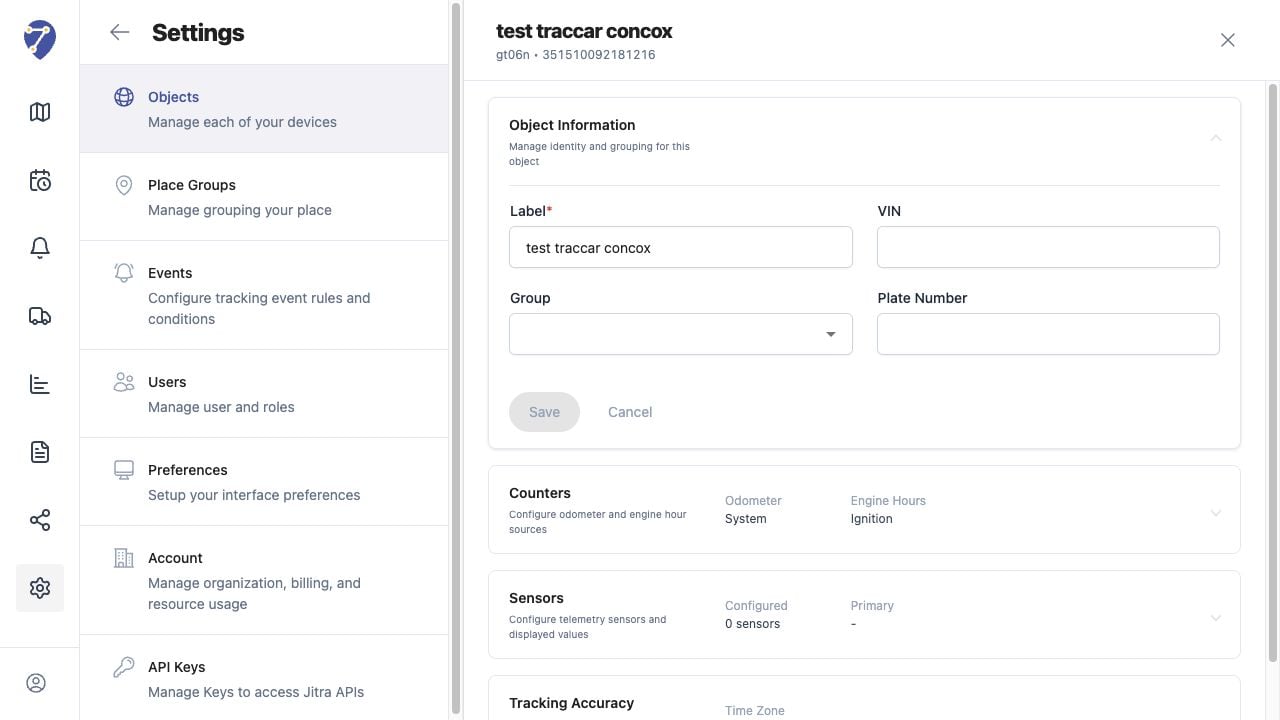 ## Editable Fields
* Label: the name shown in Tracking and other Jitra features
* Group: the Object Group used to organize the Object
* VIN: the vehicle identification number when applicable
* Plate Number: the registration or fleet plate identifier
## Saving Changes
Update the required fields, then click Save in Object Information. The button becomes available after Jitra detects a valid change.
## Effect of Renaming an Object
Changing the Label updates how the Object is identified in the interface. It does not change the Device ID or the GPS Device model shown in the Object header.
## Keeping Information Consistent
Use naming and plate formats that are consistent across the Organization. This makes Objects easier to find in Tracking, History, Events, Reports, and sharing workflows.
## Editable Fields
* Label: the name shown in Tracking and other Jitra features
* Group: the Object Group used to organize the Object
* VIN: the vehicle identification number when applicable
* Plate Number: the registration or fleet plate identifier
## Saving Changes
Update the required fields, then click Save in Object Information. The button becomes available after Jitra detects a valid change.
## Effect of Renaming an Object
Changing the Label updates how the Object is identified in the interface. It does not change the Device ID or the GPS Device model shown in the Object header.
## Keeping Information Consistent
Use naming and plate formats that are consistent across the Organization. This makes Objects easier to find in Tracking, History, Events, Reports, and sharing workflows.