> ## Documentation Index
> Fetch the complete documentation index at: https://docs.jitra.app/llms.txt
> Use this file to discover all available pages before exploring further.
# Editing and Deleting a Geofence
> Learn how to update a Geofence and permanently delete it from the Jitra Tracking map.
Saved Geofences can be updated or deleted from their action menu.
## Opening the Action Menu
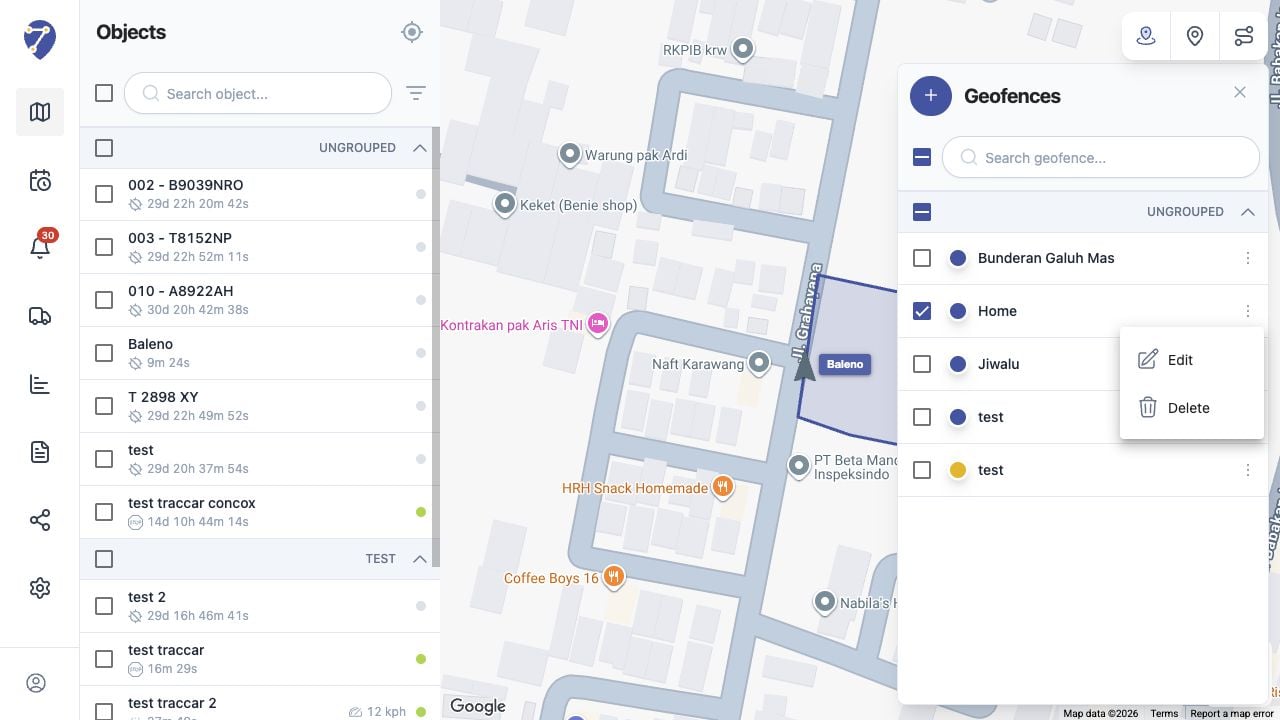
Open Tracking, click Show Geofences, find the Geofence, then open the menu at the right of its row.
 ## Editing the Geofence
Select Edit, update the required fields, review the map preview, then click Save. Edit can change the boundary and descriptive fields. Moving a boundary changes which future positions are considered inside or outside the Geofence.
## Deleting the Geofence
Select Delete and read the confirmation carefully. Confirm only when the correct Geofence has been selected because deletion cannot be undone.
## Before Deleting
Review Event rules, shared resources, and operational workflows that may use the Geofence. Update those dependencies when necessary.
## Editing the Geofence
Select Edit, update the required fields, review the map preview, then click Save. Edit can change the boundary and descriptive fields. Moving a boundary changes which future positions are considered inside or outside the Geofence.
## Deleting the Geofence
Select Delete and read the confirmation carefully. Confirm only when the correct Geofence has been selected because deletion cannot be undone.
## Before Deleting
Review Event rules, shared resources, and operational workflows that may use the Geofence. Update those dependencies when necessary.