> ## Documentation Index
> Fetch the complete documentation index at: https://docs.jitra.app/llms.txt
> Use this file to discover all available pages before exploring further.
# Editing and Deleting a Route
> Learn how to update a Route and permanently delete it from the Jitra Tracking map.
Saved Routes can be updated or deleted from their action menu.
## Opening the Action Menu
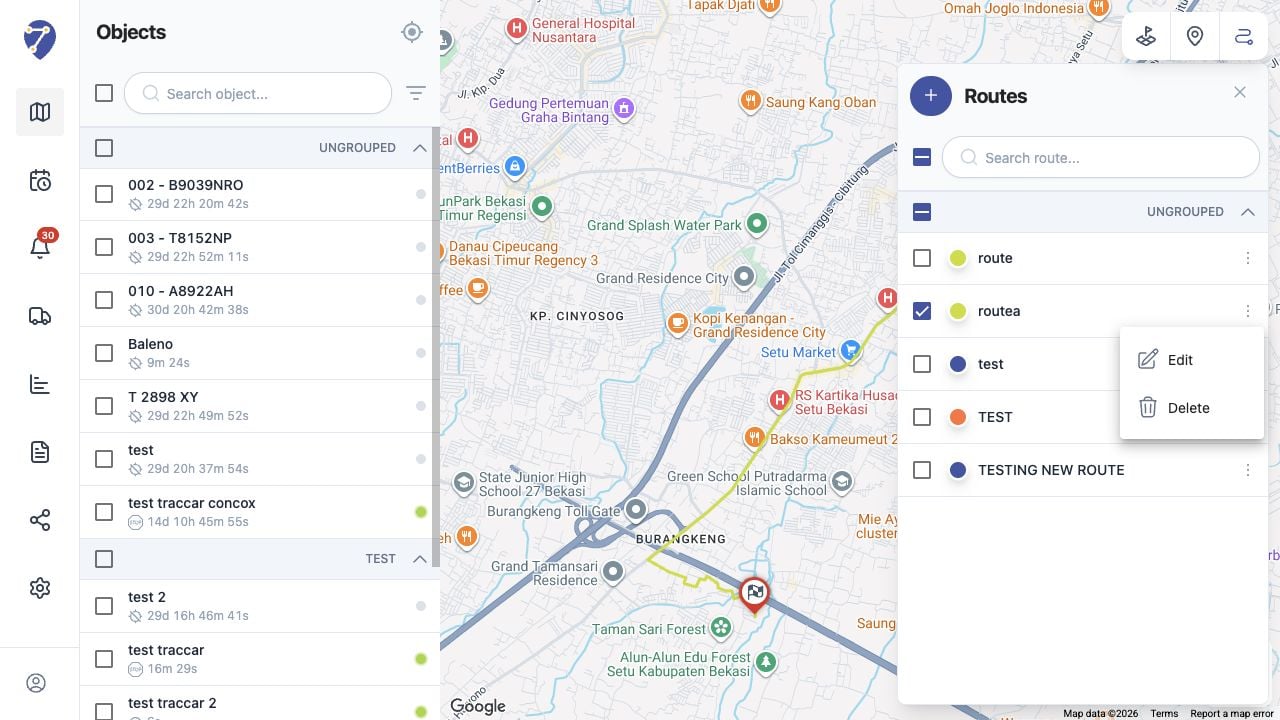
Open Tracking, click Show Routes, find the Route, then open the menu at the right of its row.
 ## Editing the Route
Select Edit, update the required fields, review the map preview, then click Save. Edit can change the endpoints, Deviation, and descriptive fields. Changing an endpoint recalculates the planned path displayed on the map.
## Deleting the Route
Select Delete and read the confirmation carefully. Confirm only when the correct Route has been selected because deletion cannot be undone.
## Before Deleting
Review Event rules, shared resources, and operational workflows that may use the Route. Update those dependencies when necessary.
## Editing the Route
Select Edit, update the required fields, review the map preview, then click Save. Edit can change the endpoints, Deviation, and descriptive fields. Changing an endpoint recalculates the planned path displayed on the map.
## Deleting the Route
Select Delete and read the confirmation carefully. Confirm only when the correct Route has been selected because deletion cannot be undone.
## Before Deleting
Review Event rules, shared resources, and operational workflows that may use the Route. Update those dependencies when necessary.