> ## Documentation Index
> Fetch the complete documentation index at: https://docs.jitra.app/llms.txt
> Use this file to discover all available pages before exploring further.
# Understanding Routes
> Learn what Routes represent in Jitra, which fields they contain, and how they are used on the Tracking map.
A Route represents a planned path between From Location and To Location. A Deviation value creates an allowed distance around that path.
## Opening Routes
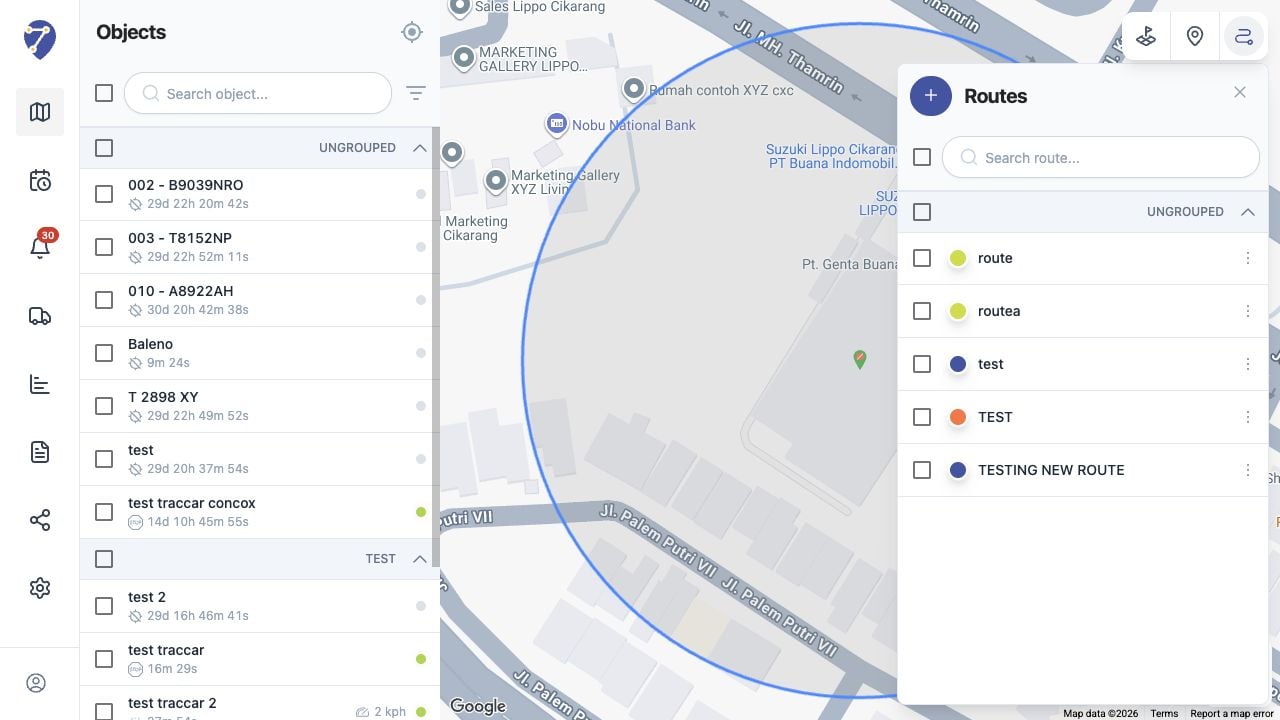
Open Tracking and click Show Routes. The panel lists saved Routes and provides search, selection, creation, and action controls.
 ## Route Information
* Name: the label shown in the Routes panel
* Color: the line color on the map
* Group: the optional Place Group
* Description: additional route information
* From Location and To Location: the route endpoints
* Deviation: the allowed distance from the route in kilometres
## Using Place Groups
The Group field can organize related Routes. The panel displays grouped and Ungrouped items under separate headings.
## Using Routes on the Map
Select the checkbox beside a Route to display its line and endpoint markers. The map focuses the selected Route so the complete path can be reviewed.
## Route Information
* Name: the label shown in the Routes panel
* Color: the line color on the map
* Group: the optional Place Group
* Description: additional route information
* From Location and To Location: the route endpoints
* Deviation: the allowed distance from the route in kilometres
## Using Place Groups
The Group field can organize related Routes. The panel displays grouped and Ungrouped items under separate headings.
## Using Routes on the Map
Select the checkbox beside a Route to display its line and endpoint markers. The map focuses the selected Route so the complete path can be reviewed.