> ## Documentation Index
> Fetch the complete documentation index at: https://docs.jitra.app/llms.txt
> Use this file to discover all available pages before exploring further.
# Creating a Site
> Learn how to create a Site from the Jitra Tracking map and configure its required location fields.
Create a Site when a reusable place or path needs to be displayed and managed in Jitra.
## Creating the Site
1. Open Tracking and click Show Sites.
2. Click the plus button.
3. Select the center point on the map.
4. Enter Name and adjust Radius.
5. Review Group and Description, then click Save.
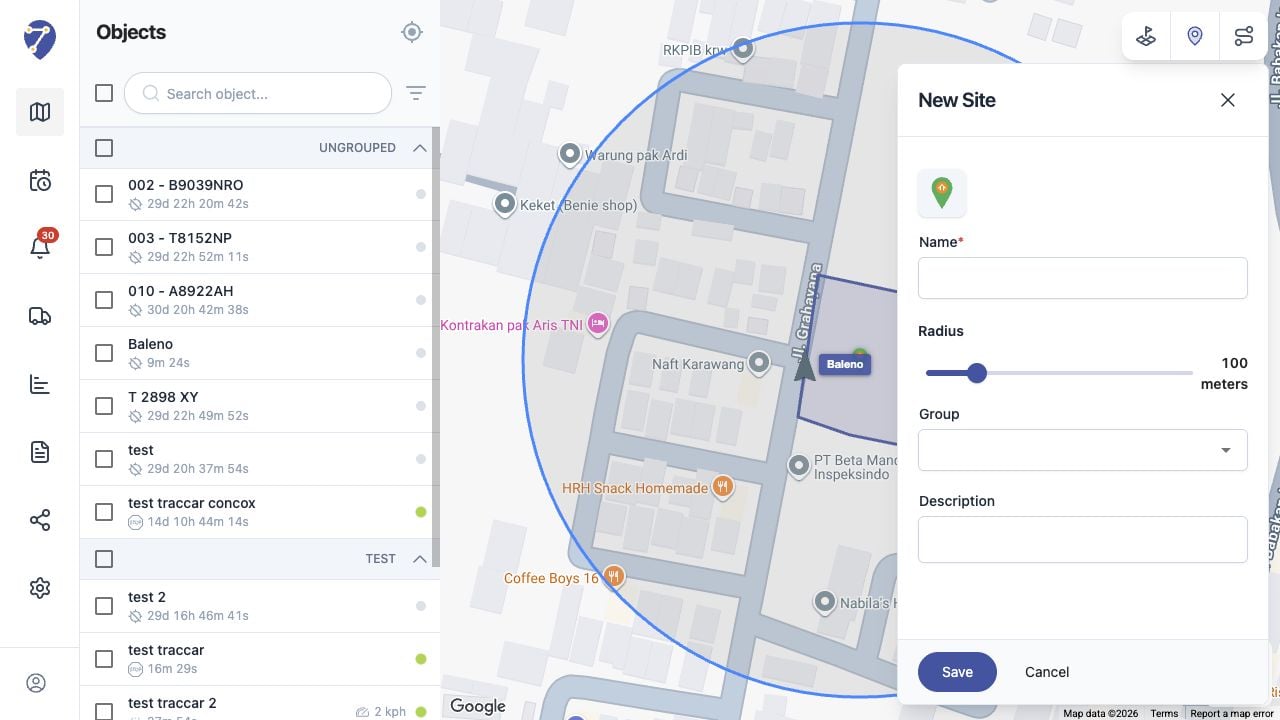 ## Required Information
Name is required. Complete the location or shape controls shown for the Site, then review optional Group and Description fields.
## Reviewing the Map Preview
Confirm the preview is positioned correctly and covers the intended area or path before clicking Save.
## After Saving
The Site appears in the Sites panel. Select its checkbox to display it on the map.
## Required Information
Name is required. Complete the location or shape controls shown for the Site, then review optional Group and Description fields.
## Reviewing the Map Preview
Confirm the preview is positioned correctly and covers the intended area or path before clicking Save.
## After Saving
The Site appears in the Sites panel. Select its checkbox to display it on the map.