> ## Documentation Index
> Fetch the complete documentation index at: https://docs.jitra.app/llms.txt
> Use this file to discover all available pages before exploring further.
# Viewing Report Results
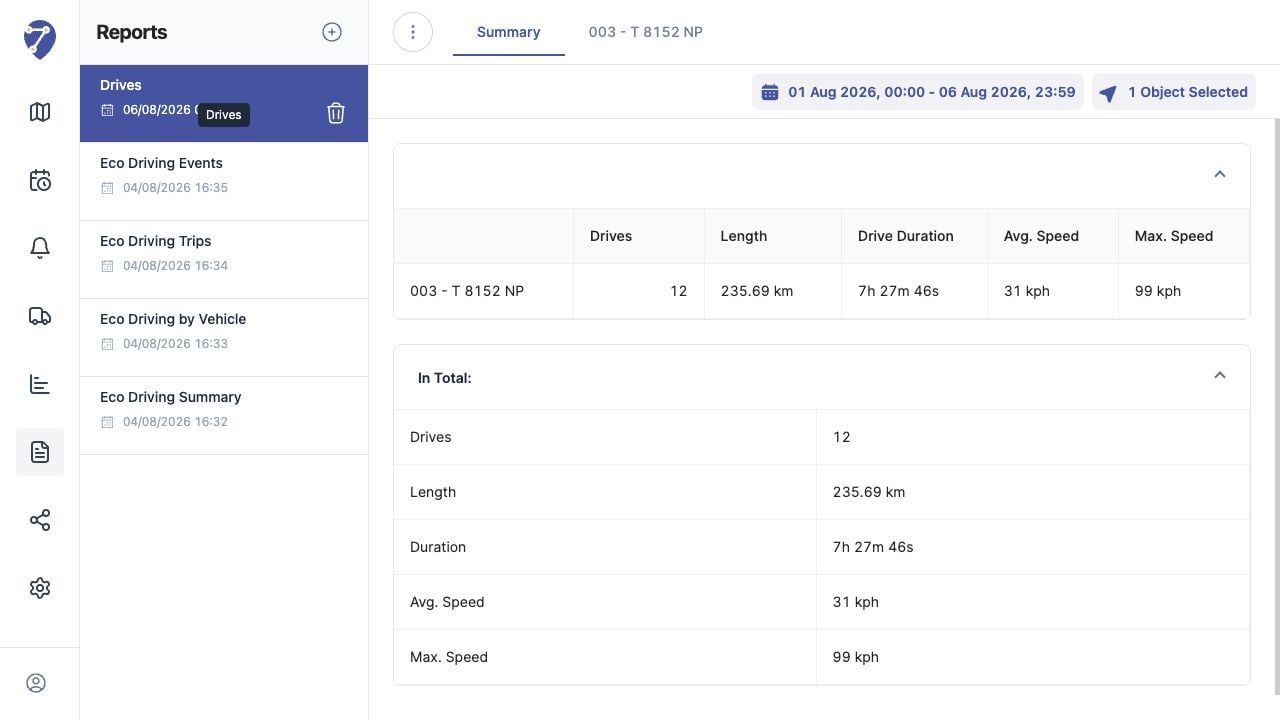
> Report results provide a Summary and, when applicable, a separate tab for each selected Object.
Report results provide a Summary and, when applicable, a separate tab for each selected Object.
## What to Check
* Review the Date Range and Object count at the top.
* Use Summary for totals and comparisons.
* Open an Object tab for detailed rows.
* Expand or collapse result sections as needed.
## Current Jitra Workflow
Select an existing Report from the left panel. The result area displays the saved period, selected Objects, Summary, totals, and detail tabs.
 ## Reviewing the Result
Confirm the saved or displayed information matches the intended Object, users, period, and Organization workflow.
## If the Issue Continues
Review required fields, access permissions, available data, and Organization limits. Contact an Organization administrator or Jitra support when the required control is unavailable.
## Reviewing the Result
Confirm the saved or displayed information matches the intended Object, users, period, and Organization workflow.
## If the Issue Continues
Review required fields, access permissions, available data, and Organization limits. Contact an Organization administrator or Jitra support when the required control is unavailable.