> ## Documentation Index
> Fetch the complete documentation index at: https://docs.jitra.app/llms.txt
> Use this file to discover all available pages before exploring further.
# Managing Sensors on an Object
> Each Object has its own Sensor configuration because available parameters depend on its GPS Device and installation.
Each Object has its own Sensor configuration because available parameters depend on its GPS Device and installation.
## What to Check
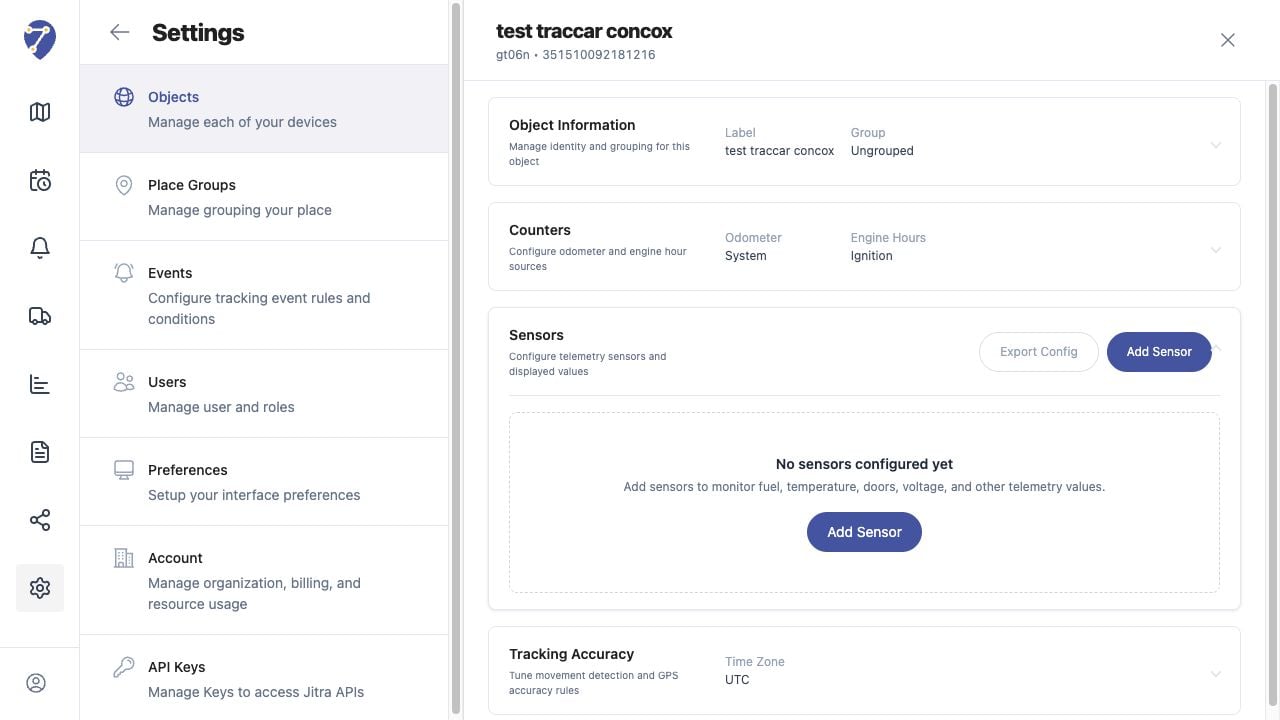
1. Open Settings > Objects.
2. Edit the Object and expand Sensors.
3. Use Add Sensor, Edit, Delete, Import Config, or Export Config.
4. Save and verify values after new telemetry arrives.
## Current Jitra Workflow
The Sensors section lists Sensor Name, Type, Source Parameter, Unit, and action controls.
 ## Reviewing the Result
Confirm the saved or displayed information matches the intended Object, users, period, and Organization workflow.
## If the Issue Continues
Review required fields, access permissions, available data, and Organization limits. Contact an Organization administrator or Jitra support when the required control is unavailable.
## Reviewing the Result
Confirm the saved or displayed information matches the intended Object, users, period, and Organization workflow.
## If the Issue Continues
Review required fields, access permissions, available data, and Organization limits. Contact an Organization administrator or Jitra support when the required control is unavailable.