> ## Documentation Index
> Fetch the complete documentation index at: https://docs.jitra.app/llms.txt
> Use this file to discover all available pages before exploring further.
# Clustering Objects
> Learn how Object Clustering groups nearby markers and makes a crowded Tracking map easier to read.
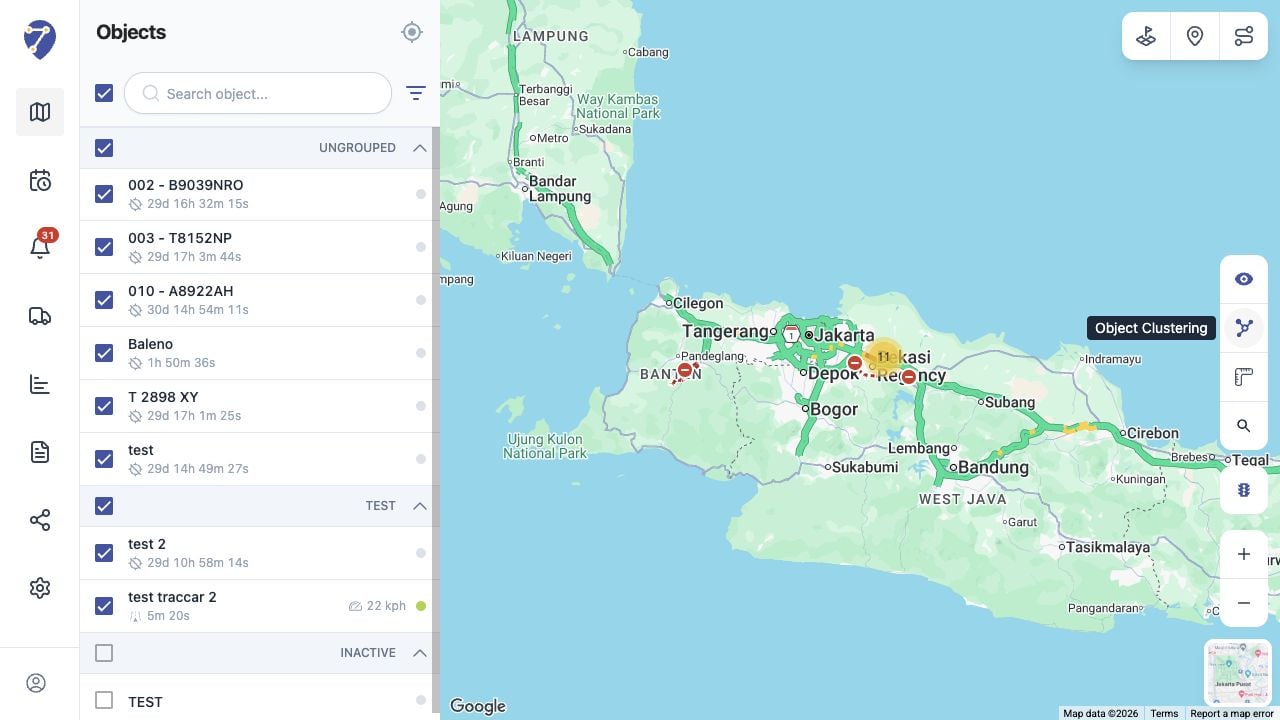
Object Clustering combines nearby Object markers into a numbered cluster when many Objects occupy a small area on the map.
## Enabling Object Clustering
1. Click Object Clustering on the right side of the map.
2. Zoom out to group nearby Object markers.
3. Use search or status filters when you also need to narrow the Objects listed in the panel.
 ## Reading a Cluster
The number inside a cluster shows how many Object markers it contains. The grouping changes automatically when you zoom or move the map.
## Opening Clustered Objects
Zoom in or select a cluster to separate its markers. Continue zooming until the individual Objects can be selected.
## Disabling Object Clustering
Click Object Clustering again to return to individual markers. Follow checkbox selection is independent of clustering.
## Reading a Cluster
The number inside a cluster shows how many Object markers it contains. The grouping changes automatically when you zoom or move the map.
## Opening Clustered Objects
Zoom in or select a cluster to separate its markers. Continue zooming until the individual Objects can be selected.
## Disabling Object Clustering
Click Object Clustering again to return to individual markers. Follow checkbox selection is independent of clustering.