> ## Documentation Index
> Fetch the complete documentation index at: https://docs.jitra.app/llms.txt
> Use this file to discover all available pages before exploring further.
# Focusing Objects on the Map
> Learn how to focus the Tracking map on a selected Object and understand what changes on the page.
Focusing moves the map to an Object so you can inspect its latest reported location without searching across the map manually.
## Focusing from the Objects Panel
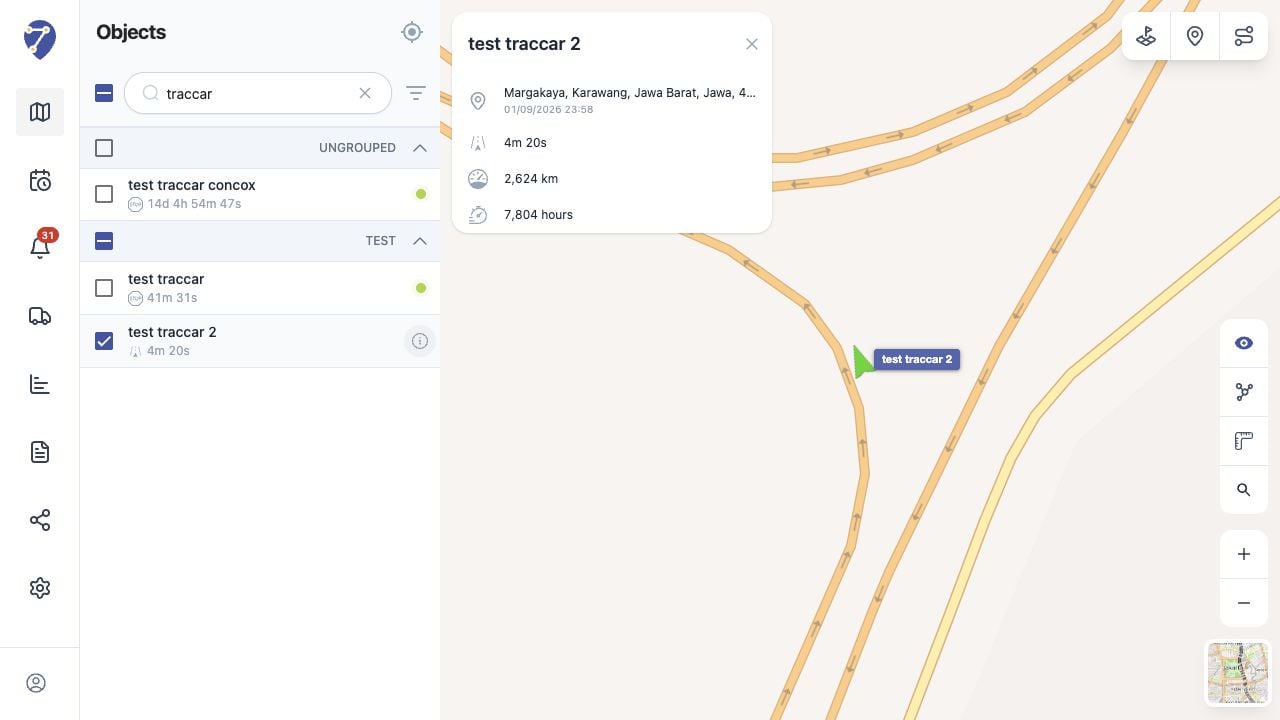
1. Click the Object row or its name. Do not use the checkbox for this action.
2. Jitra changes the current selection to that single Object.
3. The map centers on the Object; use its information button when you also want to open the details panel.
 ## Focusing from the Map
Click an Object marker on the map. Jitra opens the same details panel and places the Object in view.
## When Several Objects Were Selected for Follow
Clicking an Object row replaces the multi-Object Follow selection with that one Object and centers the map on it. Other Object markers remain on the map because checkbox selection does not control marker visibility.
## If the Position Looks Outdated
Check the update time and status in Object details. An Offline Object can only show the last position received by Jitra.
## Focusing from the Map
Click an Object marker on the map. Jitra opens the same details panel and places the Object in view.
## When Several Objects Were Selected for Follow
Clicking an Object row replaces the multi-Object Follow selection with that one Object and centers the map on it. Other Object markers remain on the map because checkbox selection does not control marker visibility.
## If the Position Looks Outdated
Check the update time and status in Object details. An Offline Object can only show the last position received by Jitra.