> ## Documentation Index
> Fetch the complete documentation index at: https://docs.jitra.app/llms.txt
> Use this file to discover all available pages before exploring further.
# Following Object Movement
> Learn how to keep the Tracking map centered on one or more selected Objects while Jitra receives new positions.
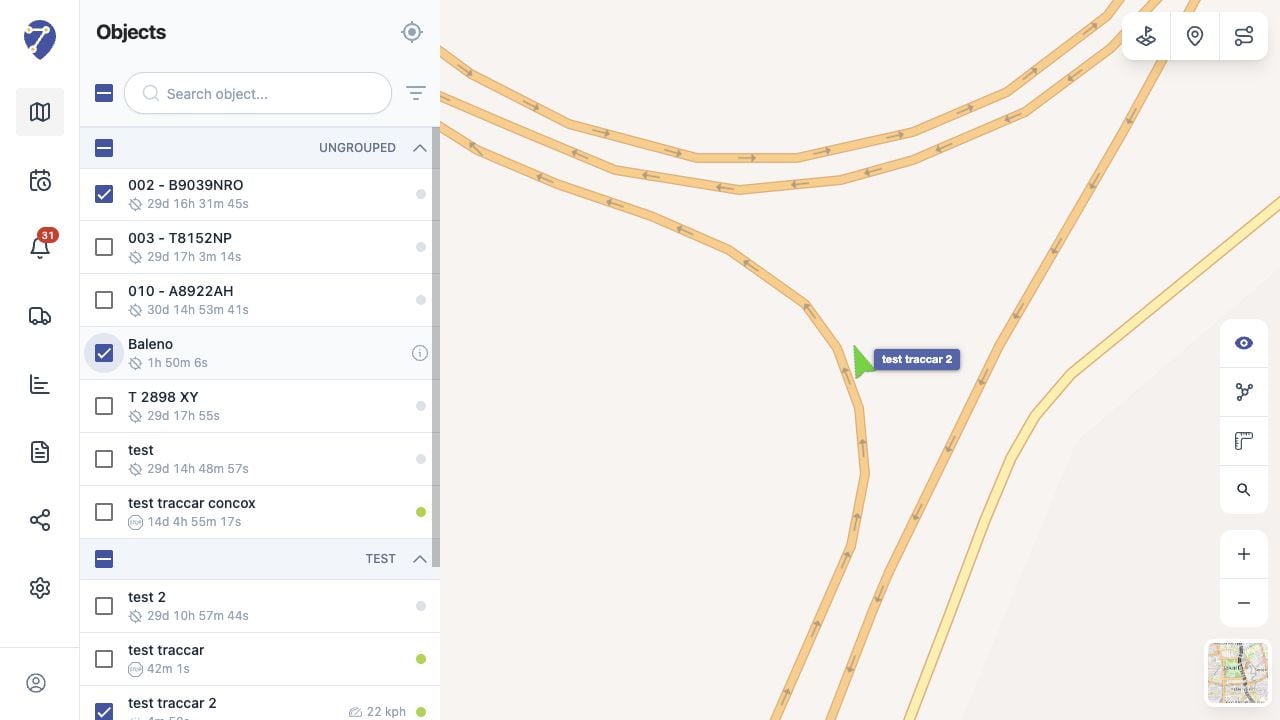
Follow selected object keeps the map centered on the Object or group of Objects selected with checkboxes as new positions are received.
## Selecting Objects to Follow
1. Select the checkbox beside each Object you want to follow.
2. Use a group or master checkbox when you want to include several Objects at once.
3. Click Follow selected object at the top of the Objects panel.
 ## Following One or Several Objects
With one Object selected, the map stays centered on that Object. With several Objects selected, Jitra adjusts the view so the selected Objects remain within the map area as their positions change.
## Switching from Follow to Focus
Click an Object row or name to focus only that Object. This replaces the multi-Object checkbox selection with the focused Object and centers the map on it.
## Stopping Follow Mode
Click Follow selected object again to stop automatic recentering. Clearing checkboxes changes the Follow set; it does not hide Object markers.
## When Movement Does Not Update
Follow mode depends on new GPS data. If the Object is Stopped, Offline, or the GPS Device is not sending positions, the marker may remain in the same location.
## Following One or Several Objects
With one Object selected, the map stays centered on that Object. With several Objects selected, Jitra adjusts the view so the selected Objects remain within the map area as their positions change.
## Switching from Follow to Focus
Click an Object row or name to focus only that Object. This replaces the multi-Object checkbox selection with the focused Object and centers the map on it.
## Stopping Follow Mode
Click Follow selected object again to stop automatic recentering. Clearing checkboxes changes the Follow set; it does not hide Object markers.
## When Movement Does Not Update
Follow mode depends on new GPS data. If the Object is Stopped, Offline, or the GPS Device is not sending positions, the marker may remain in the same location.