> ## Documentation Index
> Fetch the complete documentation index at: https://docs.jitra.app/llms.txt
> Use this file to discover all available pages before exploring further.
# Monitoring Multiple Objects
> Learn how to select and follow several Objects on the Jitra Tracking map at the same time.
Tracking can follow several Objects at the same time while continuing to display the other available Object markers on the map.
## Selecting Multiple Objects for Follow
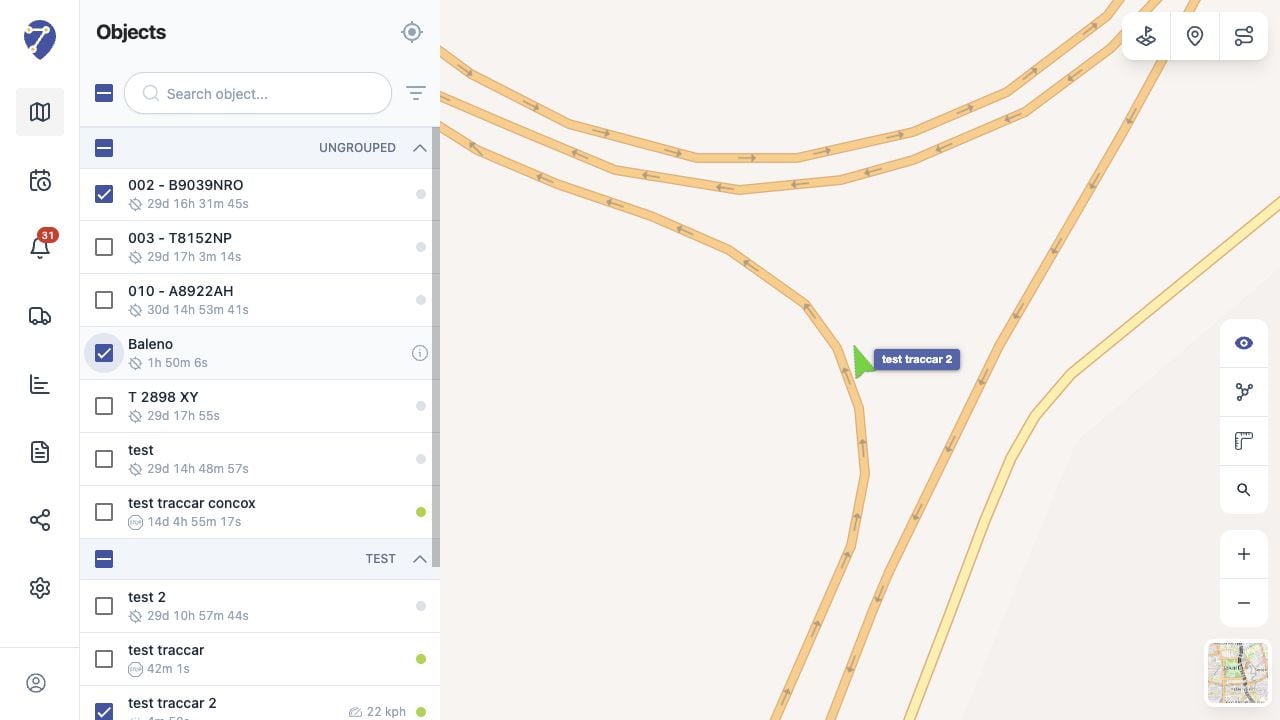
Select the checkbox beside each Object you want Follow selected object to keep in view. Checkbox state defines the Follow set; it does not define which markers are visible.
 ## Using Group and Master Checkboxes
Use a group checkbox to select or clear Objects in that group. Use the checkbox at the top of the panel to select or clear all Objects currently available in the list, then click Follow selected object.
## Working with a Busy Map
Use search or Filter by Status to reduce the Objects you need to select for Follow. Object Clustering can combine nearby markers when the map becomes crowded.
## Focusing One Object
Click an Object row or name to leave the multi-Object Follow context and focus that single Object. Jitra narrows the selection to the focused Object and centers the map on it; other markers remain visible.
## Using Group and Master Checkboxes
Use a group checkbox to select or clear Objects in that group. Use the checkbox at the top of the panel to select or clear all Objects currently available in the list, then click Follow selected object.
## Working with a Busy Map
Use search or Filter by Status to reduce the Objects you need to select for Follow. Object Clustering can combine nearby markers when the map becomes crowded.
## Focusing One Object
Click an Object row or name to leave the multi-Object Follow context and focus that single Object. Jitra narrows the selection to the focused Object and centers the map on it; other markers remain visible.