> ## Documentation Index
> Fetch the complete documentation index at: https://docs.jitra.app/llms.txt
> Use this file to discover all available pages before exploring further.
# Searching and Filtering Objects
> Learn how to find Objects by name and filter the Tracking page by Moving, Stopped, Idle, or Offline status.
Search and status filters help you find the Objects that need attention when an Organization contains many Objects.
## Searching for an Object
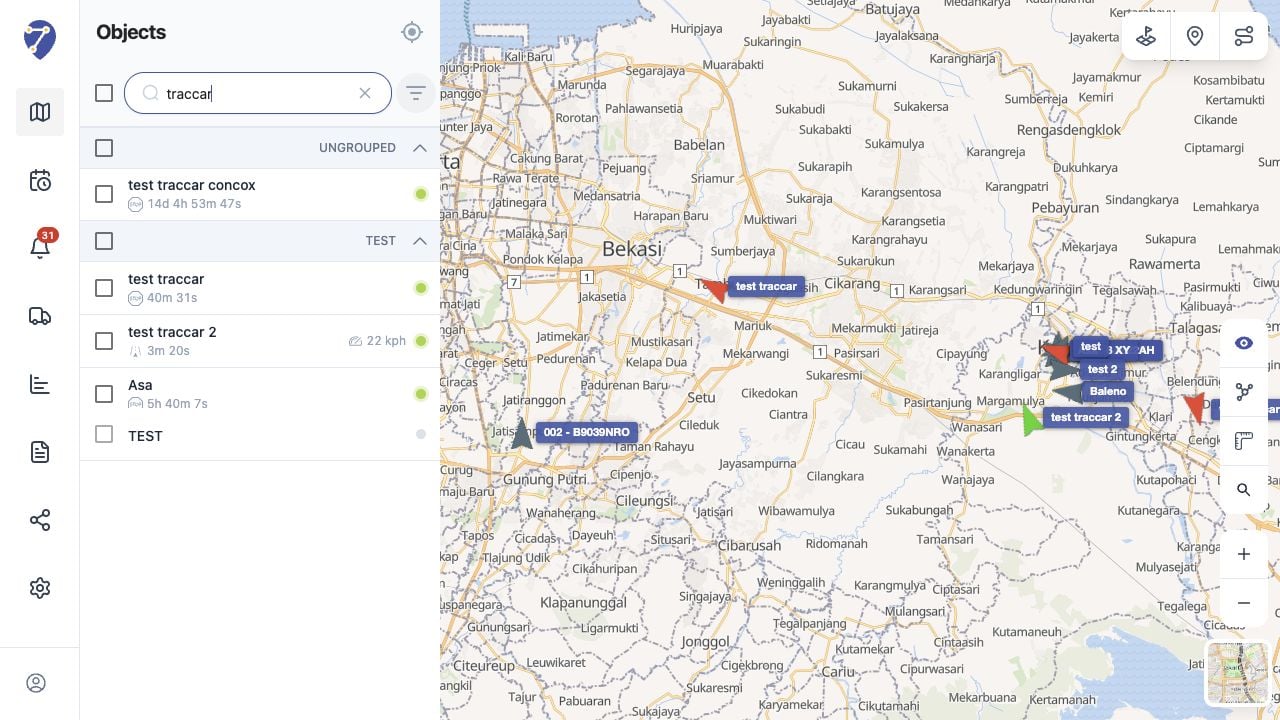
1. Click Search object... in the Objects panel.
2. Enter all or part of the Object name.
3. Review the matching Objects in the filtered list.
 ## Filtering by Status
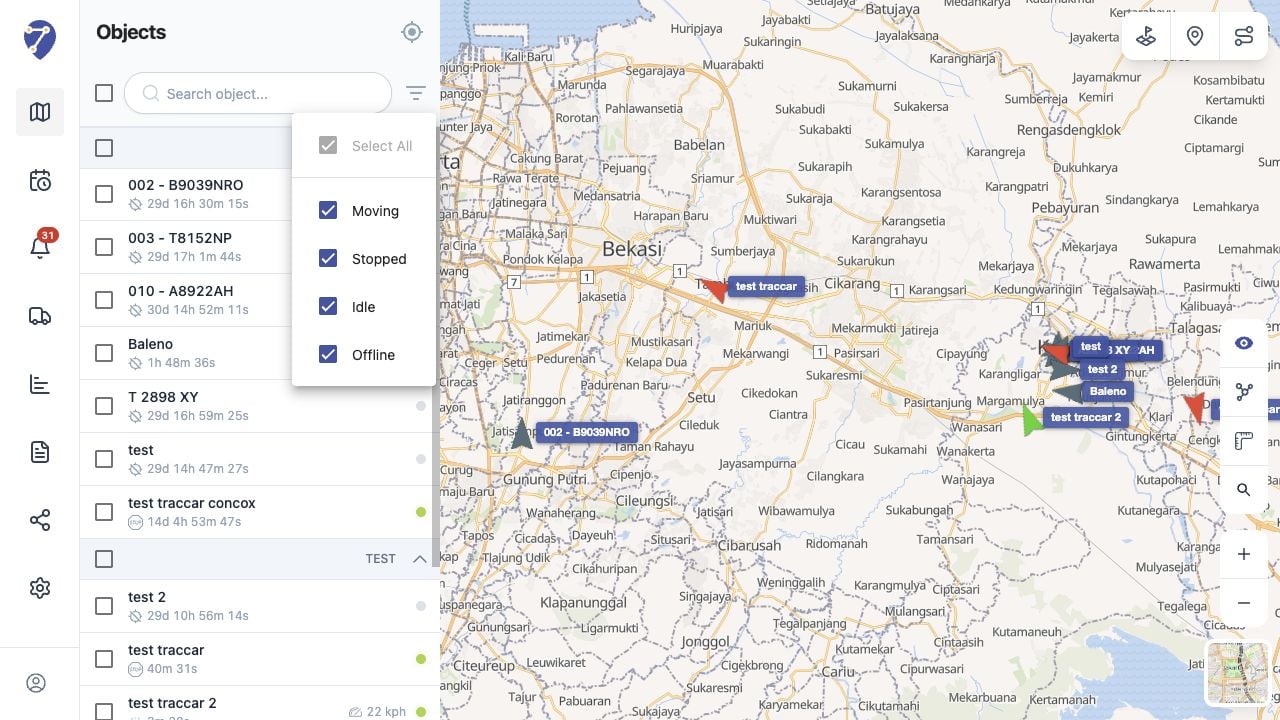
Click Filter by Status beside the search field, then select the statuses you want to display.
* Moving: the Object is travelling
* Stopped: the Object is not moving
* Idle: the Object is stationary while an idle condition is detected
* Offline: Jitra is not receiving current data from the Object
## Filtering by Status
Click Filter by Status beside the search field, then select the statuses you want to display.
* Moving: the Object is travelling
* Stopped: the Object is not moving
* Idle: the Object is stationary while an idle condition is detected
* Offline: Jitra is not receiving current data from the Object
 ## Combining Search and Filters
You can use search and status filters together. Jitra shows only Objects that match both the entered text and the selected statuses.
## Clearing the Results
Remove the search text to restore the full list. Open Filter by Status and select all statuses to remove the status restriction.
## Combining Search and Filters
You can use search and status filters together. Jitra shows only Objects that match both the entered text and the selected statuses.
## Clearing the Results
Remove the search text to restore the full list. Open Filter by Status and select all statuses to remove the status restriction.