> ## Documentation Index
> Fetch the complete documentation index at: https://docs.jitra.app/llms.txt
> Use this file to discover all available pages before exploring further.
# Searching for Locations
> Learn how to use Search Address to find a place and move the Jitra Tracking map to its location.
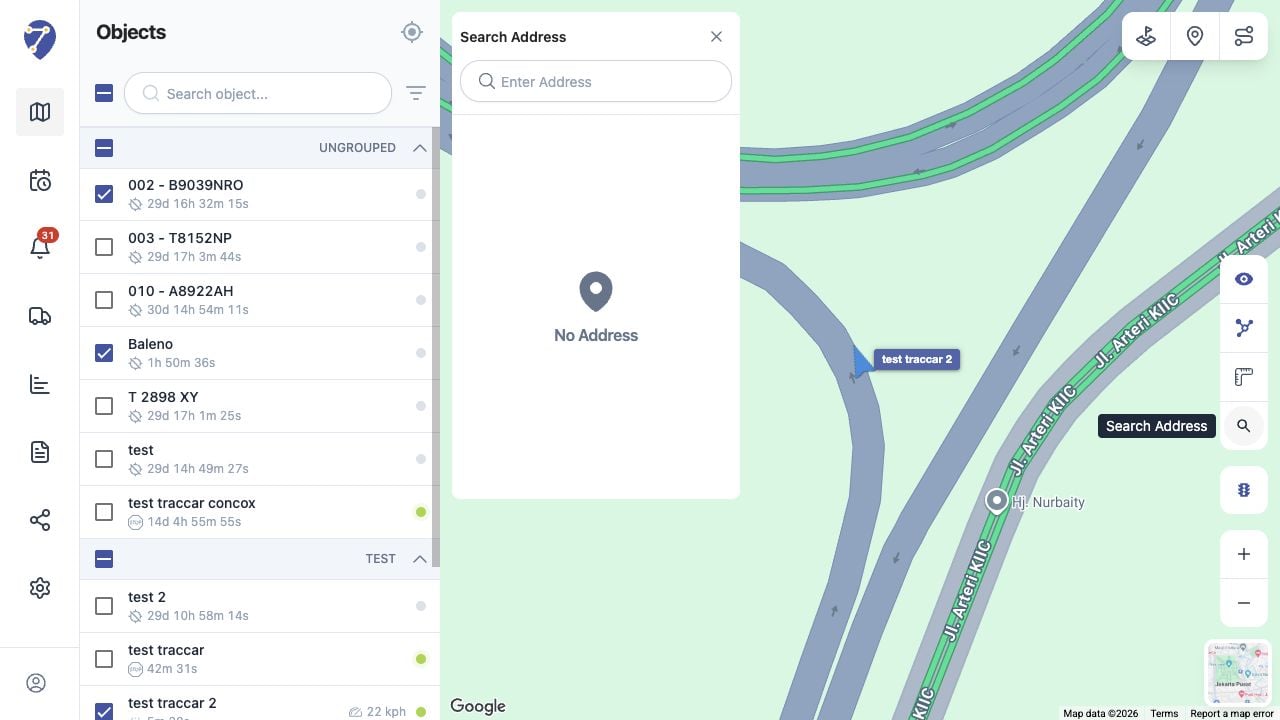
Search Address helps you find a place independently of the Object markers and Follow selection on the Tracking map.
## Opening Search Address
Click Search Address on the right side of the map. A search panel opens over the map.
## Searching for a Place
1. Enter an address, place name, or area in Enter Address.
2. Press Enter to load matching locations.
3. Select the appropriate result to move the map to that location.
 ## Comparing a Location with Objects
Object markers remain available while you search. Use the result to compare a destination, service area, or reference point with the latest Object positions.
## Closing the Search Panel
Click the close button in Search Address. Search results depend on the address data available from the active map service.
## Comparing a Location with Objects
Object markers remain available while you search. Use the result to compare a destination, service area, or reference point with the latest Object positions.
## Closing the Search Panel
Click the close button in Search Address. Search results depend on the address data available from the active map service.