> ## Documentation Index
> Fetch the complete documentation index at: https://docs.jitra.app/llms.txt
> Use this file to discover all available pages before exploring further.
# Understanding Offline Objects on the Map
> Learn how Offline Objects appear on Tracking and how to interpret their last location, status duration, and update time.
An Offline status means Jitra is not receiving current data from an Object. The map can only show the most recent position stored before it went Offline.
## Finding Offline Objects
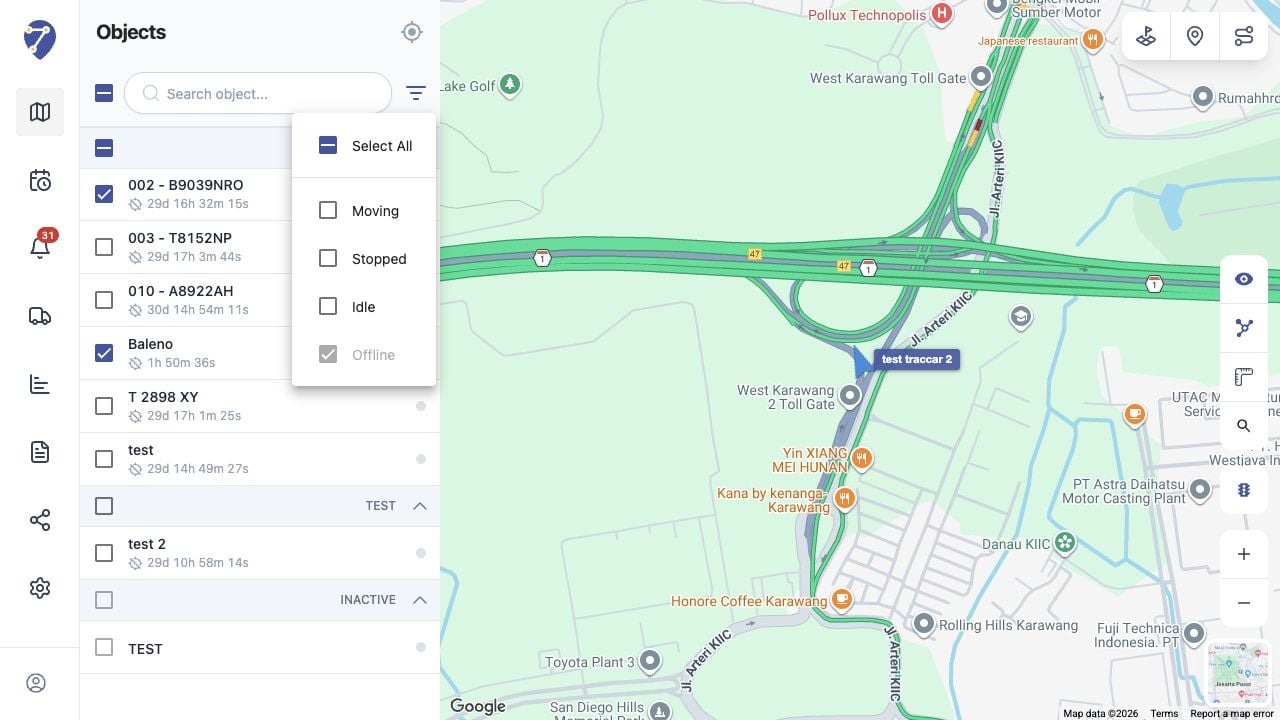
Open Filter by Status and leave Offline selected. This reduces the visible status set so Offline Objects are easier to identify.
 ## Reading Offline Information
The Objects panel shows the Offline indicator and how long the status has continued. Open Object details to check the time and address of the last received position.
## Understanding the Map Position
An Offline marker is a historical last-known position, not a live location. Do not assume the Object is still at that point.
## Why an Object Can Be Offline
* the GPS Device has no power
* mobile or satellite connectivity is unavailable
* the device is disconnected or incorrectly installed
* the device has not sent a new position
Check the GPS Device and its connection when the Offline duration is unexpected.
## Reading Offline Information
The Objects panel shows the Offline indicator and how long the status has continued. Open Object details to check the time and address of the last received position.
## Understanding the Map Position
An Offline marker is a historical last-known position, not a live location. Do not assume the Object is still at that point.
## Why an Object Can Be Offline
* the GPS Device has no power
* mobile or satellite connectivity is unavailable
* the device is disconnected or incorrectly installed
* the device has not sent a new position
Check the GPS Device and its connection when the Offline duration is unexpected.