> ## Documentation Index
> Fetch the complete documentation index at: https://docs.jitra.app/llms.txt
> Use this file to discover all available pages before exploring further.
# GPS Device Is Not Connected
> A GPS Device cannot send usable tracking data until power, network, server, protocol, model, and Device ID settings all match.
A GPS Device cannot send usable tracking data until power, network, server, protocol, model, and Device ID settings all match.
## What to Check
* Check device power and installation.
* Check SIM, data service, APN, and signal.
* Verify server address and port.
* Confirm GPS Device model and unique Device ID in Jitra.
* Review device logs or vendor configuration.
## Current Jitra Workflow
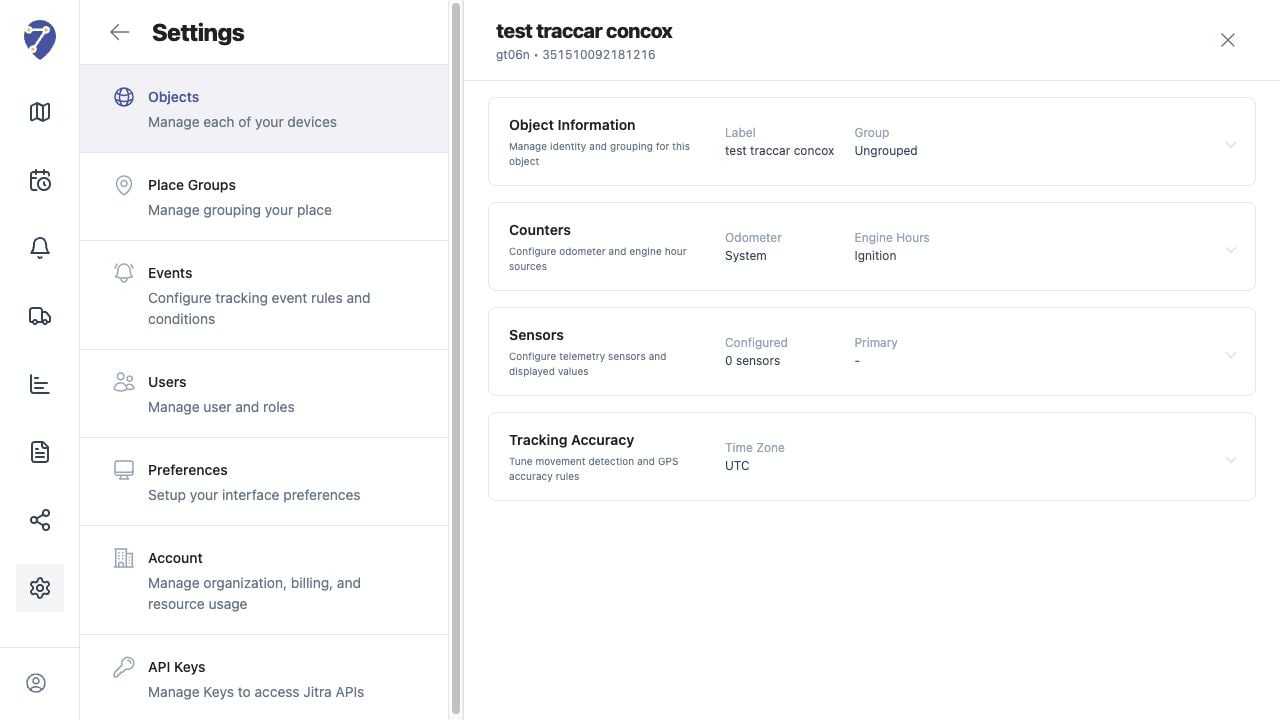
Open Settings > Objects and verify the Object's GPS Device model and Device ID. Wait for a new valid message after correcting device settings.
 ## Reviewing the Result
Confirm the saved or displayed information matches the intended Object, users, period, and Organization workflow.
## If the Issue Continues
Review required fields, access permissions, available data, and Organization limits. Contact an Organization administrator or Jitra support when the required control is unavailable.
## Reviewing the Result
Confirm the saved or displayed information matches the intended Object, users, period, and Organization workflow.
## If the Issue Continues
Review required fields, access permissions, available data, and Organization limits. Contact an Organization administrator or Jitra support when the required control is unavailable.