> ## Documentation Index
> Fetch the complete documentation index at: https://docs.jitra.app/llms.txt
> Use this file to discover all available pages before exploring further.
# Object Is Not Moving on the Map
> A stationary map marker can be caused by no new positions, movement thresholds, filtering, or Follow not being enabled.
A stationary map marker can be caused by no new positions, movement thresholds, filtering, or Follow not being enabled.
## What to Check
* Check the last update time and connection status.
* Confirm the Object is selected and not filtered out.
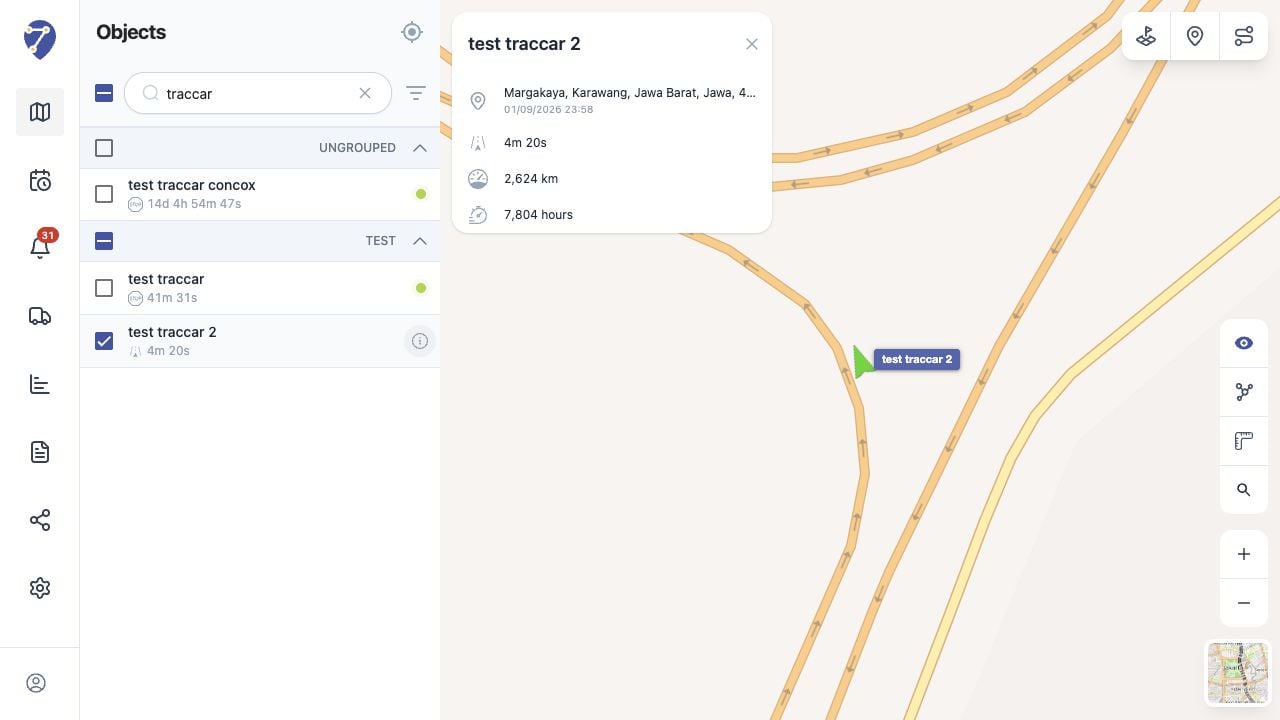
* Use Follow when the map should move with the Object.
* Review Minimum Speed to Detect Movement and Minimum Distance Between Points.
* Check History for new raw points.
## Current Jitra Workflow
Open Object Details on Tracking and compare live information with History before changing thresholds.
 ## Reviewing the Result
Confirm the saved or displayed information matches the intended Object, users, period, and Organization workflow.
## If the Issue Continues
Review required fields, access permissions, available data, and Organization limits. Contact an Organization administrator or Jitra support when the required control is unavailable.
## Reviewing the Result
Confirm the saved or displayed information matches the intended Object, users, period, and Organization workflow.
## If the Issue Continues
Review required fields, access permissions, available data, and Organization limits. Contact an Organization administrator or Jitra support when the required control is unavailable.