
Before you begin
Prepare:- A Jitra account with Organization setup completed, permission to create Objects, and an available Object slot.
- An Android phone with Jitra Tracker installed, location services enabled, and an internet connection.
- Access to the phone to grant location permissions and complete activation.
1. Create the Object and open activation
Choose the platform you use to manage Objects. The Android phone steps that follow are the same for both options.- Web
- Mobile
- Open Settings → Objects → New.
- Select Jitra Tracker App under Tracking Method.
- Enter a recognizable Object Name of up to 100 characters.
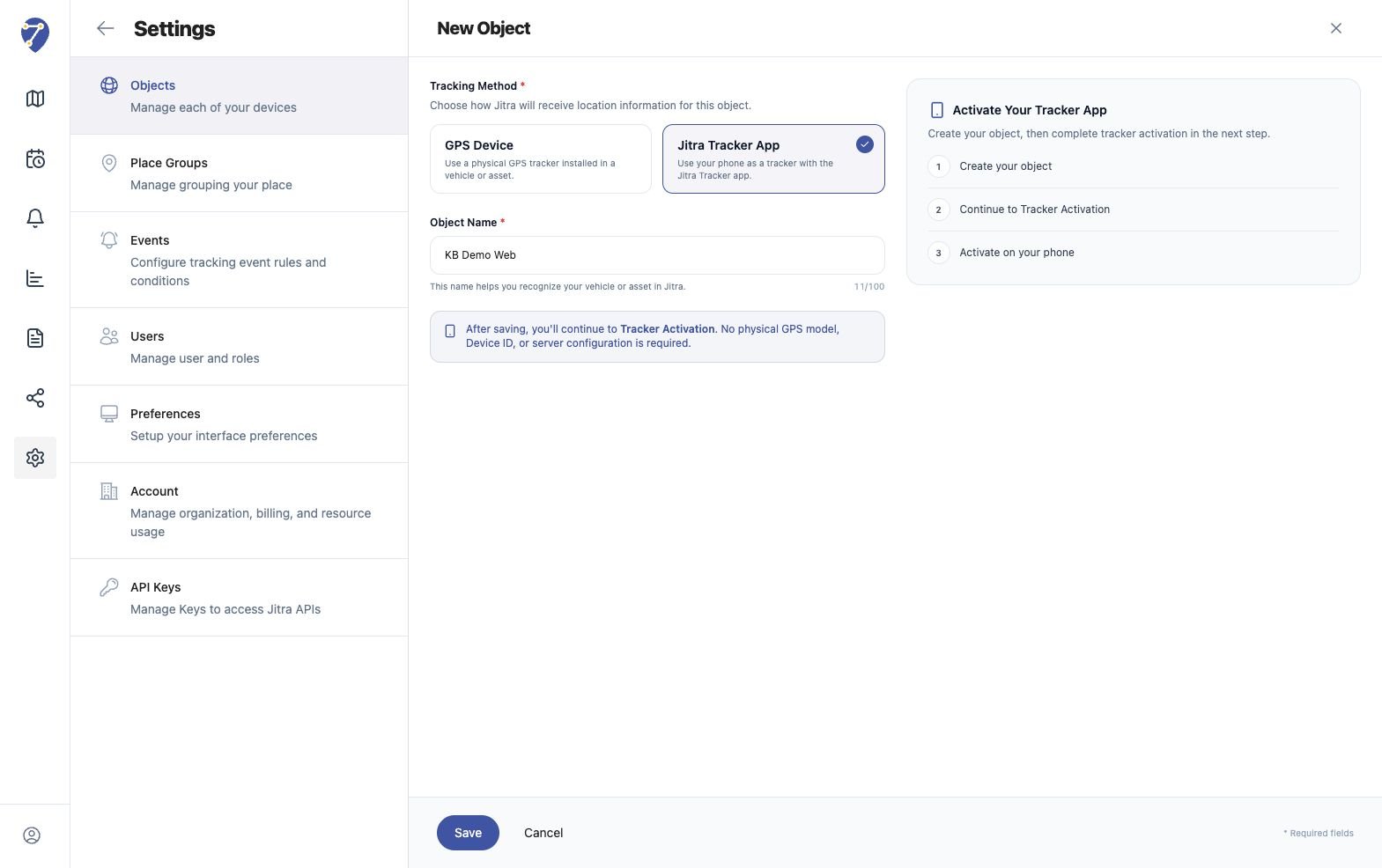
- Click Save. Jitra creates the Object and opens Tracker activation.
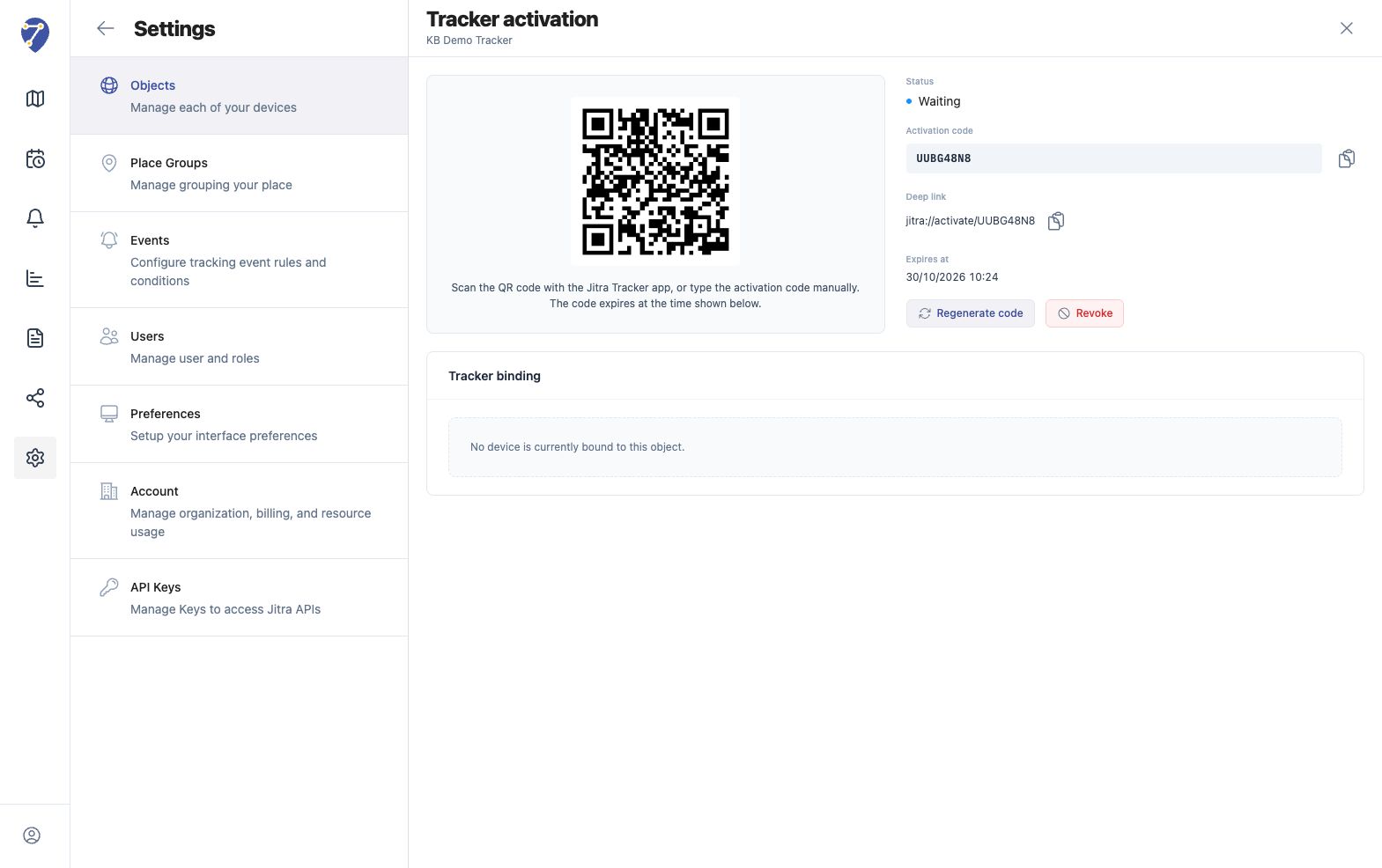
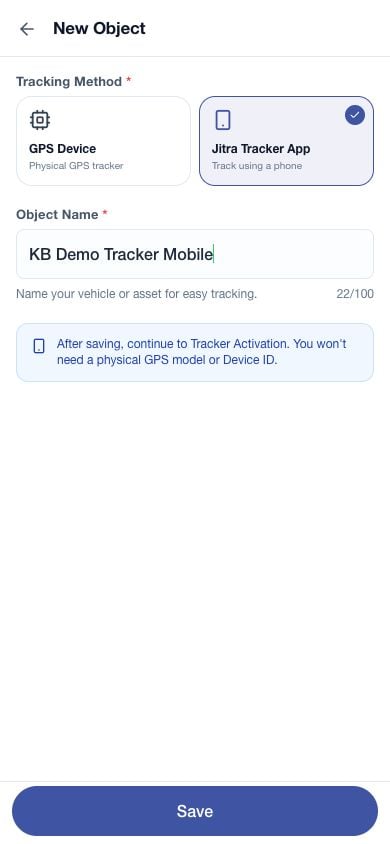
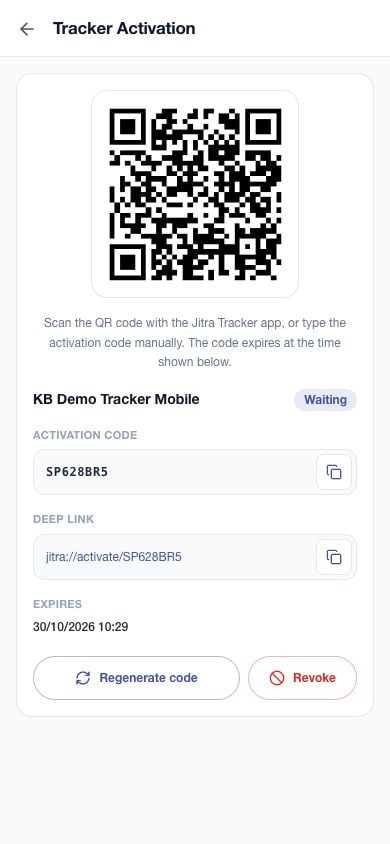
This method does not require a GPS Device Model, Device ID, server address, or port. The codes and QR images in the screenshots are examples and are no longer valid.
2. Activate Jitra Tracker on the phone
Open Jitra Tracker on the Android phone that will send locations. Choose one of these methods:
If Jitra Mobile and Jitra Tracker are on the same phone, copy the code and enter it in Jitra Tracker. You do not need to scan a QR displayed on that same phone.
Check the Object name and Organization on the confirmation screen. Tap Confirm activation only if both are correct. After activation succeeds, the app continues to tracking setup for that Object.
3. Allow location access and start tracking
Activation connects the app to the Object; it does not mean a location has already been sent.- Complete the location permissions requested by Jitra Tracker. If Permission Problem appears, select Allow location access.
- Make sure device location and background location access are available. If no permission prompt appears, open Android settings for Jitra Tracker and check its location permissions.
- When the app is ready, tap Start Tracking.
- Check the tracking status and Last sent. No locations sent yet. means no location has been sent successfully.
4. Check the location in Jitra
Open Tracking in Jitra Web or Jitra Mobile, select the Object you created, and check its location and last update time. If activation succeeded but no location appears, check Jitra Tracker on the phone: tracking has started, location services and permissions are enabled, a connection is available, and location synchronization succeeds. The activation page’s Waiting status and the Object’s location status describe different conditions.If setup is not working
If the problem continues, open Diagnostics in Jitra Tracker and contact Jitra support. Do not include an active activation code in publicly shared material.