
History lets you review stored tracking information for one Object over a selected Period. It combines Trips, stops, Events, and map routes in one view.

Loading Object History

  1. Open History.
  2. Click Period and select a preset or custom date and time range.
  3. Select the required Object.
  4. Click View.

Reading Trips and Stops

The Trips tab lists movement periods and stops in chronological order. Each Trip shows its start and end time and address, travelled distance, duration, and a checkbox for displaying its route. A stop appears between Trips with its location and duration, helping you see when the Object arrived and departed.
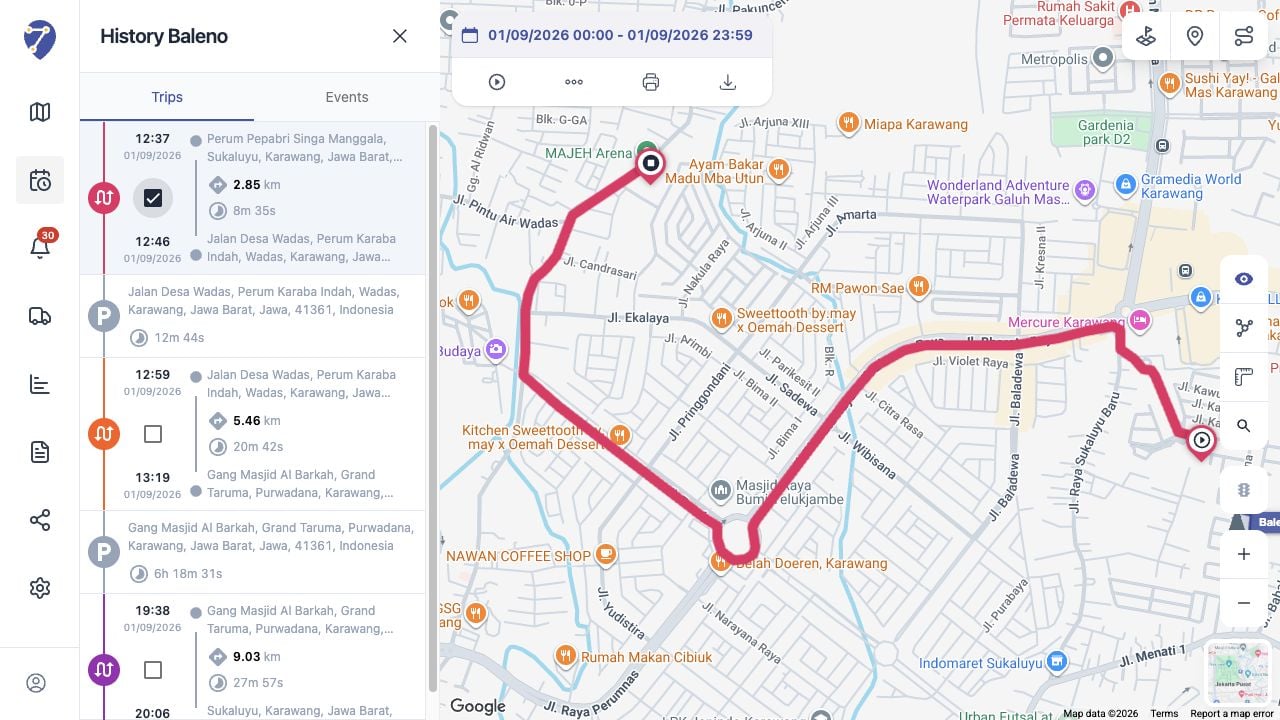
Understanding History in Jitra staging

Understanding Stop and Idle

A stop means Jitra did not recognize movement between two Trips. Idle usually refers to an engine or Sensor condition while the Object is stationary. Idle information requires compatible device or Sensor data and may not appear as a separate item in every History result.

Reviewing Events and Routes

Open Events to review Event messages and timestamps for the same Object and Period. Select a Trip checkbox to draw its route on the map; more detailed playback, raw point, print, and KML controls are available after a route is selected.

When History Results Differ

Trip and stop results depend on stored positions, tracking intervals, GPS quality, missing data, and the Object’s Tracking Accuracy settings. If Trips or stops look incorrect, review the incoming GPS data and movement, stop detection, minimum speed, and idle speed settings.