Opening the Tracking Page
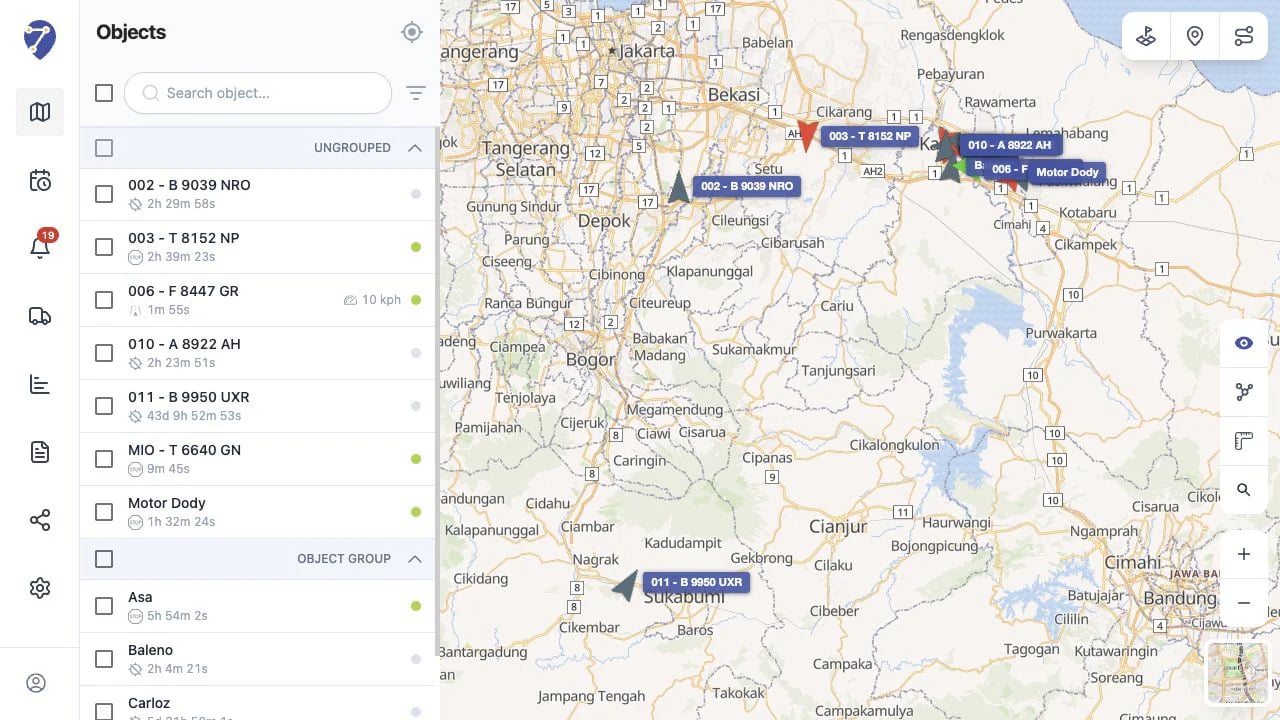
Select Tracking from the main Jitra menu. The Tracking page consists of:- the Objects panel on the left
- the Tracking map as the main area
Finding an Object
Use Search object… to find an Object by its name or label. To narrow the list, click Filter by Status and select Moving, Stopped, Idle, or Offline. Search and filters help you find Objects in the panel; other Objects can remain visible on the map.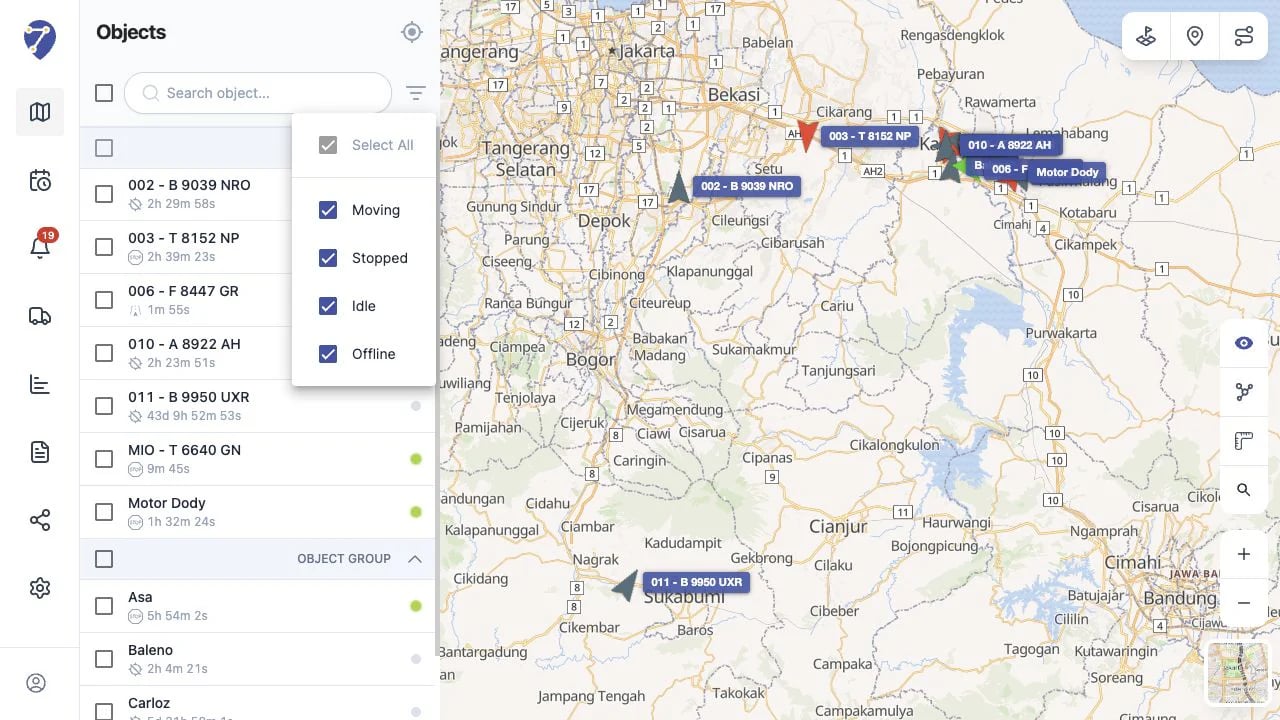
Focusing Objects on the Map
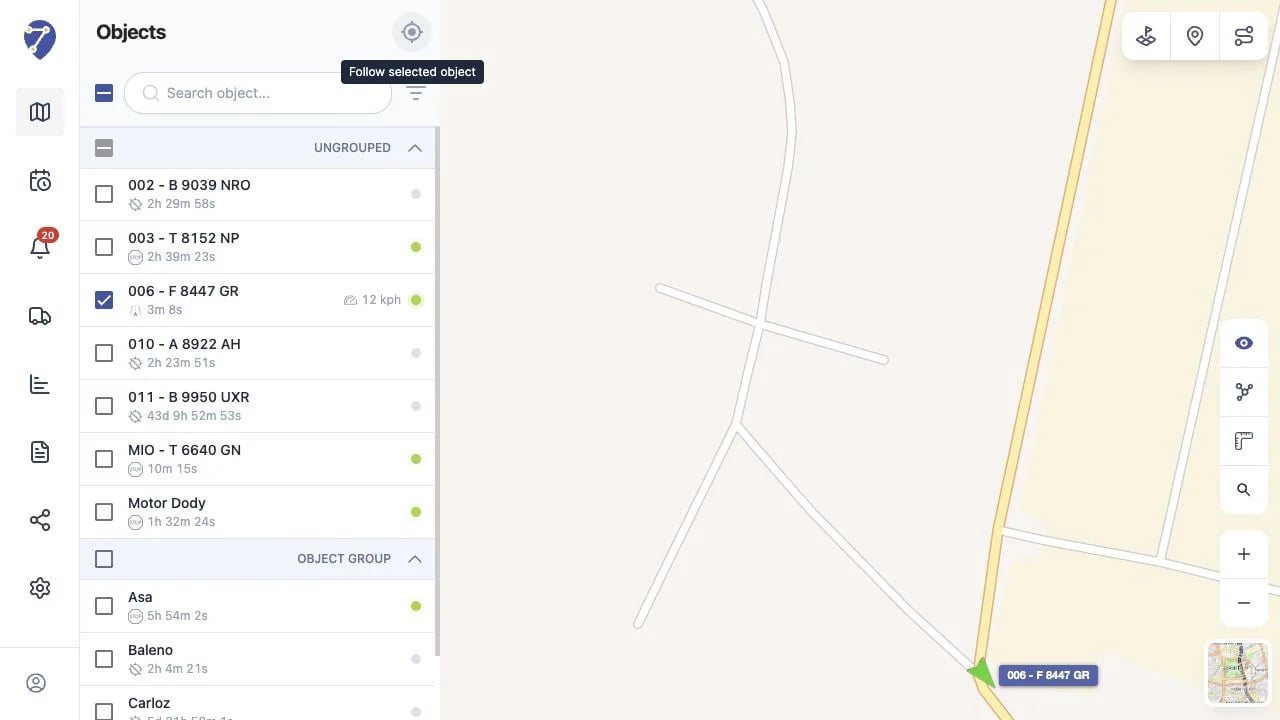
Select one or more Objects that you want to monitor. The checkboxes in the Objects panel determine which Objects are focused; they do not hide other Objects from the map. After selecting an Object:- the map adjusts its visible area
- the selected Object becomes the monitoring focus
- its marker movement is displayed more smoothly
- other Objects remain visible on the map
Viewing Object Details
Click an Object marker on the map or the information button on an Object row to open its details panel. The panel shows the latest available information, such as the last location, update time, status duration, odometer, engine hours, and other telemetry.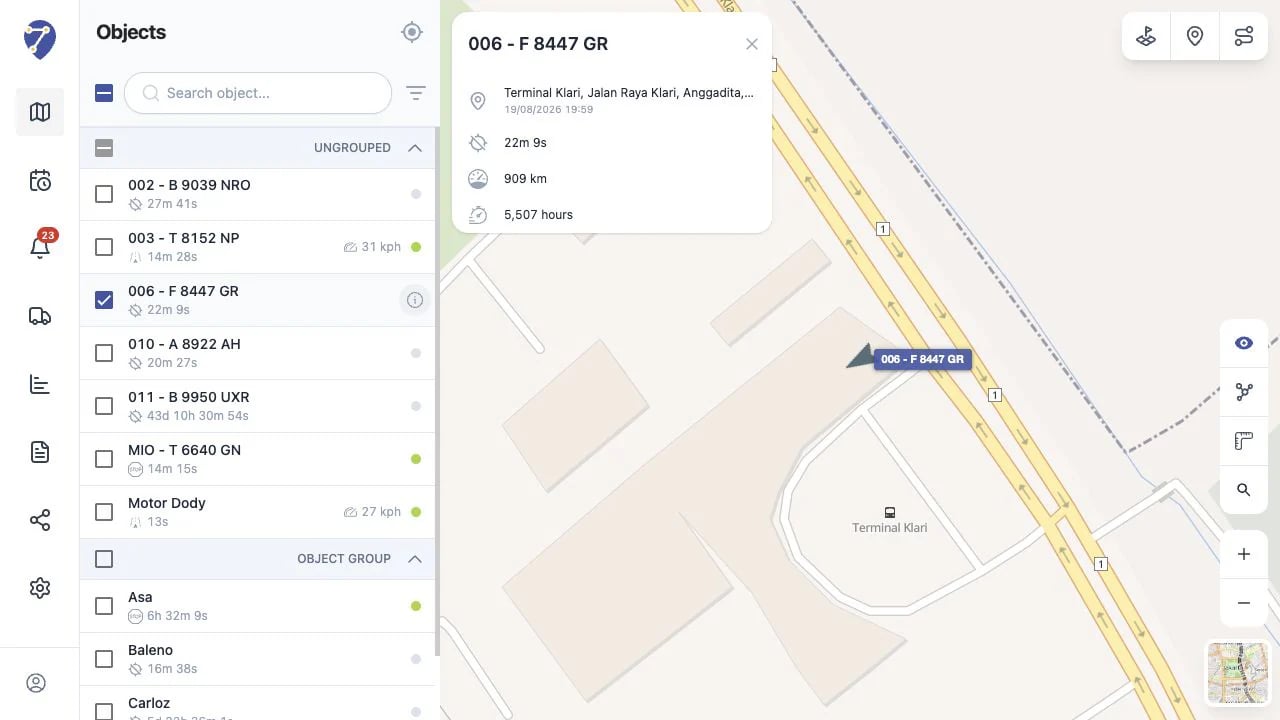
Showing Geofences, Sites, and Routes
Use Show Geofences, Show Sites, or Show Routes in the upper-right corner of the map. Select the resources to display; creating and managing them is covered in the Places category.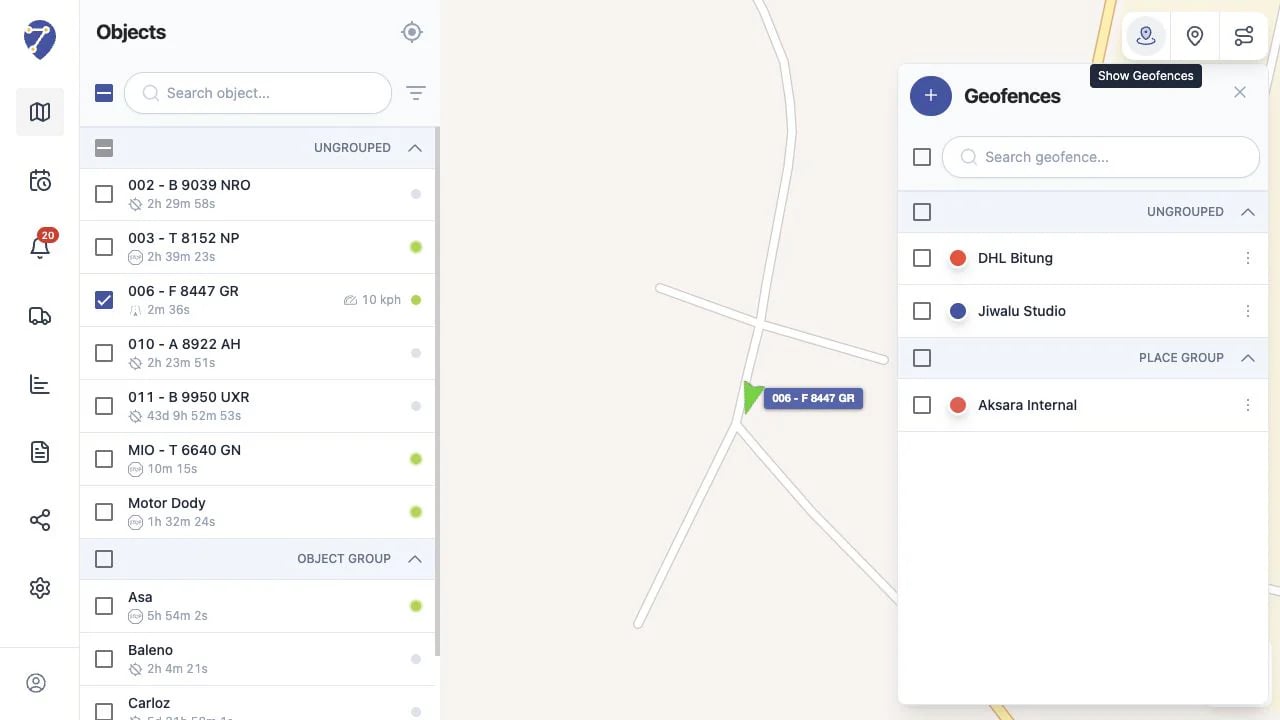
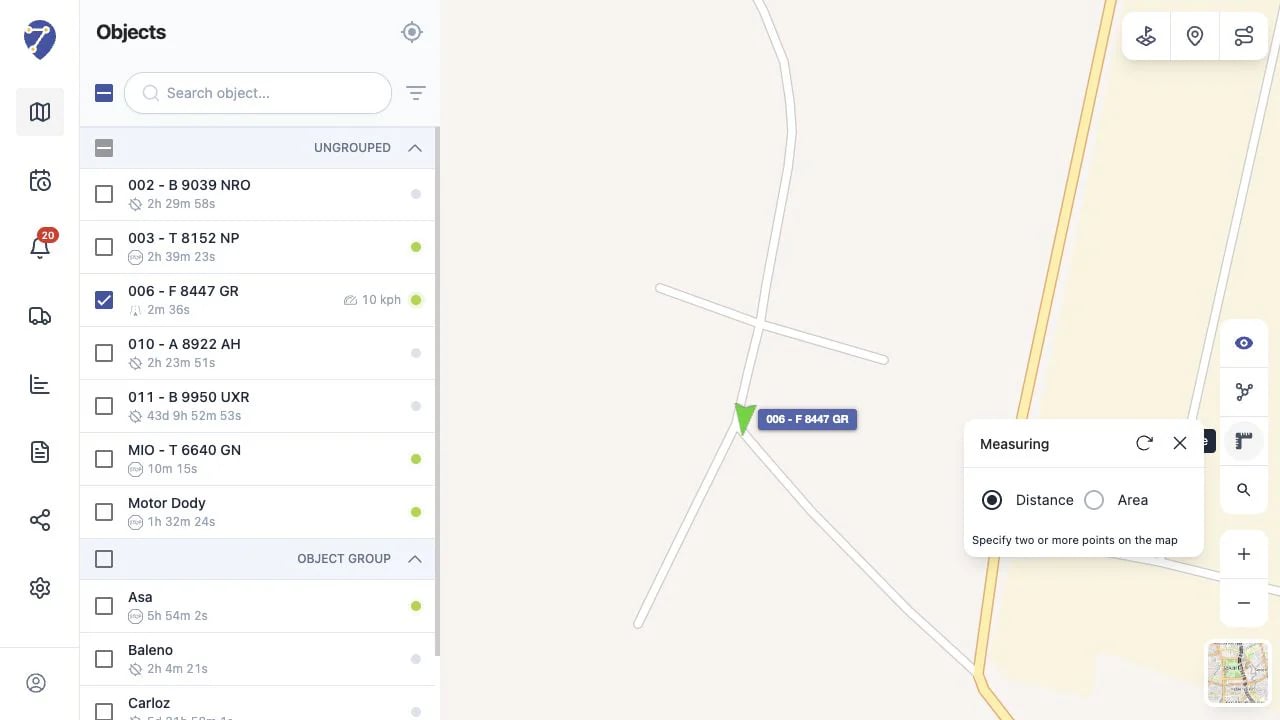
Using Map Tools
The tools on the right side of the map let you hide Object markers, cluster nearby markers, measure distance or area, search for an address, control zoom, and select a map provider.