
- Moving
- Stopped
- Idle
- Offline
How Jitra Determines an Object Status
An Object status is not set manually by the user. Every time a GPS Device sends data, Jitra evaluates several pieces of information, including:- Speed
- GPS position validity
- Ignition status, if available
- The time when the latest data was received
- The history of movement and stopping conditions
Moving
The Moving status indicates that the Object is currently moving. This status is displayed when:- The GPS Device is still connected.
- The reported speed is greater than zero.
- The GPS position is valid.
- A vehicle is currently traveling.
- A motorcycle is making a delivery.
- Heavy equipment is changing position within a work site.
Stopped
The Stopped status indicates that the Object is not moving. This status is displayed when:- The reported speed is zero.
- The Object was previously moving.
- There is no active idle condition.
- A vehicle has been parked.
- A truck has stopped after completing a trip.
- A vehicle has stopped and the ignition is turned off.
Idle
The Idle status indicates that the Object is not moving, but the engine or ignition is still on. This status can only be determined when the GPS Device provides ignition sensor data. The Idle status is displayed when:- The Object is already in a stopped condition.
- The reported speed is zero.
- The ignition sensor indicates ON.
- A vehicle is stationary while the engine remains running.
- A truck is waiting during loading or unloading.
- A vehicle is stopped at a location without turning off the engine.
Offline
The Offline status indicates that Jitra has not received new data from the GPS Device for more than 6 minutes. This may happen when:- The device loses cellular connectivity.
- The device is turned off.
- The device loses its power source.
- The SIM card cannot transmit data.
- The device experiences a connection issue with the Jitra server.
Status Priority
When more than one condition could apply, Jitra displays the status using the following priority:- Offline
- Idle
- Stopped
- Moving
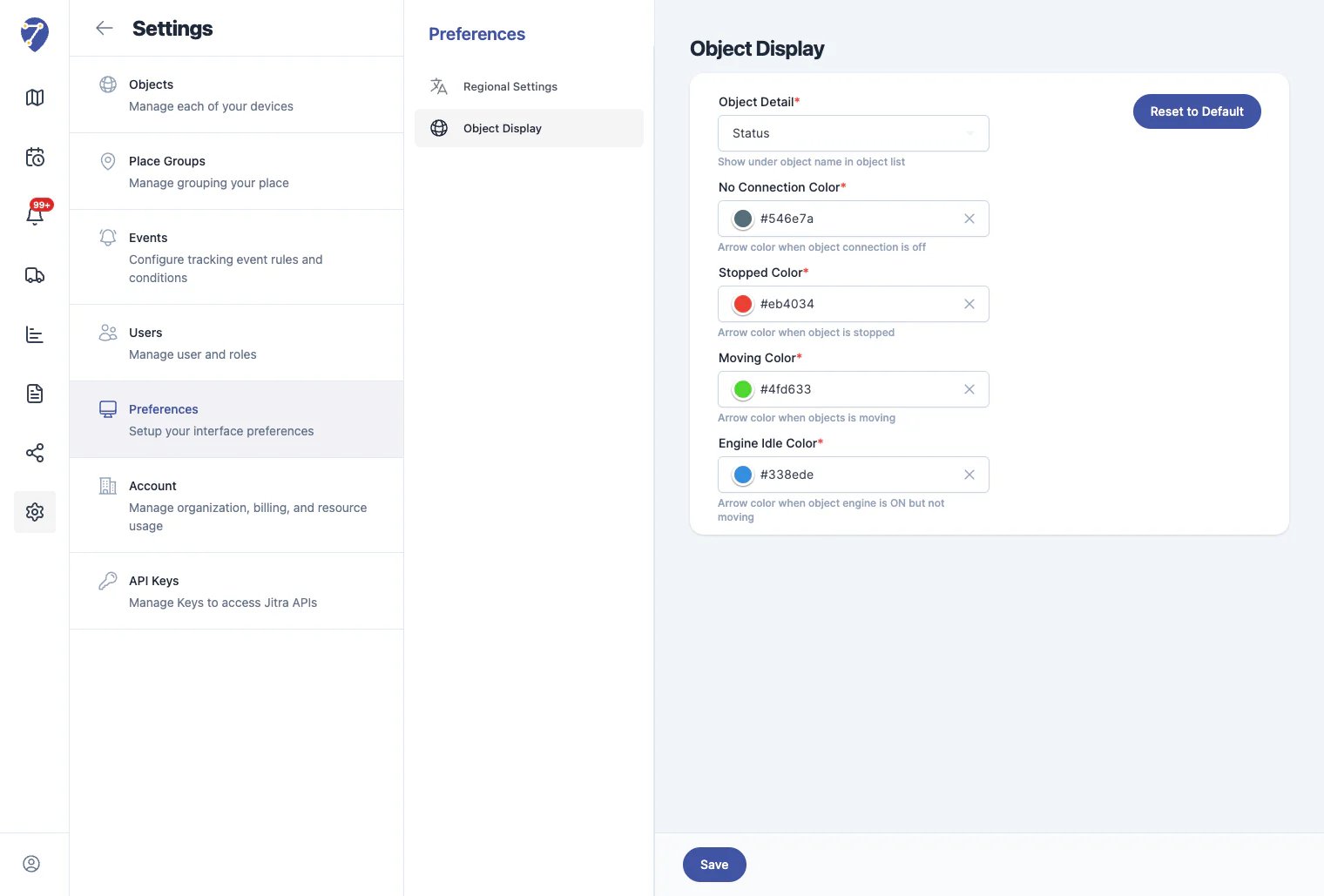
Customizing Object Status Colors
Each Organization can customize the marker colors used to display Object statuses on the map. To change them, open:Settings → Preferences → Object DisplayOn this page, you can define the color for each status based on the needs of your Organization.
Why Does the Status Not Match the Actual Condition?
In some situations, the displayed status may appear different from the actual condition of the vehicle. Common causes include the following.No Recent Data Has Been Received
The status can only be updated when Jitra receives new data from the GPS Device. If the device has not sent recent data, the status continues to use the latest received condition or changes to Offline after the connection timeout is reached.Invalid GPS Position
The Moving status requires a valid GPS position. If the device reports speed while the GPS position is invalid, Jitra may not update the status to Moving.Ignition Sensor Is Not Available
The Idle status requires information from the ignition sensor. If the device does not provide ignition data or the sensor has not been installed correctly, Jitra may not be able to distinguish between Idle and Stopped accurately.Cellular Network Interruption
GPS Devices commonly use cellular networks to send data. When the network is interrupted, data may arrive late, causing the displayed status to lag behind the actual condition of the vehicle.Device Installation or Configuration Issue
Incorrect ignition wiring, power installation, Device ID, server address, or port configuration may prevent data from being received or interpreted correctly.Checking an Object Status
You can view the status of an Object through:- The Object marker on the Tracking page
- The Object list on the Tracking page
- The Object detail information