
Opening the Tracking Page
Select Tracking from the main Jitra menu. The page opens with the Objects panel on the left and the map in the main area.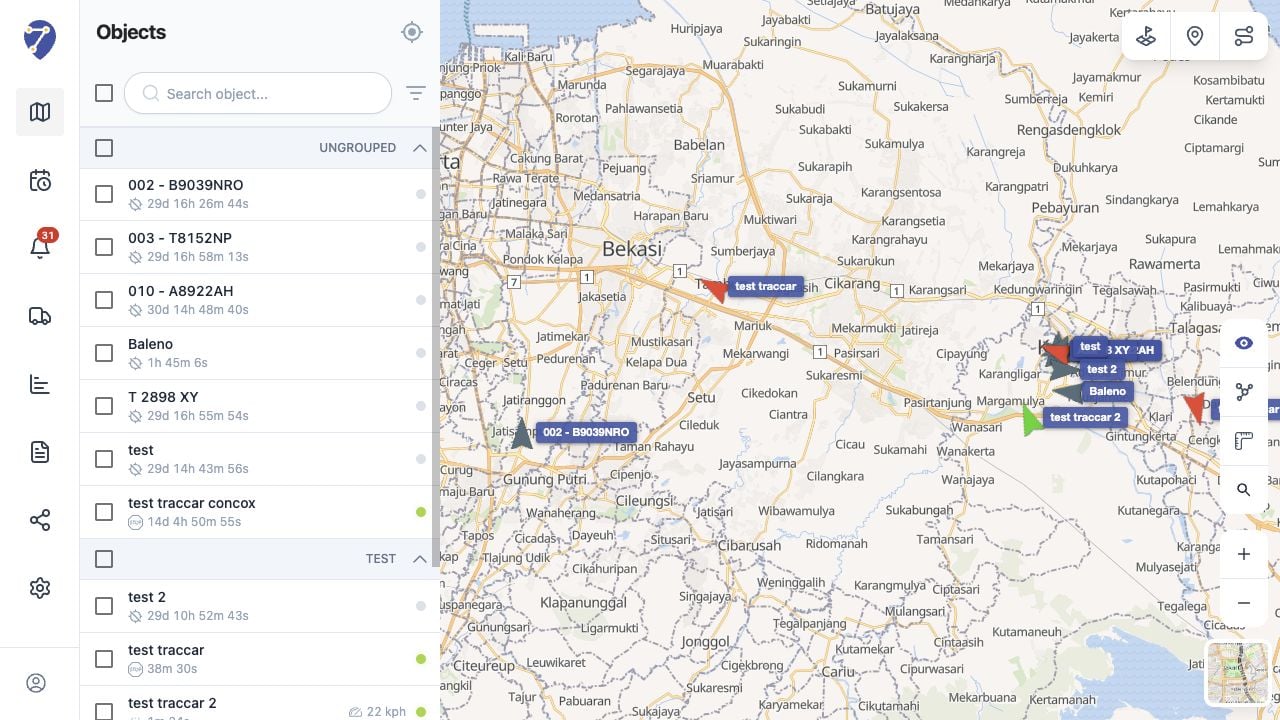
Understanding the Objects Panel
The Objects panel lists Objects by group. Each row can show the Object name, status duration, latest speed when available, and a colored status indicator. The checkbox beside an Object adds it to the set used by Follow selected object. It does not show or hide that Object on the map. Group and master checkboxes select several Objects for Follow at once.Understanding the Map
Available Objects appear as markers with their names even when their Follow checkboxes are not selected. Click an Object row or marker to focus that single Object, or use the controls around the map to display resources and change how the map is presented.Map Controls
- Show Geofences, Show Sites, and Show Routes
- Hide objects and Object Clustering
- Measure and Search Address
- Traffic when Google Maps is active
- zoom controls and the Maps selector