
Recommended Configuration
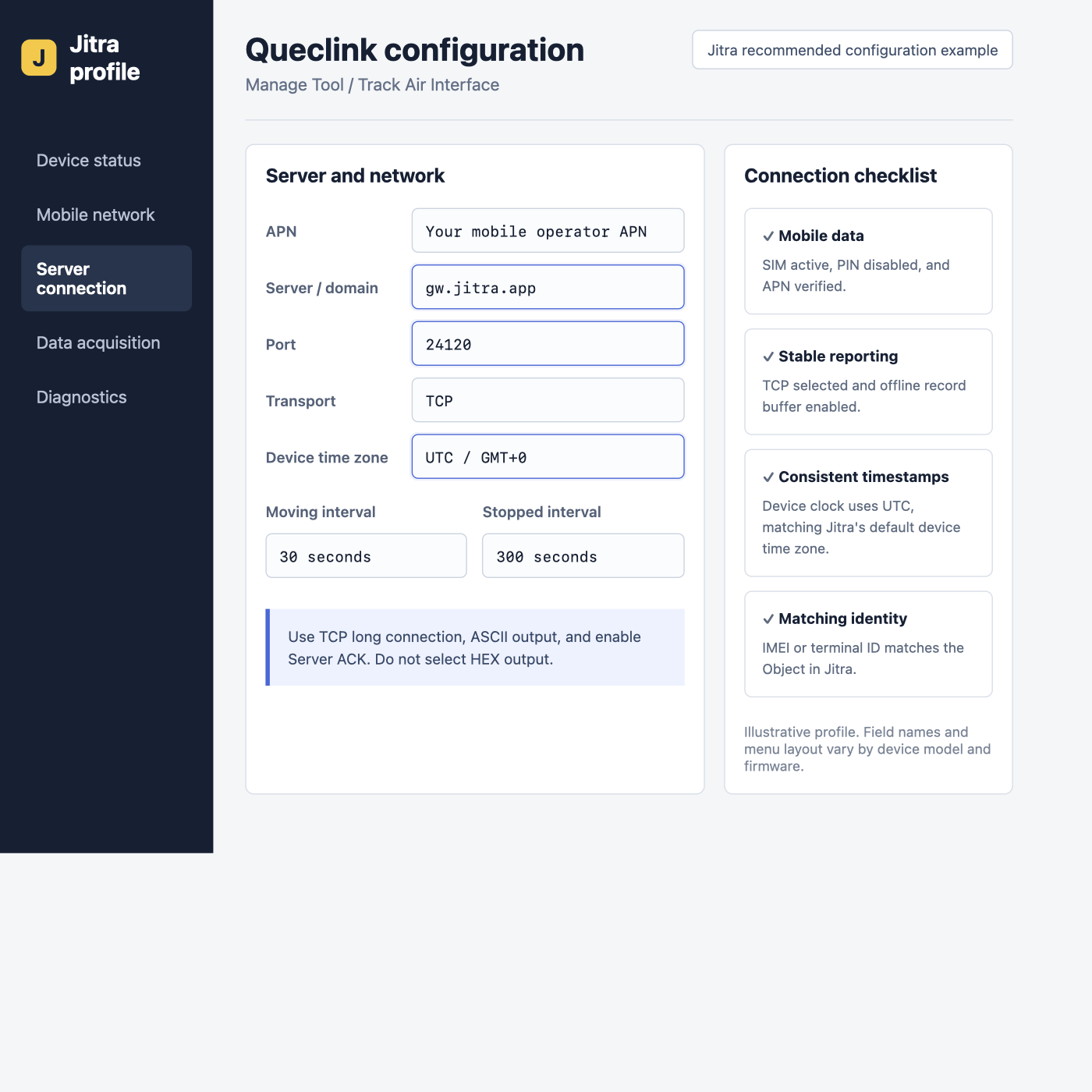
Illustrative Jitra profile. Confirm the actual fields in the Manage Tool or manual for your Queclink model.
Configure with Manage Tool
1
Load the model profile
Connect the device and open the Manage Tool version intended for the exact model. Read the existing parameters before changing them.
2
Configure the network
Enter the SIM APN, username, and password as supplied by the mobile operator.
3
Configure the backend
Set the primary server to
gw.jitra.app and port to 24120. Select TCP long connection, ASCII, and enable Server ACK.4
Configure reporting and time
Set the device to UTC / GMT+0. Use 30 seconds while moving and 300 seconds while stopped as a balanced starting profile.
5
Save and read back
Write the parameters, restart the tracker, and read them back to verify the active profile.
Verify in Jitra
Create the Object in Settings > Objects > New, select the exact Queclink model, and enter its IMEI. Confirm recent data on Tracking and check that buffered records arrive after reconnection.Official References
Some model manuals and Manage Tool downloads require a Queclink Resource Center account. Use the document version that matches the device model and firmware.