
The Routes panel controls which saved Routes are visible on the Tracking map.

Opening the Routes Panel

Open Tracking and click Show Routes. Use Search route… to find an item by name.

Showing a Route

Select the checkbox beside a Route to display its line and endpoint markers. The map focuses the selected Route so the complete path can be reviewed.
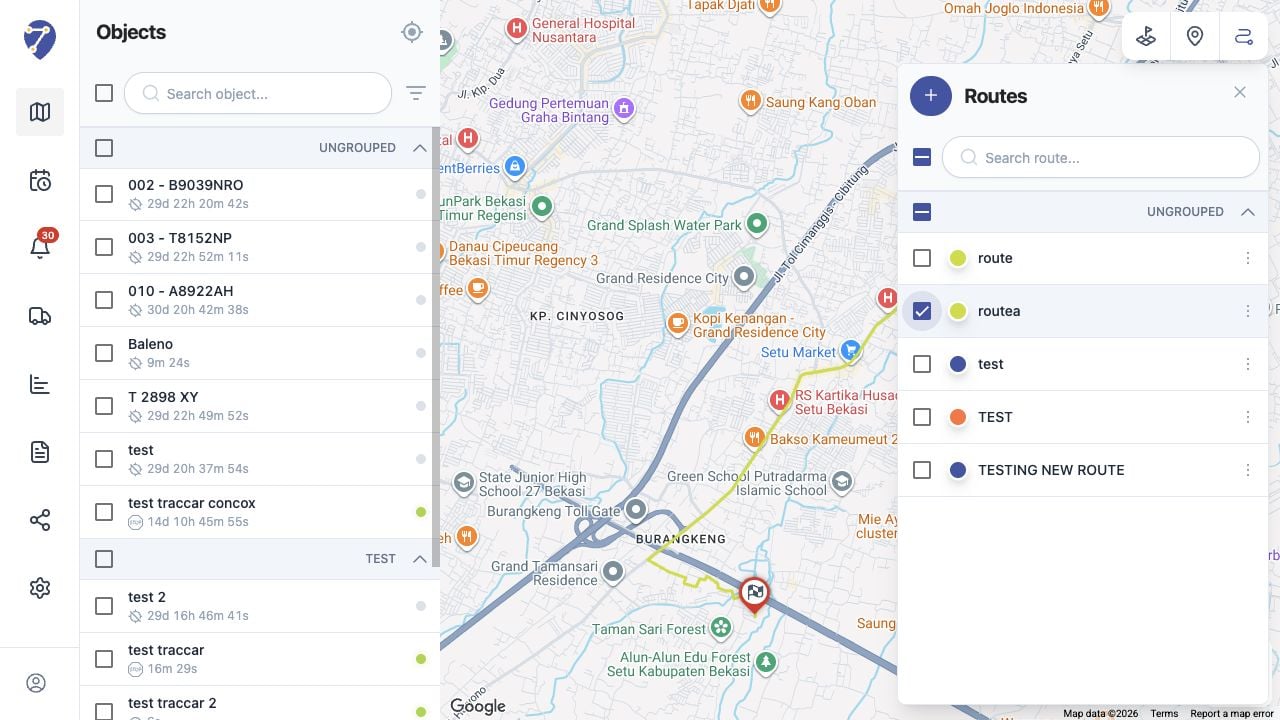
Showing Routes on the Tracking Map in Jitra staging

Showing Multiple Routes

Select several item checkboxes or use a group checkbox. The main checkbox indicates whether all, some, or none of the available Routes are selected.

Hiding Routes

Clear an item checkbox to hide it, or clear the main checkbox to hide every selected Route. This changes the current map display and does not delete saved data.